

- Audience: security engineers, IT managers and CISOs who have a completed scan and need to turn it into fixed vulnerabilities
- Applies to:
app.aliengate.io— Infrastructure Security → Websites & IPs / Vulnerability Scanner, and Actions & Intel → Issue Tracker / Report Center - Time to complete: ~20 minutes to triage a first scan; remediation time depends on the findings
- Follows on from: Article 01 — How to Run a Vulnerability Assessment
About the screenshots. This article was captured with the AlienGate interface set to Japanese. Every label is given in English first with the Japanese in brackets — for example All Vulnerabilities (すべての脆弱性) — so you can follow along in either language. Use the language switcher in the top bar to change the interface. A full label glossary is at the end of the article.
What you will end up with
By the end of this guide you will have:
- a scan result you have actually read, not just counted,
- each finding judged on its evidence — the real request and response the scanner captured — rather than on its title,
- the findings that matter moved into the Issue Tracker, assigned to a person, with a remediation checklist against them,
- at least one vulnerability walked all the way to Fixed and confirmed by a re-scan,
- a bilingual PDF report you can hand to management or an auditor,
- a lower Attack Surface Score than you started with.
The loop this article covers
Scan finishes
   ↓
Read the asset picture      Websites & IPs → Attack Surface Score, per-asset drawer
   ↓
Triage new assets           Approve or dismiss what passive recon discovered
   ↓
Read the findings           Vulnerability Scanner → All Vulnerabilities → evidence per finding
   ↓
Move to Issue Tracker       Actions & Intel → Issue Tracker
   ↓
Assign · remediate · verify Work the AI remediation checklist, tick each step
   ↓
Mark Fixed
   ↓
Re-scan to confirm          Same configuration as the original scan
   ↓
Download the report         Report Center → English or Japanese PDF
The important thing about this loop is the last two steps. A finding you marked fixed but never re-scanned is a finding you believe is fixed. AlienGate is built to make you prove it — the Issue Tracker will not let you set a finding to Fixed until you have confirmed every remediation step.
Step 1 — Confirm the scan finished and pick it
Go to Infrastructure Security → Vulnerability Scanner (app.aliengate.io/dashboard/vulnerability-assessment).
The Scan History (スキャン履歴) tab shows every scan with its status; a finished run reads Complete (完了). Once it does, switch to the All Vulnerabilities (すべての脆弱性) tab and choose the run from the scan selector at the top left.
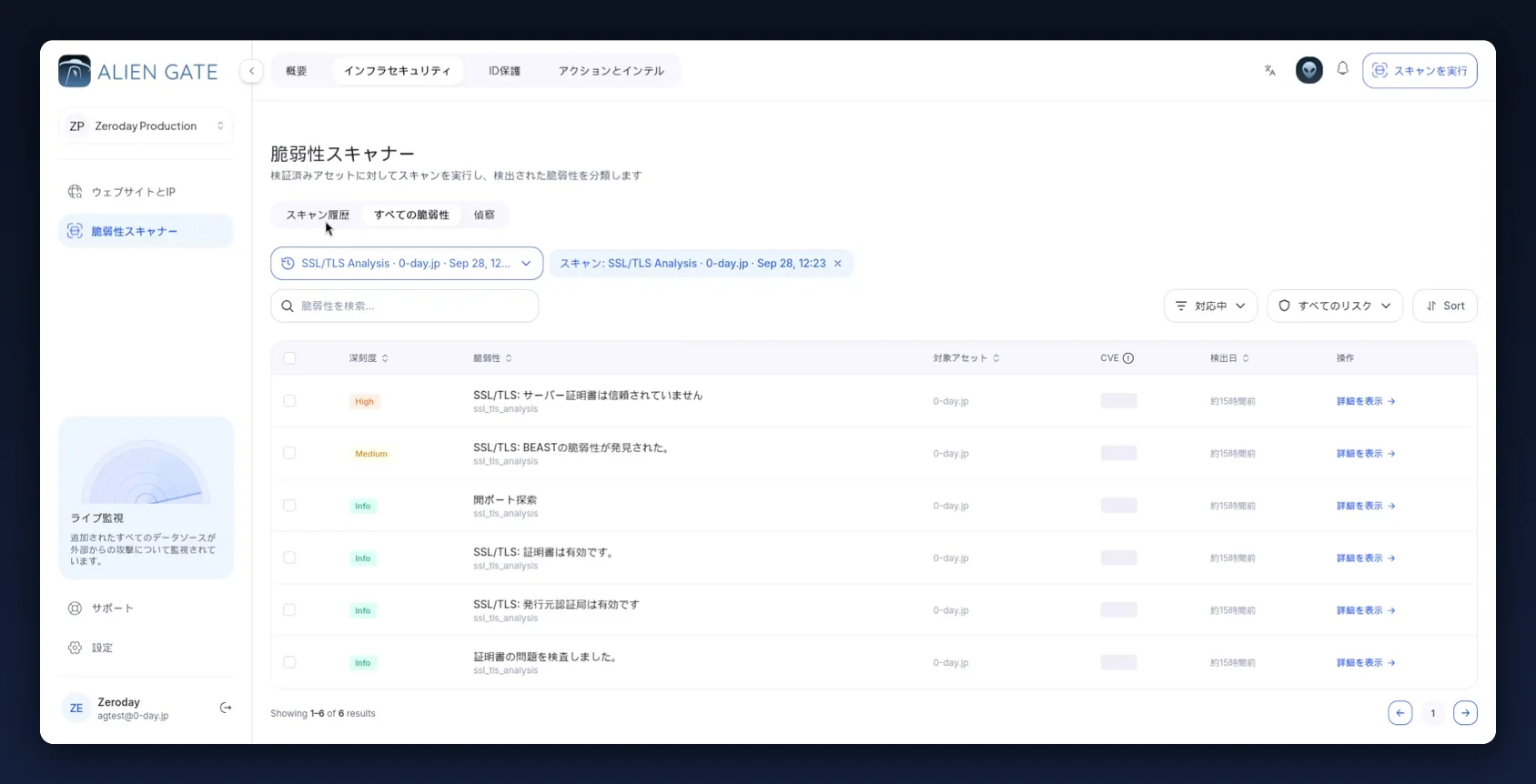
The selected run appears as a removable chip — Scan: SSL/TLS Analysis · 0-day.jp · Sep 28, 12:23 — so you always know which result set you are looking at. Clear the chip to see findings across every scan.
Read the scan selector before you read the table. The most common misreading of this page is triaging one engine's output and concluding the asset is clean. An SSL/TLS Analysis run legitimately produces mostly
Inforows; the Web Application Scan on the same host is where the Critical findings live.
Step 2 — Start from the asset, not the finding list
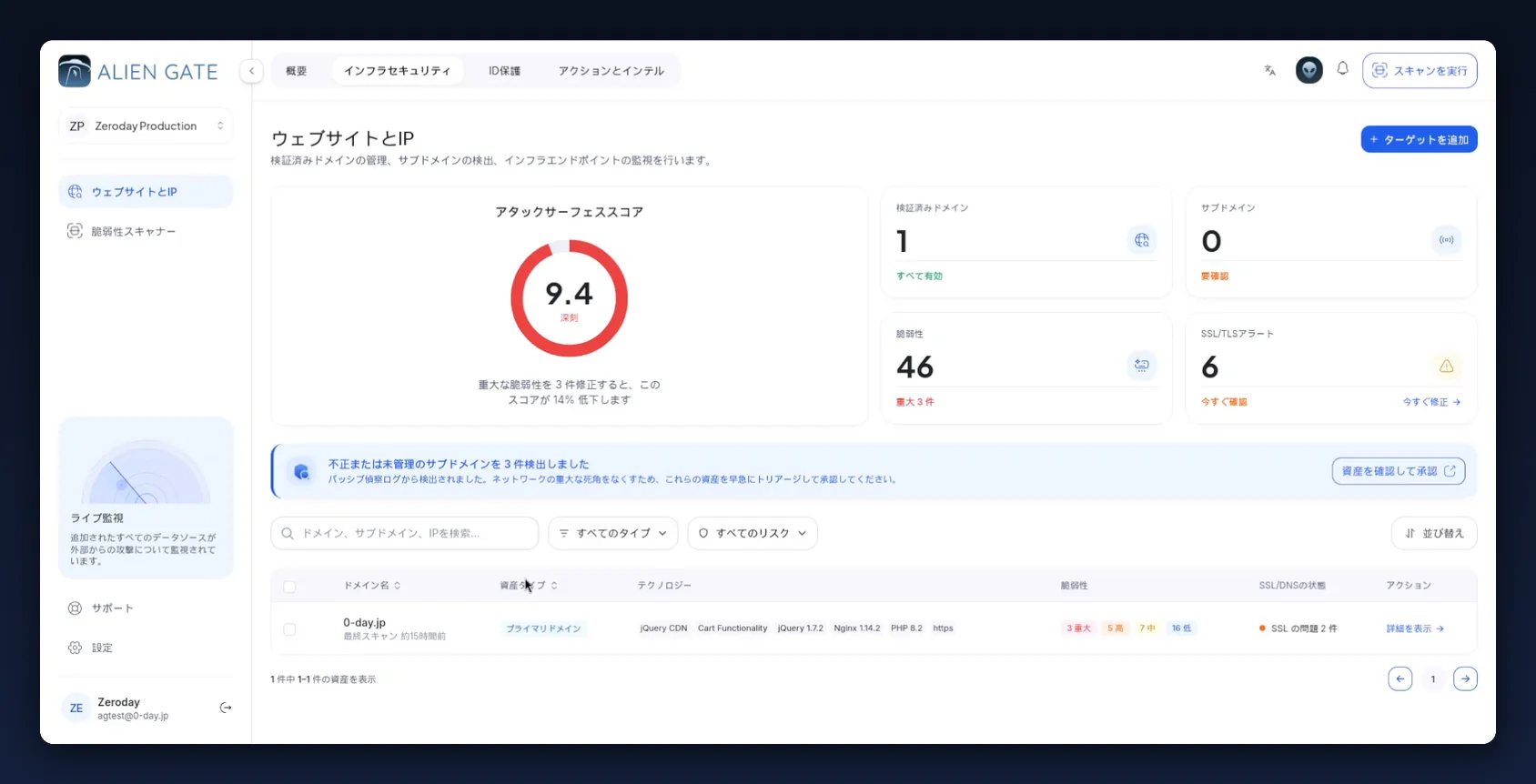
Before opening individual findings, get the shape of the problem. Go to Infrastructure Security → Websites & IPs (app.aliengate.io/dashboard/manage-targets).
| Panel | What it tells you |
|---|---|
| Attack Surface Score (アタックサーフェススコア) | A single 0–10 posture number for the workspace, with a severity word under it (Critical / 深刻). Below it, the concrete lever: "Fix 3 critical vulnerabilities and this score drops by 14%." |
| Verified Domains (検証済みドメイン) | How many assets are verified and in scope |
| Subdomains (サブドメイン) | Hosts discovered by passive recon that are not yet triaged — flagged Needs review (要確認) |
| Vulnerabilities (脆弱性) | Total open findings, with the critical count called out |
| SSL/TLS Alerts (SSL/TLSアラート) | Transport-layer problems, with Fix now (今すぐ修正) shortcuts |
The asset table underneath carries, per asset: domain name and last scan time, asset type, detected technology, a severity breakdown badge (3 Critical · 5 High · 7 Medium · 16 Low), SSL/DNS state, and a View details (詳細を表示) action.
That severity badge is your first triage decision. It is the only place you see the whole distribution for one asset in one line.
Step 3 — Open the asset drawer
Click View details (詳細を表示) on an asset. A drawer opens on the right with three tabs: Overview (概要), Vulnerabilities (脆弱性) and Technology (テクノロジー).
Overview — the asset's identity
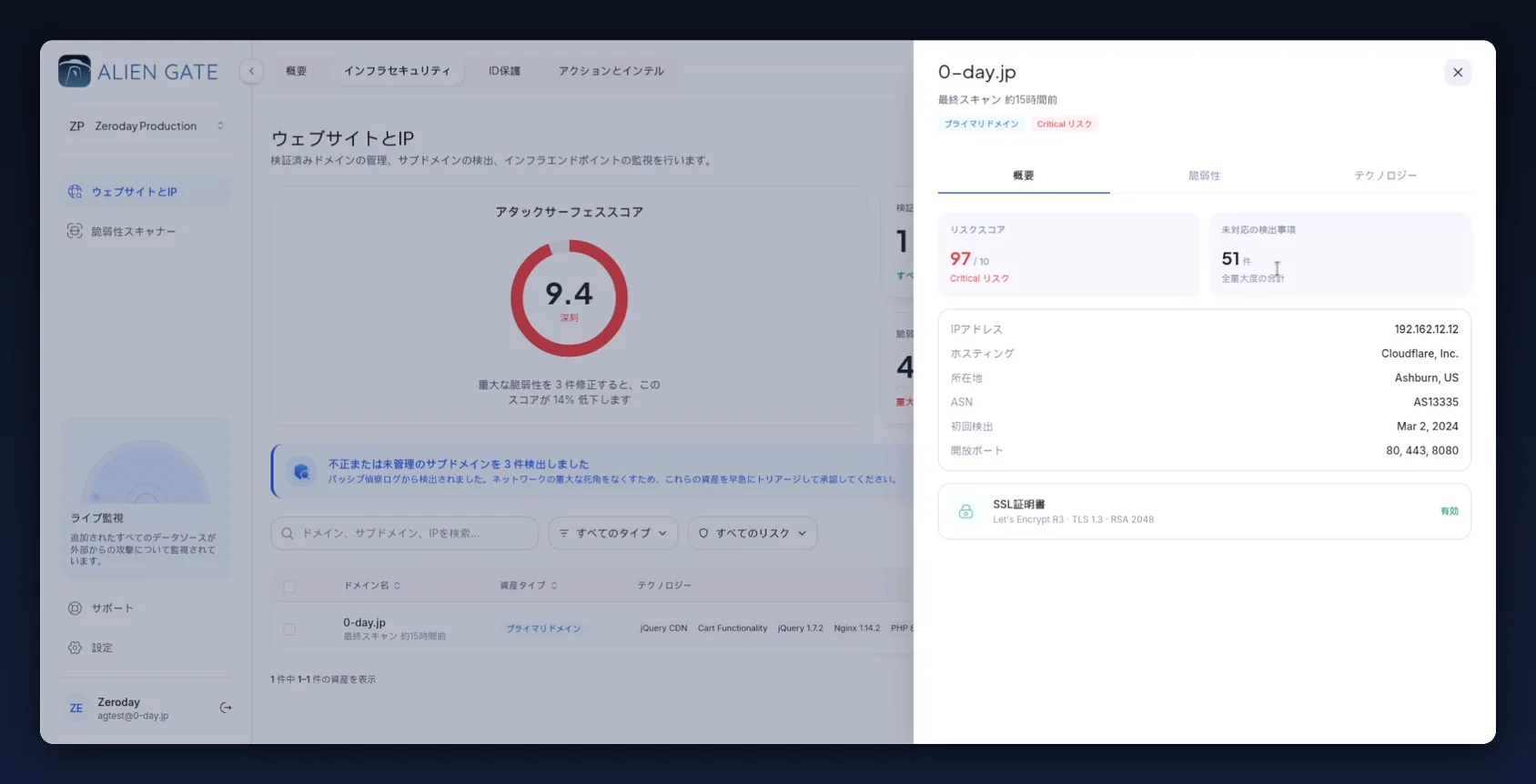
| Field | Example | Why it matters |
|---|---|---|
| Risk score (リスクスコア) | 9.7 / 10 · Critical |
The asset's own score, separate from the workspace score |
| Open findings (未対応の検出事項) | 51 (all severities) |
The real backlog for this asset |
| IP address (IPアドレス) | 192.162.12.12 |
What the scanner actually resolved and hit |
| Hosting (ホスティング) / Location (所在地) / ASN | Cloudflare, Inc. · Ashburn, US · AS13335 | Tells you whether you are testing the origin or a CDN edge |
| First seen (初回検出) | Mar 2, 2024 |
How long this asset has been in your surface |
| Open ports (開放ポート) | 80, 443, 8080 |
Anything beyond 80/443 deserves an explanation |
| SSL certificate (SSL証明書) | Let's Encrypt R3 · TLS 1.3 · RSA 2048 — Valid (有効) | Certificate health at a glance |
Check Hosting before you spend time on network-layer findings. If the asset resolves to a CDN, some results describe the edge rather than your origin.
Vulnerabilities — the per-asset backlog
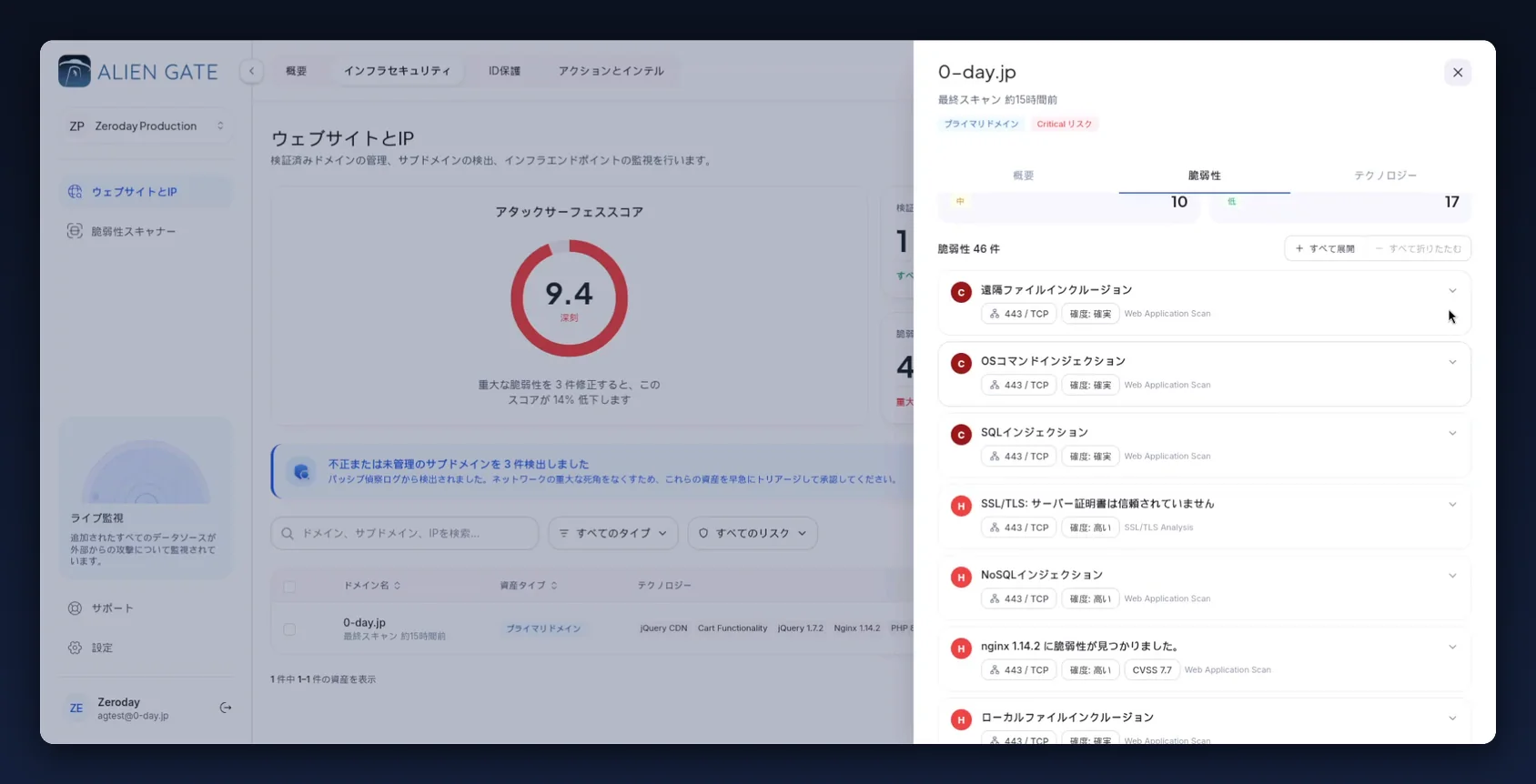
Findings are grouped with severity counters across the top and a total (46 vulnerabilities / 脆弱性 46 件). Use Expand all (すべて展開) and Collapse all (すべて折りたたむ) to work through them quickly.
Each row carries four pieces of metadata worth reading before the title:
| Badge | Meaning |
|---|---|
Severity letter (C / H / M / L) |
Critical, High, Medium, Low |
443 / TCP |
The port and protocol the finding was proven on |
| Confidence (確度): Confirmed (確実) or High (高い) | Whether the scanner proved the issue or inferred it |
Engine tag (Web Application Scan, SSL/TLS Analysis) |
Which engine raised it — useful when you re-scan |
Confidence is the field to sort your day by. A Confirmed Critical was reproduced by the scanner with a working request. An inferred finding still needs a human to verify it before you raise a ticket.
Expanding a finding gives you the proof.
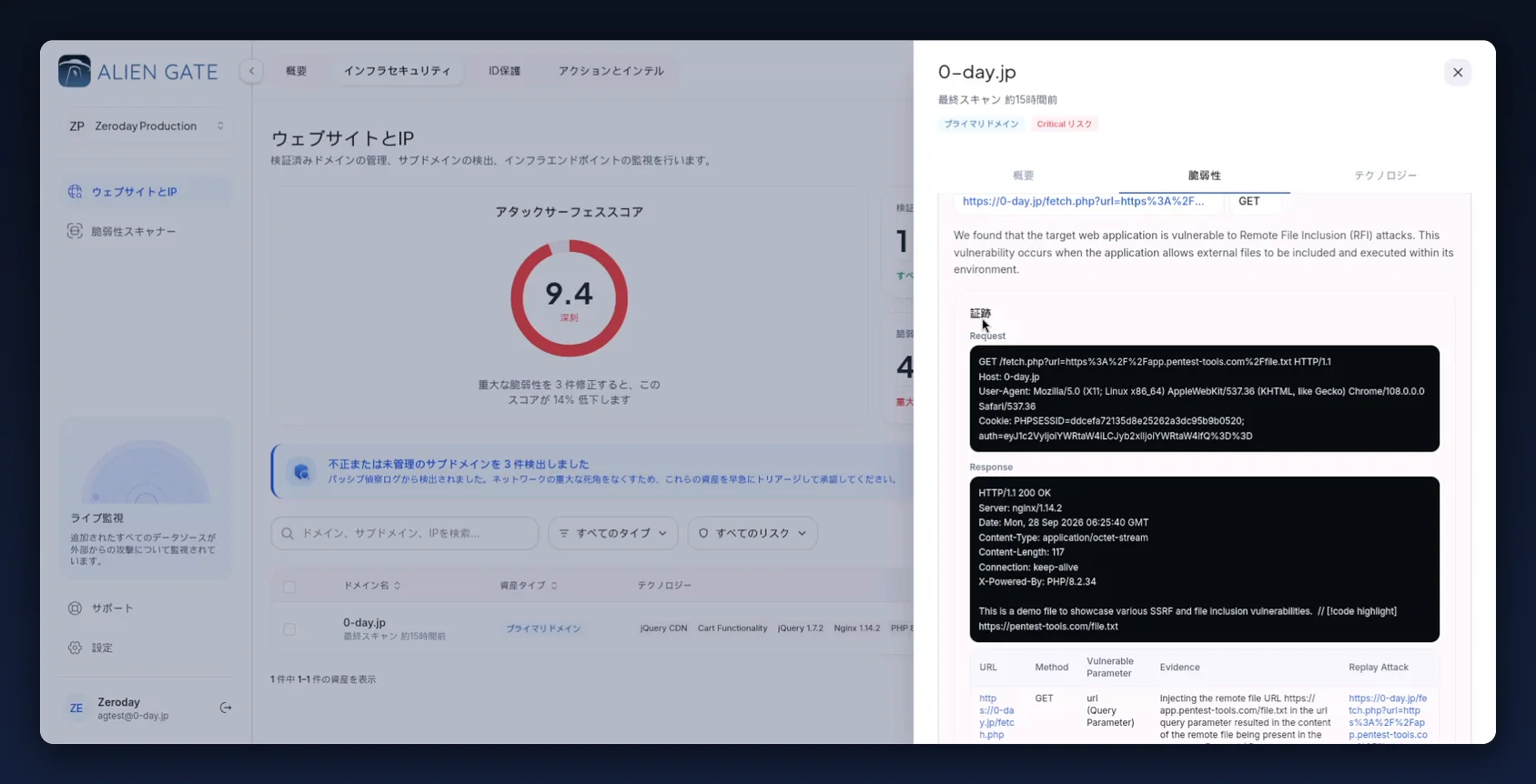
The Evidence (証跡) block shows the raw Request and Response the scanner exchanged, followed by a table:
| Column | Contents |
|---|---|
| URL | The exact endpoint |
| Method | GET / POST |
| Vulnerable Parameter | The parameter and where it lives, e.g. url (Query Parameter) |
| Evidence | A plain-language statement of what the injection did |
| Replay Attack | A link that re-issues the exact request |
This is what you attach to a ticket. A developer who is handed "Remote File Inclusion, Critical" will argue; a developer handed the request, the response and the vulnerable parameter will fix it.
Technology — what the asset is built from
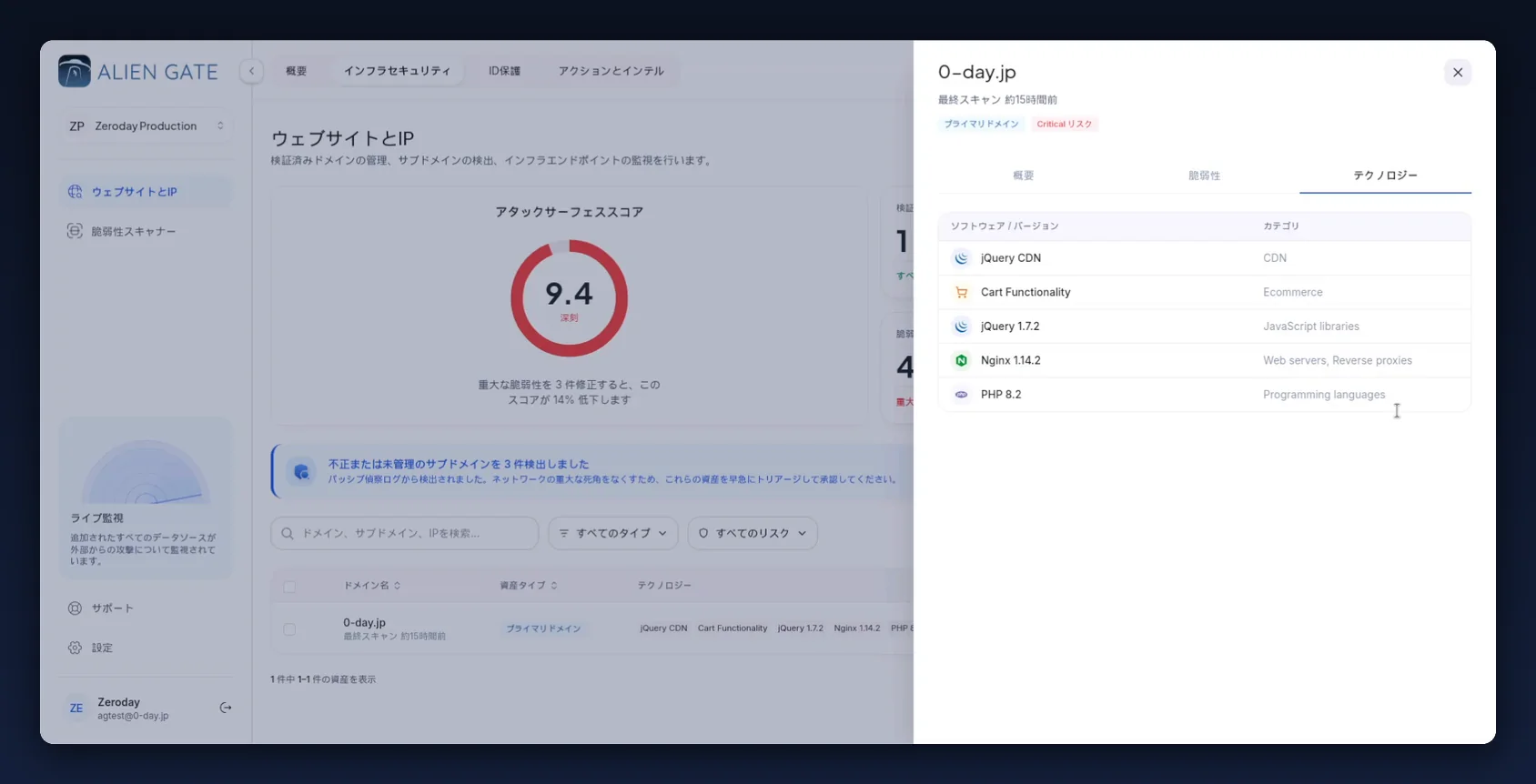
A Software / Version (ソフトウェア/バージョン) and Category (カテゴリ) inventory — for example jQuery 1.7.2 (JavaScript libraries), Nginx 1.14.2 (Web servers, Reverse proxies), PHP 8.2 (Programming languages).
Read this tab alongside your findings. A CVE-based finding against nginx 1.14.2 is confirmed the moment you see that version here, and an end-of-life library in this list is a finding the scanner may not have raised at all.
Step 4 — Triage the assets recon discovered
If passive recon found hosts that are not in your verified inventory, a banner appears at the top of Websites & IPs: "3 unauthorised or unmanaged subdomains detected". Click Review and approve assets (資産を確認して承認).
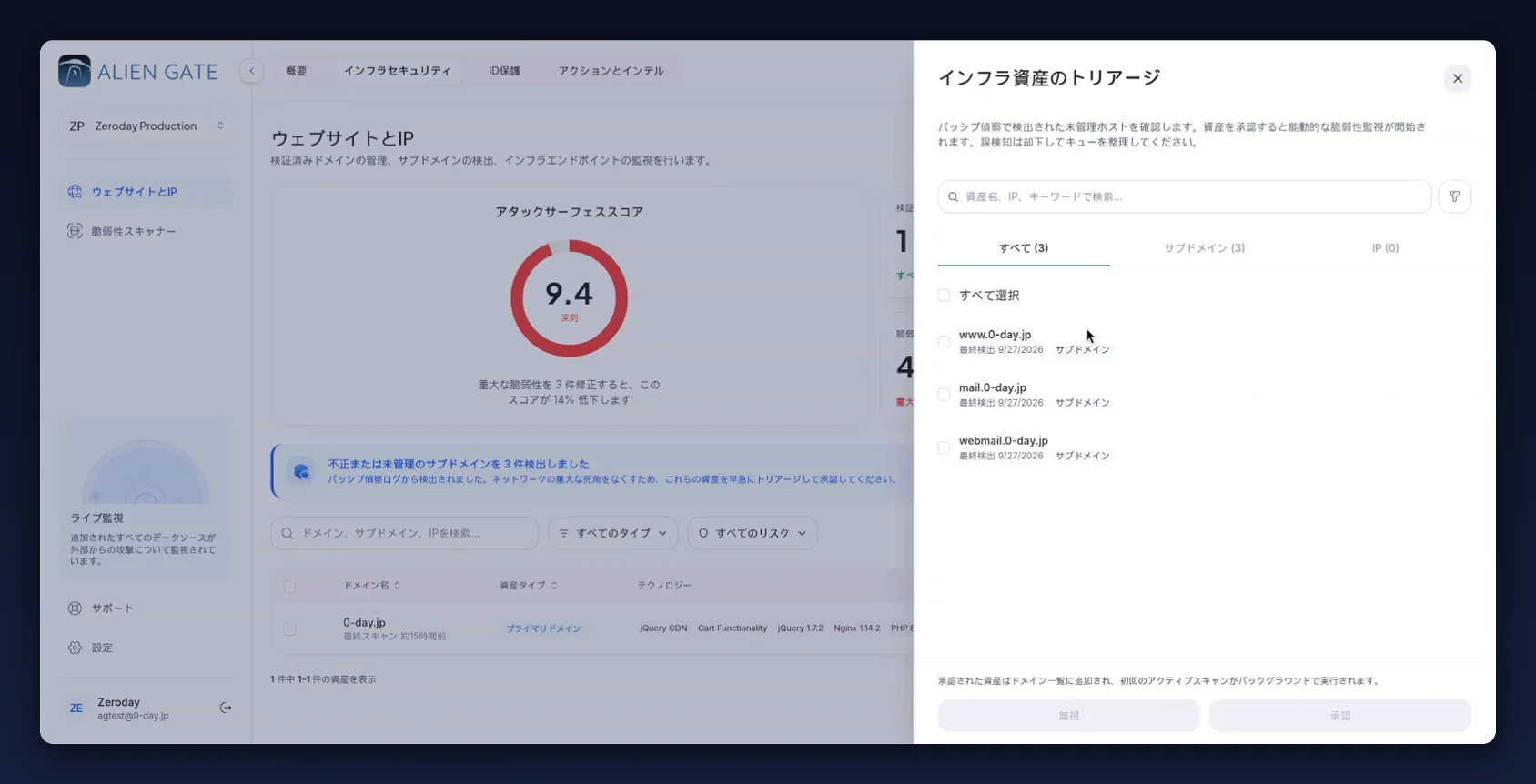
The Infrastructure Asset Triage (インフラ資産のトリアージ) modal lists each discovered host with the date it was last seen, split across All / Subdomains / IPs tabs. For each one you choose:
| Action | Effect |
|---|---|
| Approve (承認) | The asset joins your domain list and a first active scan runs in the background |
| Dismiss (無視) | The asset is treated as a false positive and leaves the queue |
Do this before your next scan, not after. An unmanaged subdomain is the classic route into an environment — and approving it here is what puts it under active vulnerability monitoring rather than passive observation.
Approving assets raises your discovered surface on purpose. The subdomain count goes from
0to3and the asset table grows. That is the tool working: you cannot defend a host you have not admitted you own.
Step 5 — Work the full findings list
Back in Vulnerability Scanner → All Vulnerabilities (すべての脆弱性), you get the cross-asset triage table.
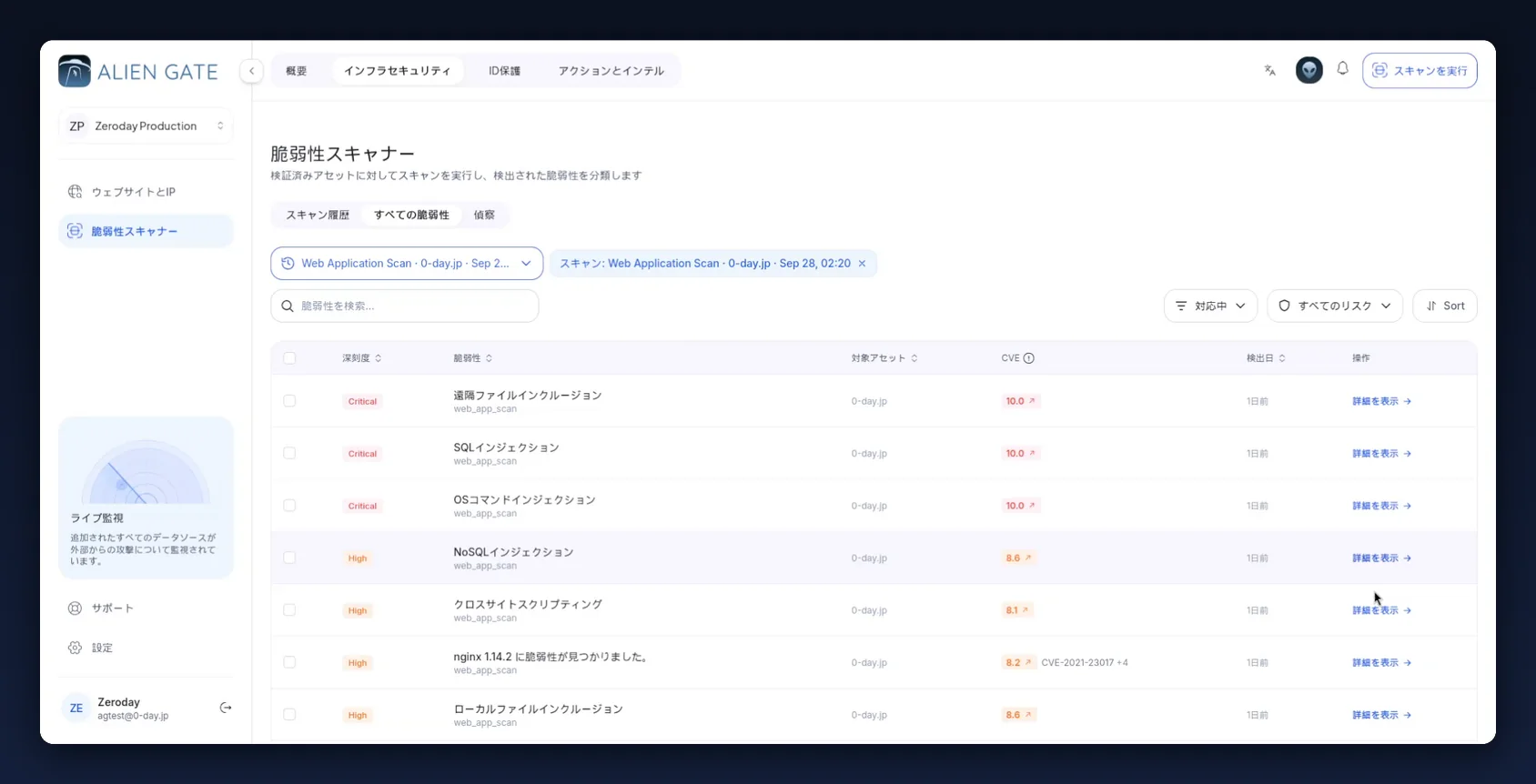
| Column | Notes |
|---|---|
| Severity (深刻度) | Critical / High / Medium / Low / Info — sortable |
| Vulnerability (脆弱性) | Title, with the engine that raised it underneath (web_app_scan) |
| Target Asset (対象アセット) | Which host it was found on |
| CVE | CVSS score badge plus any CVE IDs, e.g. 8.2 · CVE-2021-23017 +4 |
| Detected (検出日) | Relative age of the finding |
| Actions (操作) | View details (詳細を表示) opens the finding drawer |
Three controls sit above the table: a status filter (defaulting to Active / 対応中), a severity filter (All risks / すべてのリスク), and Sort. Row checkboxes support bulk selection.
A workable triage order:
- Confirmed Criticals first, across every asset — these are proven and exploitable.
- Then CVSS ≥ 9.0 regardless of engine.
- Group the rest by owning team, not by severity — one conversation per team beats one ticket per finding.
- Anything carrying a CVE goes to patch management; anything without one is a code or configuration change.
- Findings you accept as risk go to Ignore with a reason, so the next scan's diff stays meaningful.
Step 6 — Read one finding properly
Click View details (詳細を表示) on a finding. The drawer gives you everything needed to write a ticket or to argue the finding is wrong.
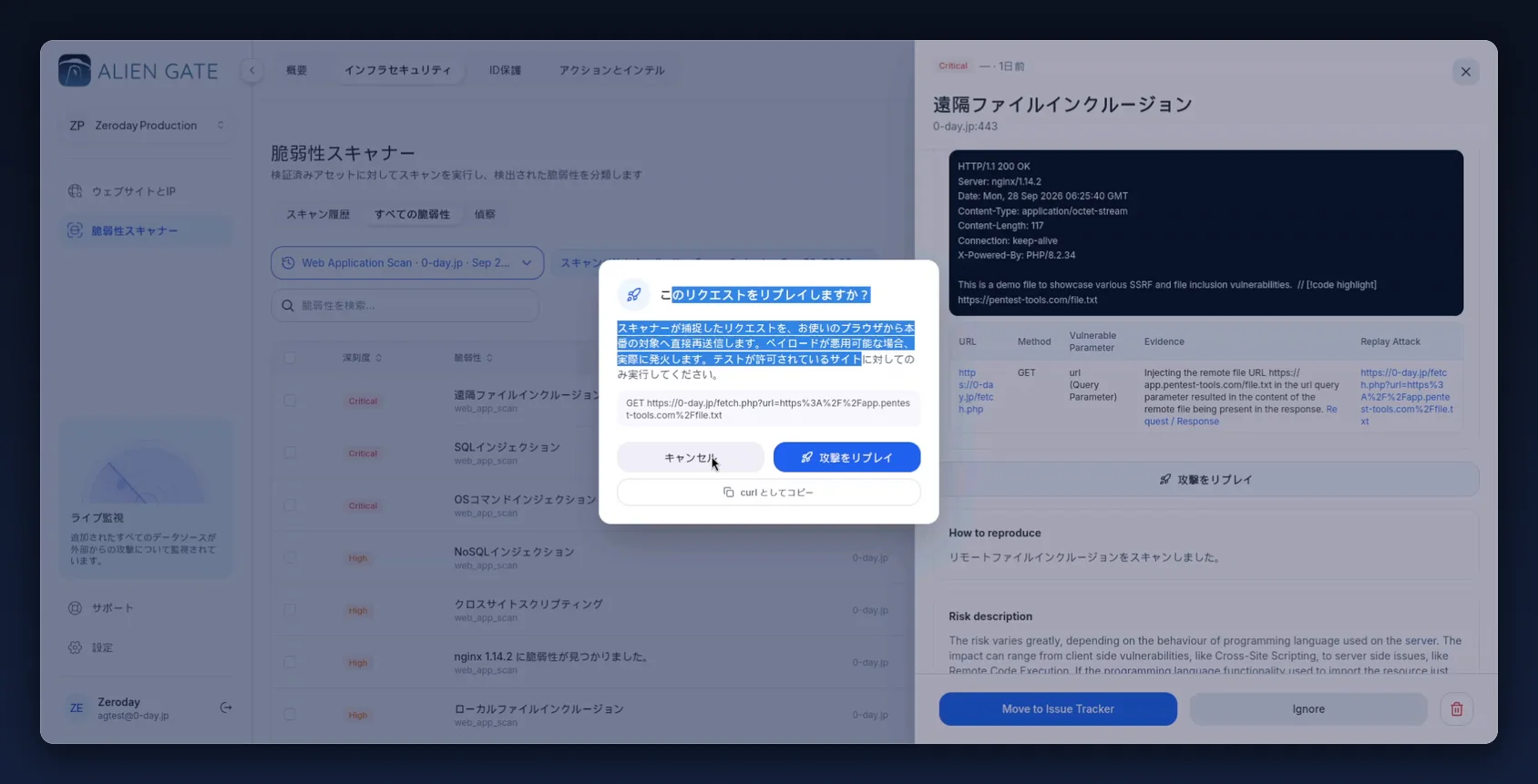
The drawer contains, top to bottom:
- Severity chip and age —
Critical · 1 day ago - Title and endpoint — e.g. Remote File Inclusion on
0-day.jp:443 - Description — what the class of vulnerability is
- Evidence (証跡) — the captured request and response
- The vulnerable parameter table described in Step 3
- How to reproduce — the steps the scanner took
- Risk description — what an attacker gains, in business terms
- Footer actions: Move to Issue Tracker, Ignore, and delete
Replay Attack — powerful, and genuinely dangerous
Replay Attack (攻撃をリプレイ) re-sends the scanner's captured request from your browser to the live target. AlienGate makes you confirm it, and the warning is worth reading in full:
Re-sends the request captured by the scanner directly from your browser to the production target. If the payload is exploitable, it will actually fire. Only run this against sites you are authorised to test.
That is not boilerplate. On a Remote File Inclusion or an OS Command Injection finding, replaying the request executes the payload again on production.
| Button | Use it when |
|---|---|
| Cancel (キャンセル) | Default answer on anything you did not schedule |
| Replay attack (攻撃をリプレイ) | You are authorised, the owning team knows, and you need to prove the finding is still live |
| Copy as curl (curl としてコピー) | Almost always the better choice — take the request away, run it in a staging environment, keep it in the ticket |
Prefer Copy as curl. It gives the developer a reproducible one-liner and it does not touch production.
Step 7 — Move findings into the Issue Tracker
Once a finding is real and you intend to fix it, click Move to Issue Tracker. A toast confirms "Incident created successfully" (インシデントが正常に作成されました) and the button changes to In Issue Tracker, so you cannot create duplicates.
Use Ignore for the other outcome — false positives and accepted risks. Both decisions are recorded; neither leaves the finding sitting in an ambiguous state.
Repeat for each finding you are committing to. Move findings in deliberately: the Issue Tracker is the list your team is accountable for, and a board with 46 cards on it is a board nobody works.
Step 8 — Work the Issue Tracker board
Go to Actions & Intel → Issue Tracker (app.aliengate.io/dashboard/issue-tracker).
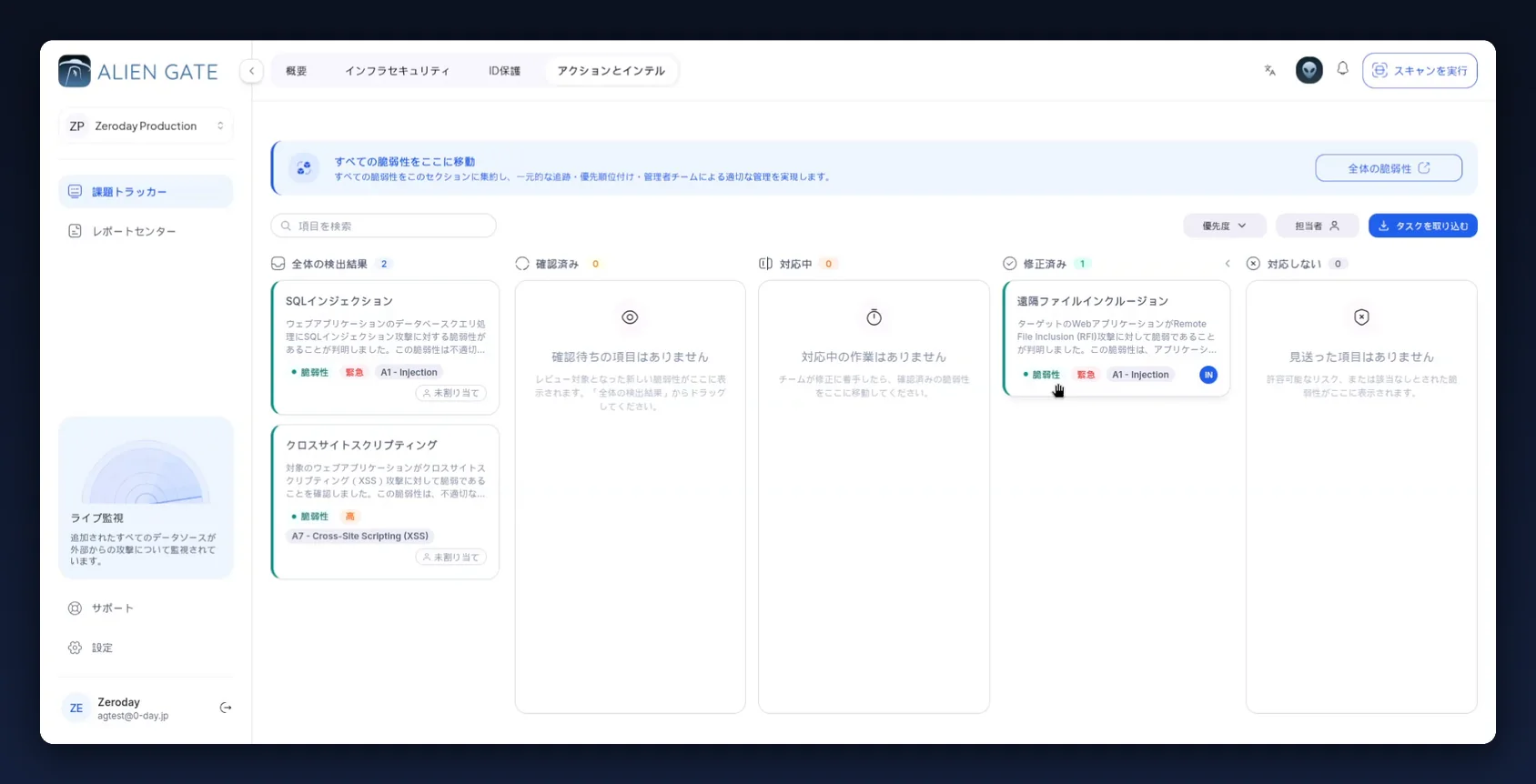
The board is a five-column kanban, and the columns are the remediation workflow:
| Column | Japanese | Meaning |
|---|---|---|
| All Findings | 全体の検出結果 | Everything moved across from the scanner, not yet reviewed |
| Verified | 確認済み | A human has confirmed the finding is real and in scope |
| In Progress | 対応中 | A team has picked up the fix |
| Fixed | 修正済み | Remediated — and only reachable once every remediation step is confirmed |
| Won't Fix | 対応しない | Accepted risk or false positive |
Cards show the finding title, a description excerpt, a type chip (Vulnerability / 脆弱性), a priority chip (Urgent / 緊急, High / 高), the OWASP category (A1 - Injection, A7 - Cross-Site Scripting (XSS)), and an assignee avatar or Unassigned (未割り当て).
Above the board: a search box, a Priority (優先度) filter, an Assignee (担当者) filter, and Import tasks (タスクを取り込む) for pulling findings in in bulk.
Move cards by dragging them between columns. Every move is written to the finding's history with a timestamp and a name.
Step 9 — Open the issue and set it up
Click a card to open the issue drawer.
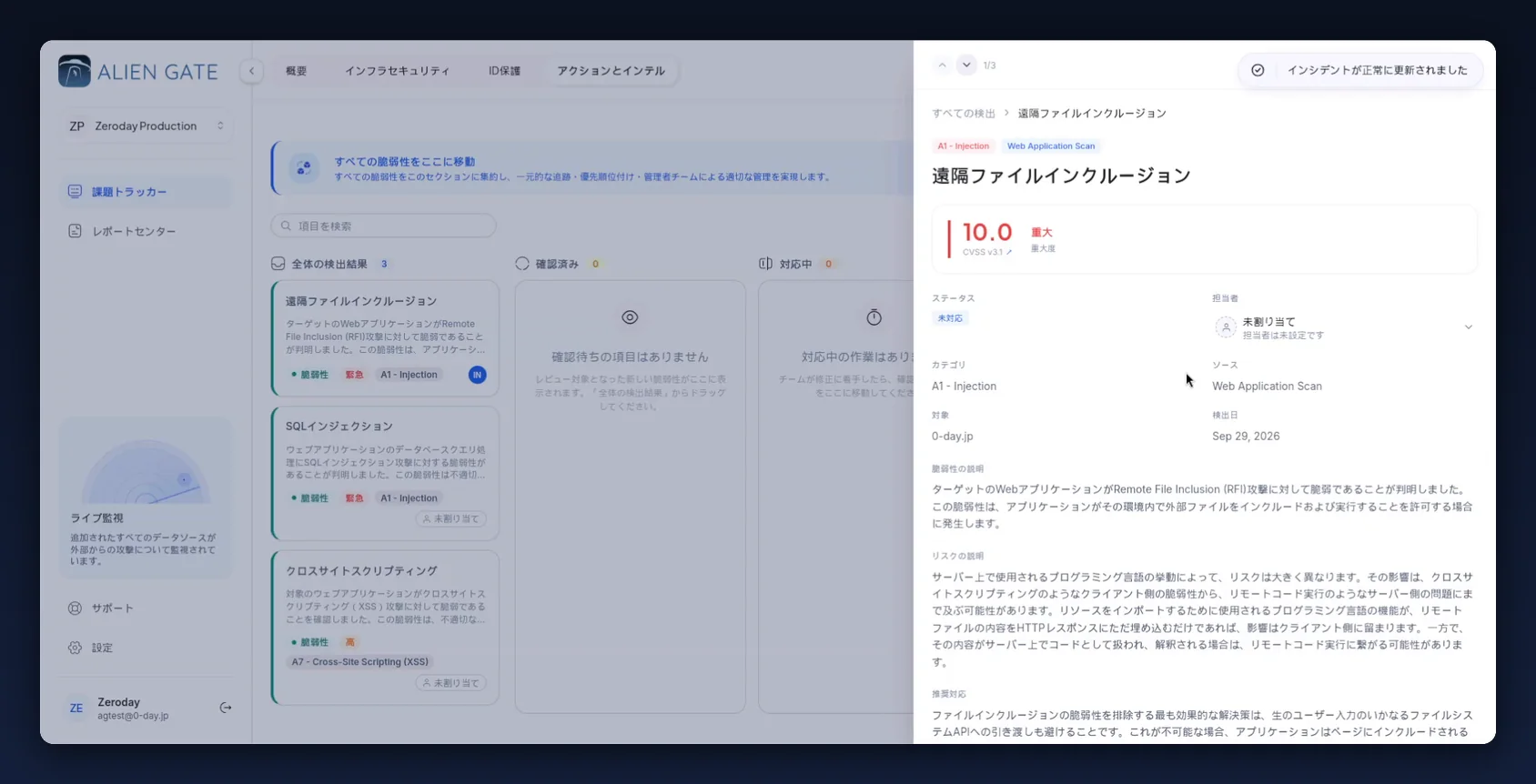
The header gives you the OWASP category and source engine as chips, then the score: CVSS 10.0 · Critical, labelled with the scoring version (CVSS v3.1). Below that:
| Field | Japanese | Set it to |
|---|---|---|
| Status | ステータス | Where it is in the workflow — starts at Open (未対応) |
| Assignee | 担当者 | A named person. Unassigned (未割り当て) is how findings go stale |
| Category | カテゴリ | OWASP mapping, e.g. A1 - Injection |
| Source | ソース | The engine that found it |
| Target | 対象 | The affected asset |
| Detected | 検出日 | When the scan raised it |
Then three written sections: Vulnerability description (脆弱性の説明), Risk description (リスクの説明) and Recommended remediation (推奨対応).
Assign the issue before you do anything else. The board's value is that every card has a name on it.
Step 10 — Work the remediation checklist
This is the part of AlienGate that makes remediation verifiable rather than declared.
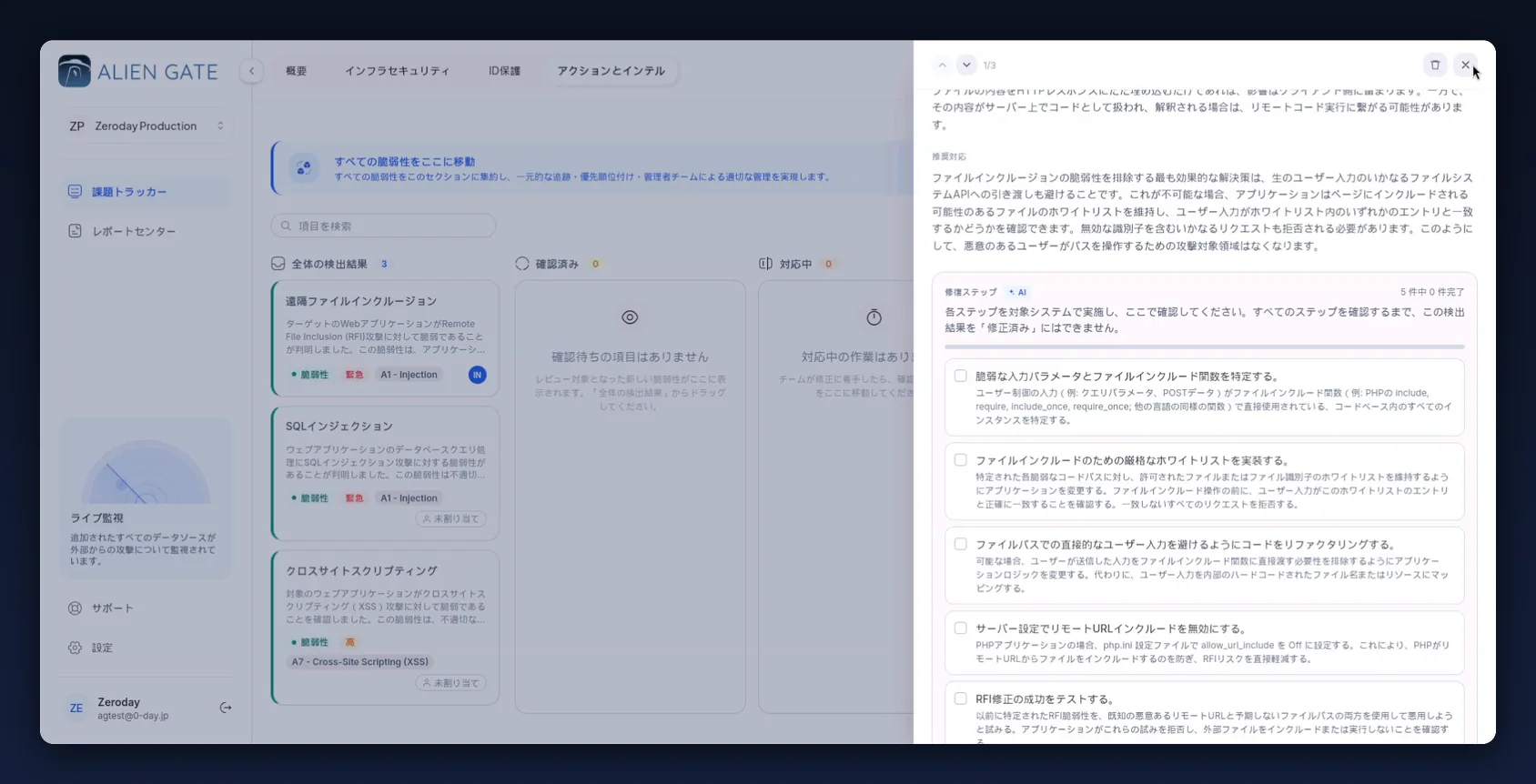
Each issue carries Remediation Steps (修復ステップ) — a per-finding checklist marked AI, with a completion counter (0 of 5 complete) and a progress bar. The instruction above it is the rule:
Carry out each step on the target system and confirm it here. Until every step is confirmed, this finding cannot be set to Fixed.
For the Remote File Inclusion finding in these screenshots, the five generated steps were:
- Identify the vulnerable input parameters and file-include functions — find every user-controlled input (query parameters, POST data) reaching an include function (
include,require,include_once,require_once, or the equivalent in your language) across the codebase. - Implement a strict whitelist for file includes — for each vulnerable code path, change the application to maintain a whitelist of permitted files or file identifiers, and check user input against it before the include. Reject everything that does not match.
- Refactor the code to keep user input out of file paths — where possible, stop passing user-submitted input to include functions at all; map it to internal hard-coded filenames or resources instead.
- Disable remote URL includes in the server configuration — for PHP applications, set
allow_url_includetoOffinphp.ini. This stops PHP including files from remote URLs and reduces RFI risk directly. - Test that the fix worked — attempt to exploit the previously identified RFI using both a known-malicious remote URL and an unexpected file path, and confirm the application rejects both and neither includes nor executes the external file.
Tick each step as it is genuinely done; the step is then labelled Confirmed (確認済み). When the last one is ticked the checklist reports "All steps confirmed — you can now change this to Fixed".
Do not tick ahead. The counter is the only honest record of how far remediation actually got. A checklist ticked to 5/5 on a finding nobody touched converts a control into paperwork.
Step 11 — Escalate, discuss, and keep the audit trail
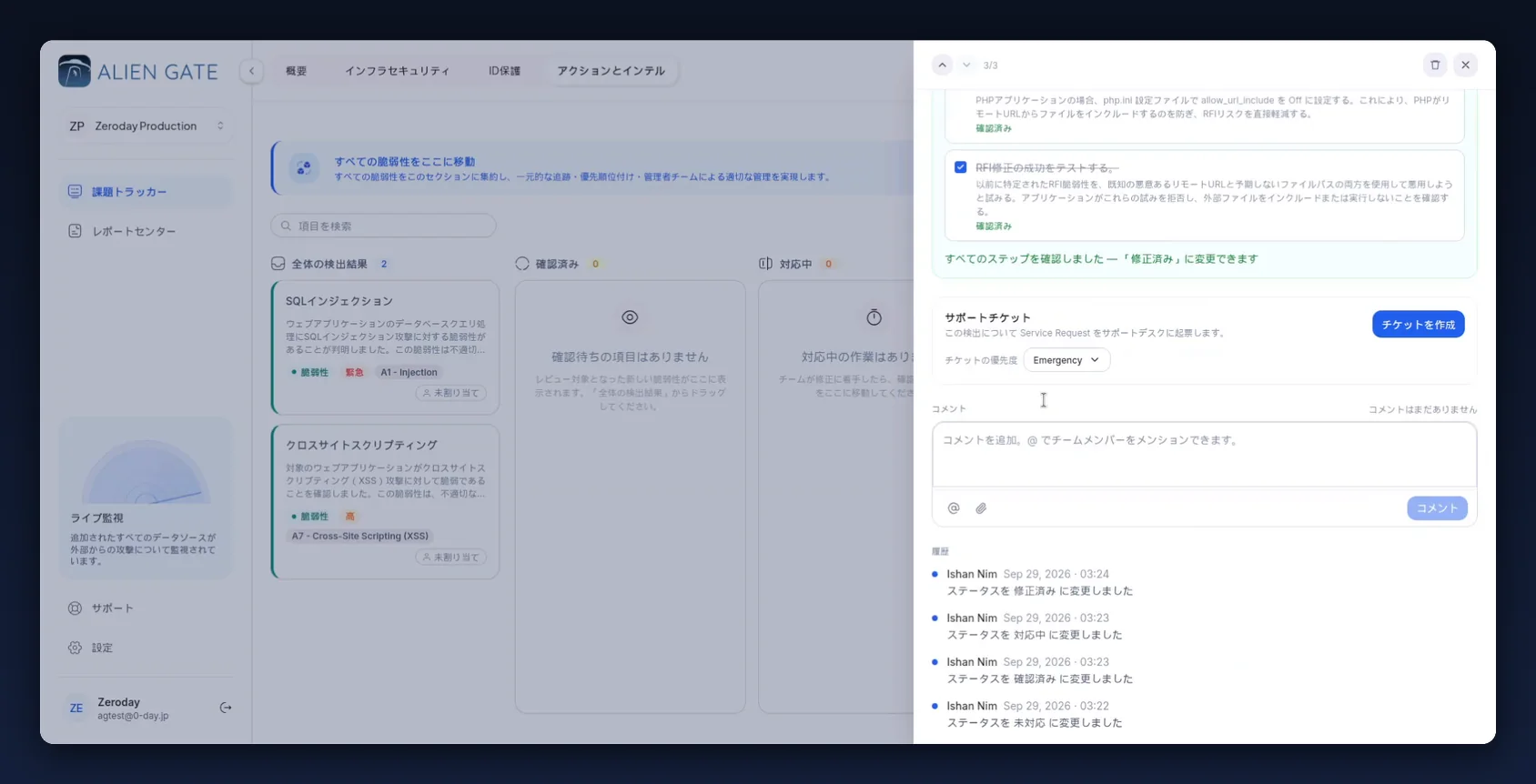
Three more blocks sit under the checklist:
Support ticket (サポートチケット) — raises a Service Request with the CyberCrew support desk for this specific finding. Set Ticket priority (チケットの優先度) — Emergency and below — then Create ticket (チケットを作成). Use it when you need help remediating, not as a substitute for assigning the work.
Comments (コメント) — a threaded discussion on the finding, with @ mentions for team members and file attachments. This is where the fix gets negotiated; keeping it on the finding rather than in chat means the next person to open the card can see why a decision was made.
History (履歴) — an immutable audit trail of every status change with the person and timestamp:
Ishan Nim  Sep 29, 2026 · 03:22   Status changed to Open
Ishan Nim  Sep 29, 2026 · 03:23   Status changed to Verified
Ishan Nim  Sep 29, 2026 · 03:23   Status changed to In Progress
Ishan Nim  Sep 29, 2026 · 03:24   Status changed to Fixed
That trail is what an auditor asks for, and it is generated for free by working the board properly. It is also the reason to move a card through Verified → In Progress → Fixed rather than dragging it straight to the last column: the timestamps become your remediation-time metric.
Step 12 — Mark it Fixed, then prove it with a re-scan
Once every remediation step is confirmed, set the issue to Fixed (修正済み) — or drag the card into that column.
Then re-scan. Marking a finding fixed changes a label; the re-scan changes the truth.
- Go back to Infrastructure Security → Vulnerability Scanner and launch the same scan configuration as the run that found it — same engines, same authentication, same depth. A different configuration is not a retest. (Article 01, Steps 3–8 covers the configuration.)
- When it finishes, open All Vulnerabilities filtered to the new scan and search for the finding by name.
- If it is gone, the fix holds. If it is still there, move the issue back to In Progress — the remediation steps were confirmed but the change did not land.
Step 13 — Download the report
Go to Actions & Intel → Report Center (app.aliengate.io/dashboard/report-center).
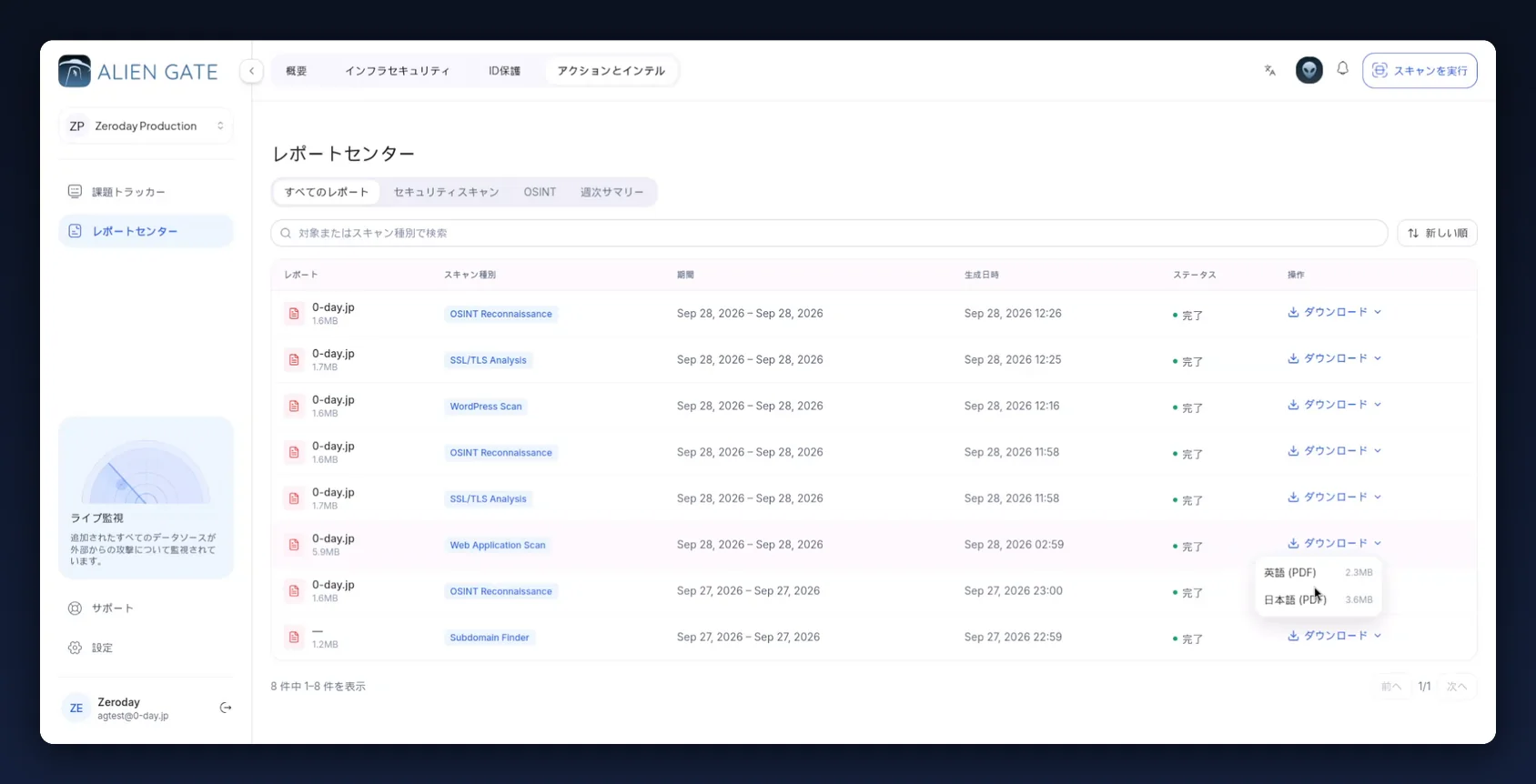
Reports are generated per scan and listed with Report (name and file size), Scan type (スキャン種別), Period (期間), Generated (生成日時), Status (ステータス) and Actions (操作). Filter with the tabs — All reports / Security scans / OSINT / Weekly summary — search by target or scan type, and sort by Newest (新しい順).
Click Download (ダウンロード) on the row you want and pick the language:
| Option | Typical size |
|---|---|
| English (PDF) (英語) | ~2.3 MB |
| Japanese (PDF) (日本語) | ~3.6 MB |
Both are the same report. For a Japanese client and an international parent company, download both — they are generated from the same scan data, so the numbers will agree.
What is inside the report
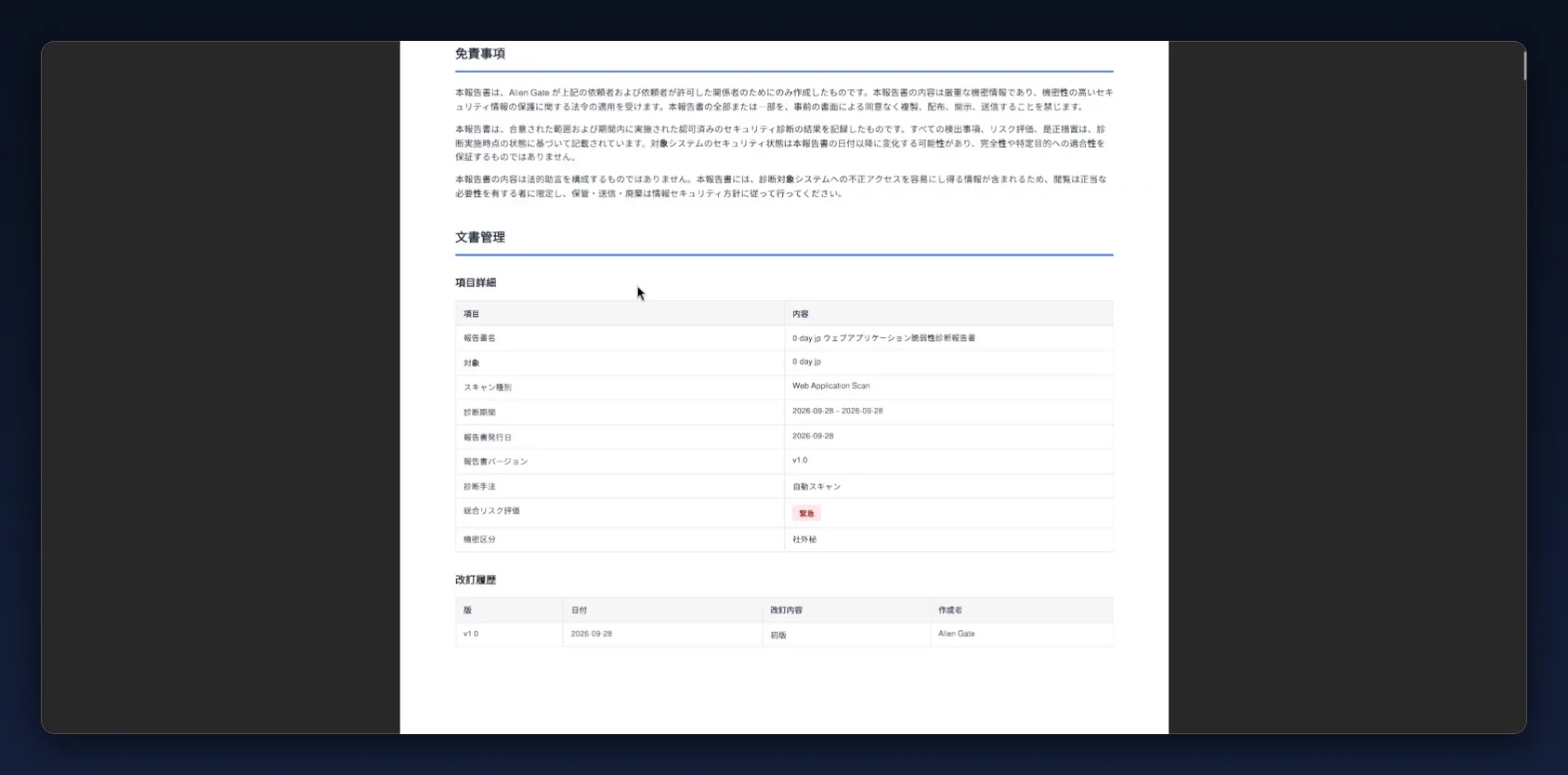
A Web Application Scan report of this size runs to around 74 pages and is structured as a formal assessment deliverable, not a data dump:
- Disclaimer (免責事項) — confidentiality, the point-in-time nature of the assessment, and the statement that it does not constitute legal advice
- Document control (文書管理) — report name, target, scan type, assessment period, issue date, report version, method (Automated scan / 自動スキャン), overall risk rating and classification (Confidential / 社外秘)
- Revision history (改訂履歴) — version, date, change and author
- Per-finding sections, each lettered through to (E) Risk analysis (リスク分析) and (F) Related information (関連情報)
That last section is the one to check before you send the report on. Each finding maps to a CWE (e.g. CWE-98) and to three OWASP Top 10 editions — 2017, 2021 and 2025 — plus a link to the matching OWASP Testing Guide chapter. If your compliance framework references a specific OWASP edition, the mapping is already there.
Findings also carry a reachability callout where the scanner proved exploitability rather than inferring it — "Impact is urgent, and reachability was confirmed in practice rather than assumed." Lead with those in any summary you write.
Step 14 — Watch the score move
Come back to Websites & IPs after the re-scan.
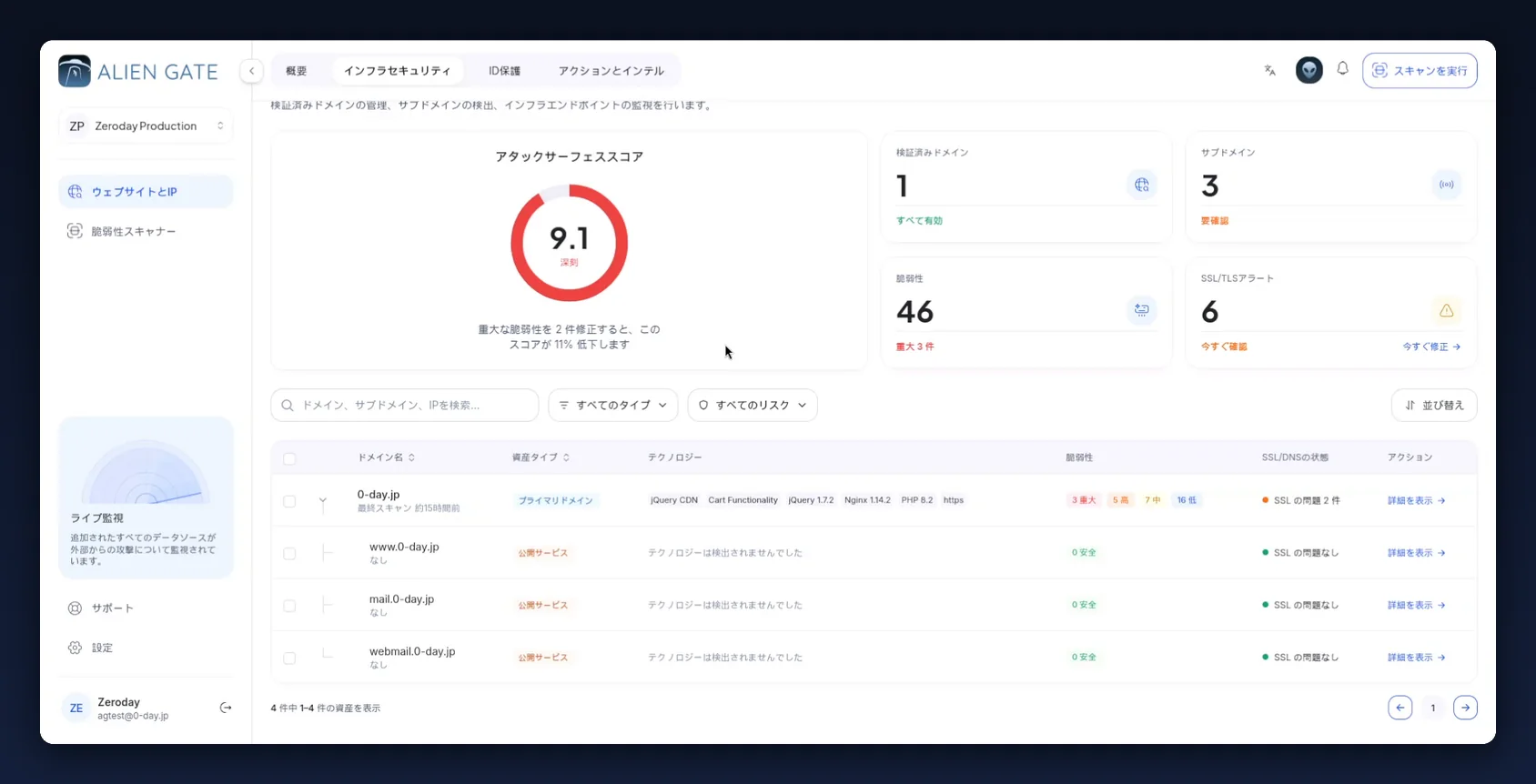
Two things should have changed:
- The Attack Surface Score has dropped —
9.4to9.1in these screenshots — and the guidance under it has updated with it, from "fix 3 critical vulnerabilities for a 14% drop" to "fix 2 critical vulnerabilities for an 11% drop". - The assets you approved in Step 4 now appear under their parent domain as Public service (公開サービス) rows, each with its own vulnerability count and SSL state. New assets start at
0 · Safe(0 安全) until their first active scan completes — that is "not yet assessed", not "clean".
The score is the number to take to management, because it moves for a reason you can point at. Do not chase it below what the environment justifies, and do not let it drop because assets stopped being monitored.
Quick reference
The ten-second version
Vulnerability Scanner → All Vulnerabilities → pick the scan
  → sort by Confirmed + Critical
  → open finding → read Evidence → Copy as curl (not Replay)
  → Move to Issue Tracker
Issue Tracker
  → assign a person
  → work the Remediation Steps, confirm each one
  → Verified → In Progress → Fixed
Vulnerability Scanner → re-run the same configuration → confirm it is gone
Report Center → Download → English / Japanese PDF
Issue status workflow
| Status | Japanese | Enter it when |
|---|---|---|
| Open | 未対応 | The finding has just arrived from the scanner |
| Verified | 確認済み | A human has confirmed it is real and in scope |
| In Progress | 対応中 | Someone is actively fixing it |
| Fixed | 修正済み | Every remediation step is confirmed — and ideally a re-scan agrees |
| Won't Fix | 対応しない | Accepted risk or false positive, with a reason recorded |
Reading a finding's metadata
| Signal | What it should change |
|---|---|
| Confidence: Confirmed (確度: 確実) | Raise the ticket now — the scanner proved it |
| Confidence: High (確度: 高い) | Verify by hand before you raise it |
| CVSS ≥ 9.0 | Treat as Critical even if the severity chip disagrees |
| CVE present | Route to patch management, not to the application team |
| No CVE | A code or configuration change — route to the owning developers |
| Engine tag | Tells you which scan configuration to re-run for the retest |
Common mistakes
| Mistake | Consequence | Fix |
|---|---|---|
| Triaging with one scan selected and calling the asset clean | Critical web findings missed under an SSL-only result set | Read the scan chip; clear it to see findings across all scans |
| Using Replay Attack on production to "check" a finding | The payload fires again on a live system | Use Copy as curl and replay in staging |
| Moving all 46 findings to the Issue Tracker | A board nobody works | Move only what you are committing to fix |
| Leaving issues Unassigned | Findings age without an owner | Assign before you close the drawer |
| Ticking remediation steps ahead of the work | The audit trail becomes fiction | Tick a step only when it is done on the target system |
| Marking Fixed without a re-scan | You believe it is fixed; you have not shown it | Re-run the same configuration and confirm the finding is gone |
Reading 0 · Safe on a newly approved asset as good news |
It has not been scanned yet | Wait for the first active scan to complete |
| Dismissing discovered subdomains to keep the score down | Real surface stops being monitored | Approve what you own; dismiss only genuine false positives |
Where each thing lives
| Task | Path |
|---|---|
| Asset posture and inventory | Infrastructure Security → Websites & IPs |
| Triage discovered assets | Websites & IPs → Review and approve assets |
| Findings across scans | Infrastructure Security → Vulnerability Scanner → All Vulnerabilities |
| Recon observations | Vulnerability Scanner → Recon (偵察) |
| Remediation workflow | Actions & Intel → Issue Tracker |
| Reports and evidence packs | Actions & Intel → Report Center |
Interface label glossary (日本語 ↔ English)
| Japanese | English |
|---|---|
| 概要 | Overview |
| インフラセキュリティ | Infrastructure Security |
| ID保護 | Identity Protection |
| アクションとインテル | Actions & Intel |
| ウェブサイトとIP | Websites & IPs |
| 脆弱性スキャナー | Vulnerability Scanner |
| 課題トラッカー | Issue Tracker |
| レポートセンター | Report Center |
| スキャンを実行 | Run scan |
| アタックサーフェススコア | Attack Surface Score |
| 検証済みドメイン | Verified domains |
| サブドメイン | Subdomains |
| 脆弱性 | Vulnerabilities |
| SSL/TLSアラート | SSL/TLS alerts |
| 要確認 / 今すぐ確認 | Needs review / Review now |
| 今すぐ修正 | Fix now |
| 資産を確認して承認 | Review and approve assets |
| インフラ資産のトリアージ | Infrastructure Asset Triage |
| 承認 / 無視 | Approve / Dismiss |
| ターゲットを追加 | Add target |
| 詳細を表示 | View details |
| スキャン履歴 / すべての脆弱性 / 偵察 | Scan History / All Vulnerabilities / Recon |
| 深刻度 | Severity |
| 対象アセット | Target asset |
| 検出日 | Detected |
| 操作 | Actions |
| すべてのリスク | All risks |
| 確度: 確実 / 高い | Confidence: Confirmed / High |
| 証跡 | Evidence |
| 攻撃をリプレイ | Replay attack |
| curl としてコピー | Copy as curl |
| 脆弱性の説明 / リスクの説明 / 推奨対応 | Vulnerability description / Risk description / Recommended remediation |
| 修復ステップ | Remediation steps |
| 確認済み | Confirmed |
| 全体の検出結果 | All findings |
| 対応中 | In progress |
| 修正済み | Fixed |
| 対応しない | Won't fix |
| 未対応 | Open |
| 担当者 / 未割り当て | Assignee / Unassigned |
| 優先度 · 緊急 / 高 | Priority · Urgent / High |
| タスクを取り込む | Import tasks |
| サポートチケット / チケットを作成 | Support ticket / Create ticket |
| コメント / 履歴 | Comments / History |
| ダウンロード · 英語 (PDF) / 日本語 (PDF) | Download · English (PDF) / Japanese (PDF) |
| スキャン種別 / 期間 / 生成日時 / ステータス | Scan type / Period / Generated / Status |
| 完了 | Complete |
| 免責事項 / 文書管理 / 改訂履歴 | Disclaimer / Document control / Revision history |
| 自動スキャン / 社外秘 | Automated scan / Confidential |
Where to go next
- Article 01 — How to Run a Vulnerability Assessment — the scan configuration you will re-run for every retest
- Vulnerability Scanner → Recon (偵察) — surface discovered along the way; input for your next round of targets
- Websites & IPs → Add target (ターゲットを追加) — bring the assets you approved in triage fully under management
- Settings (設定) — alerting, so new Critical findings reach you without you opening the dashboard
- Support (サポート) — bottom of the left sidebar, or raise a Service Request from any issue
Screenshots in this article were captured from AlienGate with the interface set to Japanese, running against 0-day.jp — a deliberately vulnerable application used for demonstration. Values shown — workspace name, scores, findings, timings and names — are from that demonstration environment.