

- Audience: security engineers, IT managers and CISOs running their first assessment in AlienGate
- Applies to:
app.aliengate.io— Infrastructure Security → Vulnerability Scanner - Time to complete: ~10 minutes of setup, then 10–90 minutes of scan time depending on the engines you pick
What you will end up with
By the end of this guide you will have:
- a workspace holding the assets you are allowed to test,
- a Web Application Scan running against one of those assets, signed in as a real application user,
- a live console showing exactly what the scanner is doing, request by request,
- a triaged list of findings you can filter by severity and hand to the people who will fix them.
Before you scan anything: only scan assets your organisation owns or has written permission to test. An authenticated deep scan sends thousands of real requests, submits forms, and follows links. Treat it like a production change — schedule it, tell the owning team, and start on staging when you can.
Before you start
1. Complete onboarding and the first domain scan
When you create an AlienGate account, onboarding runs a passive baseline against the domain you register: OSINT scanner, Website scanner, Subdomain finder and Breach check. This runs in the background — you do not have to wait for it.
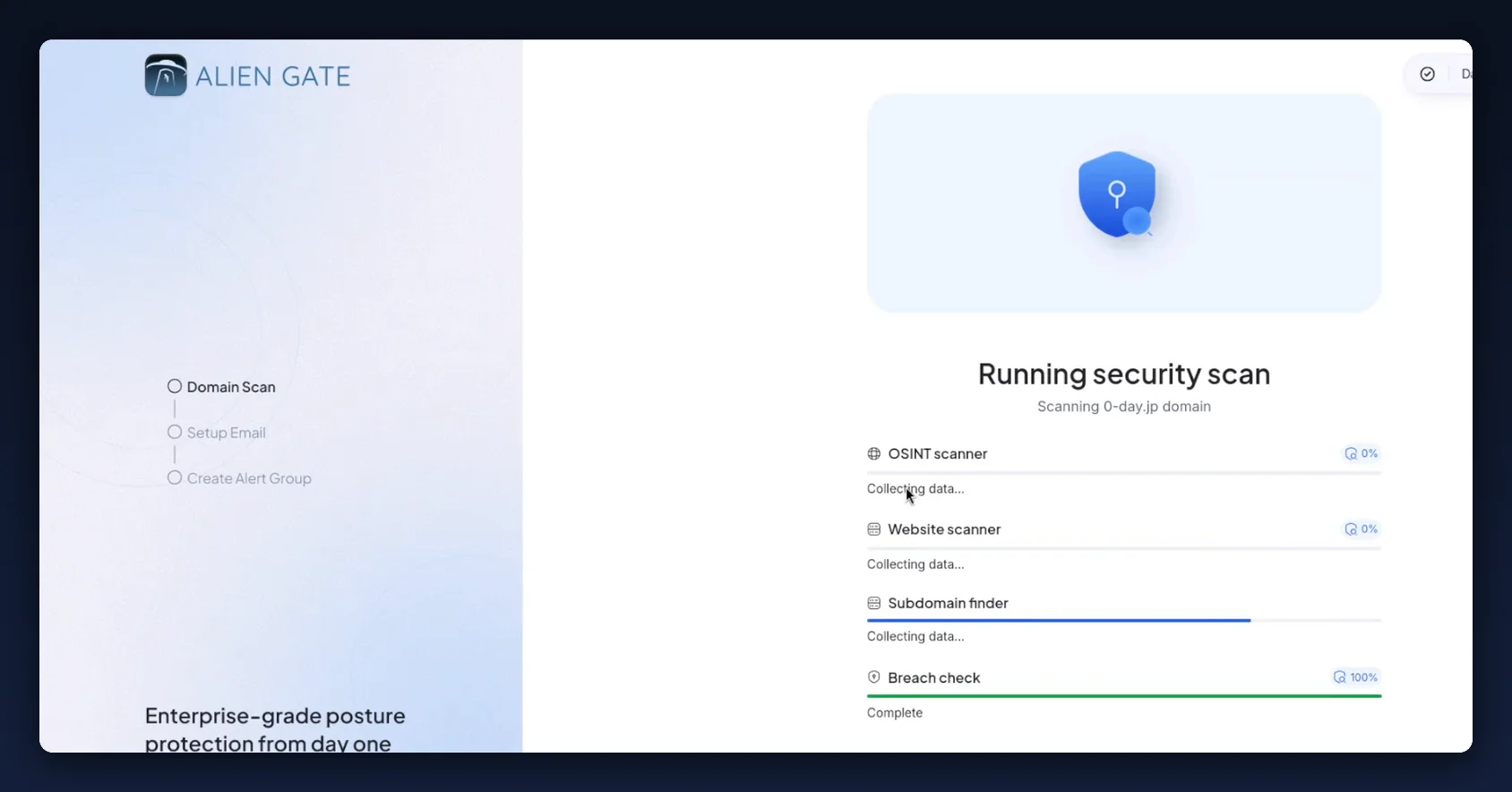
Onboarding then walks through three steps down the left rail: Domain Scan → Setup Email → Create Alert Group. The email step is where you add the addresses AlienGate should monitor for breach and dark-web exposure; the alert group step is where you decide which triggers raise an alert.
2. Create a workspace
A workspace is the container for your domains, infrastructure and team alerts. Give it a name that matches the business unit or environment, not the product — for example Zeroday Production.
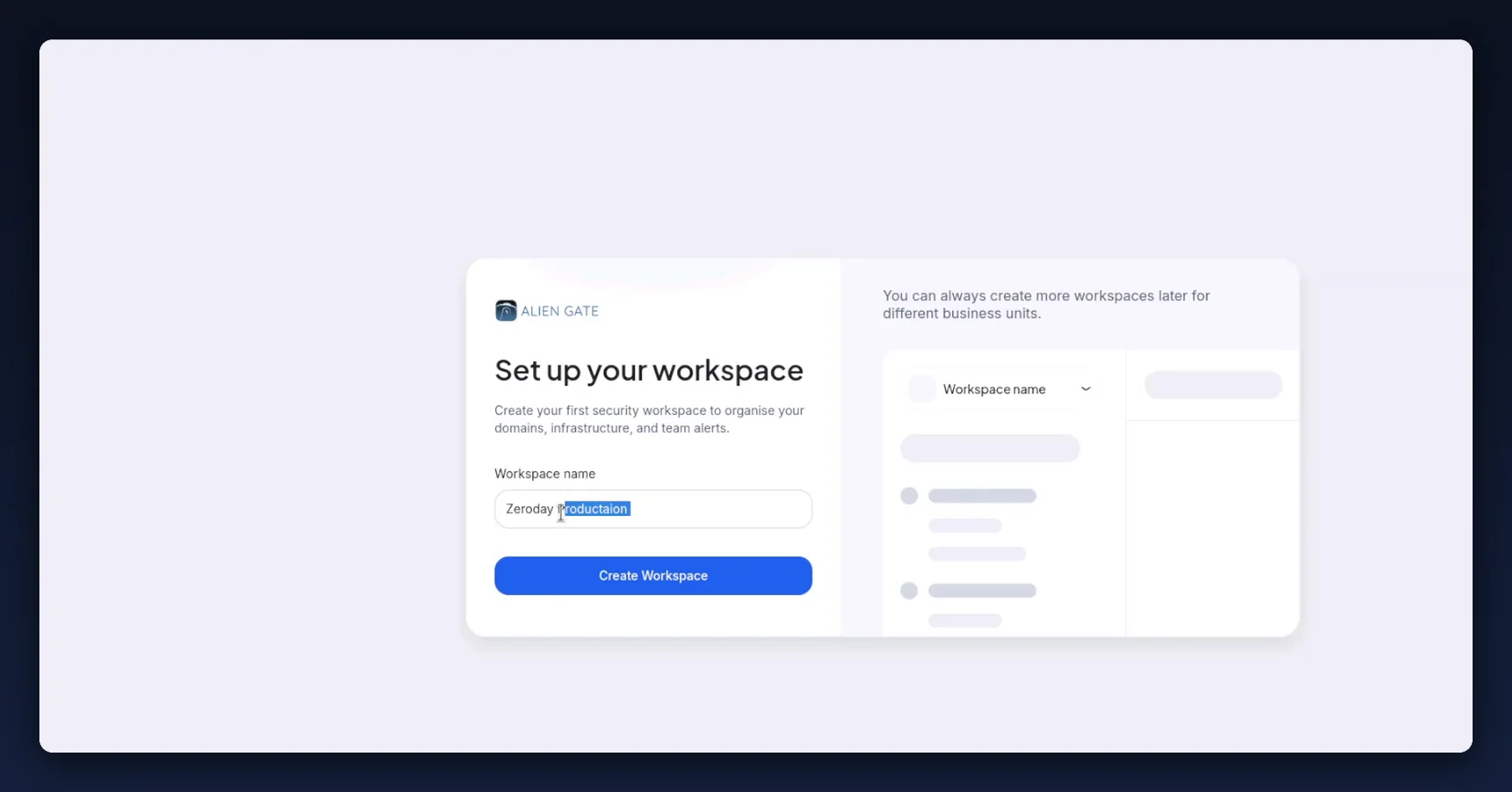
You can create more workspaces later for different business units, and switch between them from the workspace picker at the top of the left sidebar.
3. Know your plan limits
Vulnerability assessment capacity is set by your subscription, so check it before you plan a scan schedule.
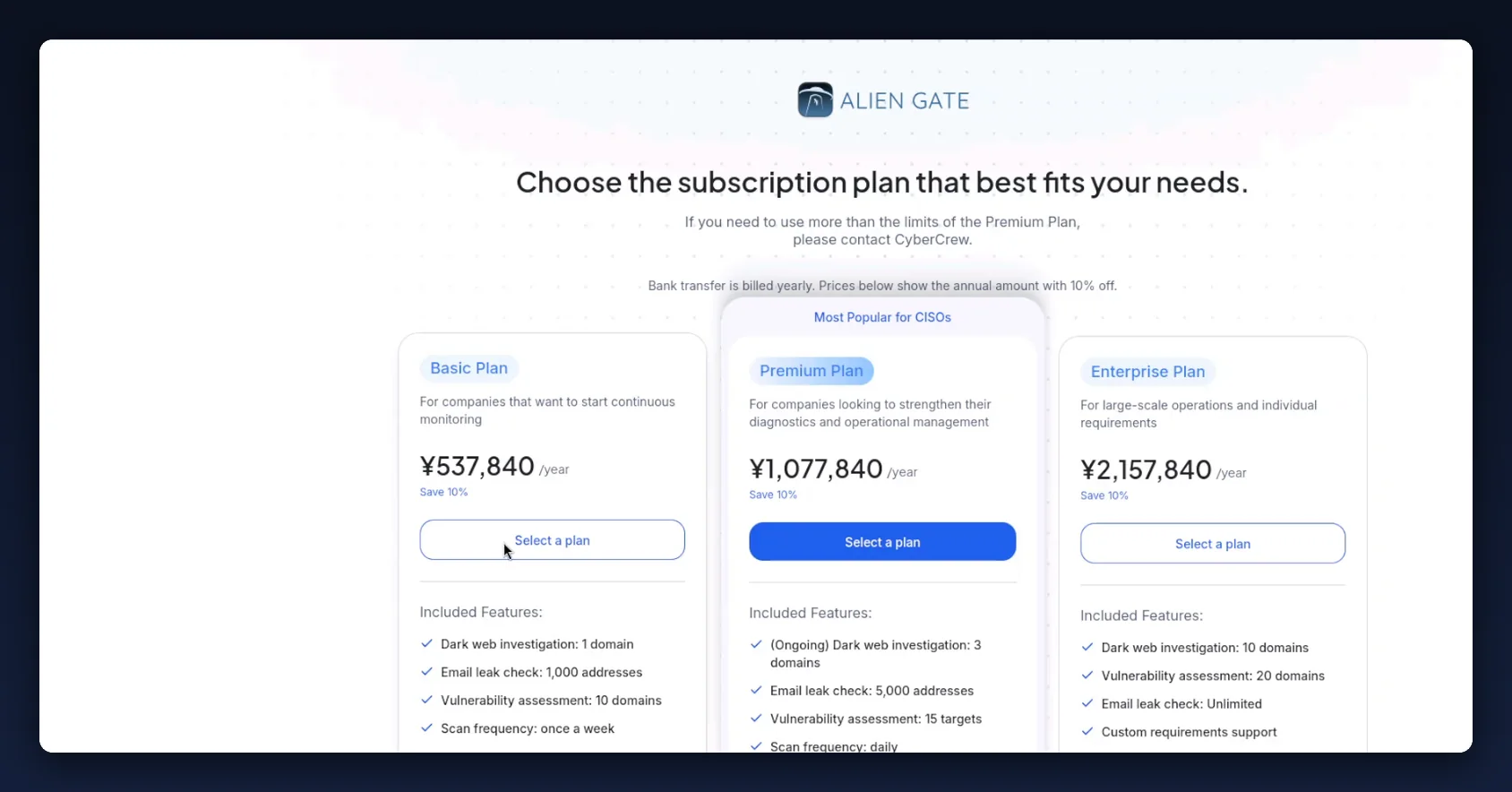
| Basic | Premium | Enterprise | |
|---|---|---|---|
| Price (annual, bank transfer) | ¥537,840 / year | ¥1,077,840 / year | ¥2,157,840 / year |
| Vulnerability assessment | 10 domains | 15 targets | 20 domains |
| Scan frequency | Once a week | Daily | Custom requirements support |
| Dark web investigation | 1 domain | 3 domains (ongoing) | 10 domains |
| Email leak check | 1,000 addresses | 5,000 addresses | Unlimited |
Bank transfer is billed yearly and the prices above already include the 10% annual discount. If you need more than the Premium limits, contact CyberCrew.
4. Confirm the asset is verified
The Vulnerability Scanner only launches against verified assets. Add and verify your domains and IPs under Infrastructure Security → Websites & IPs first; anything unverified will not appear in the target list in step 4.
The dashboard
After onboarding you land on the Dashboard (Overview tab). This is the posture view, not the scanning view — Enterprise Risk Score, Active Critical Threats, domains monitored, total findings across all severities, the Threat Discovery Timeline and the Incident Breakdown.
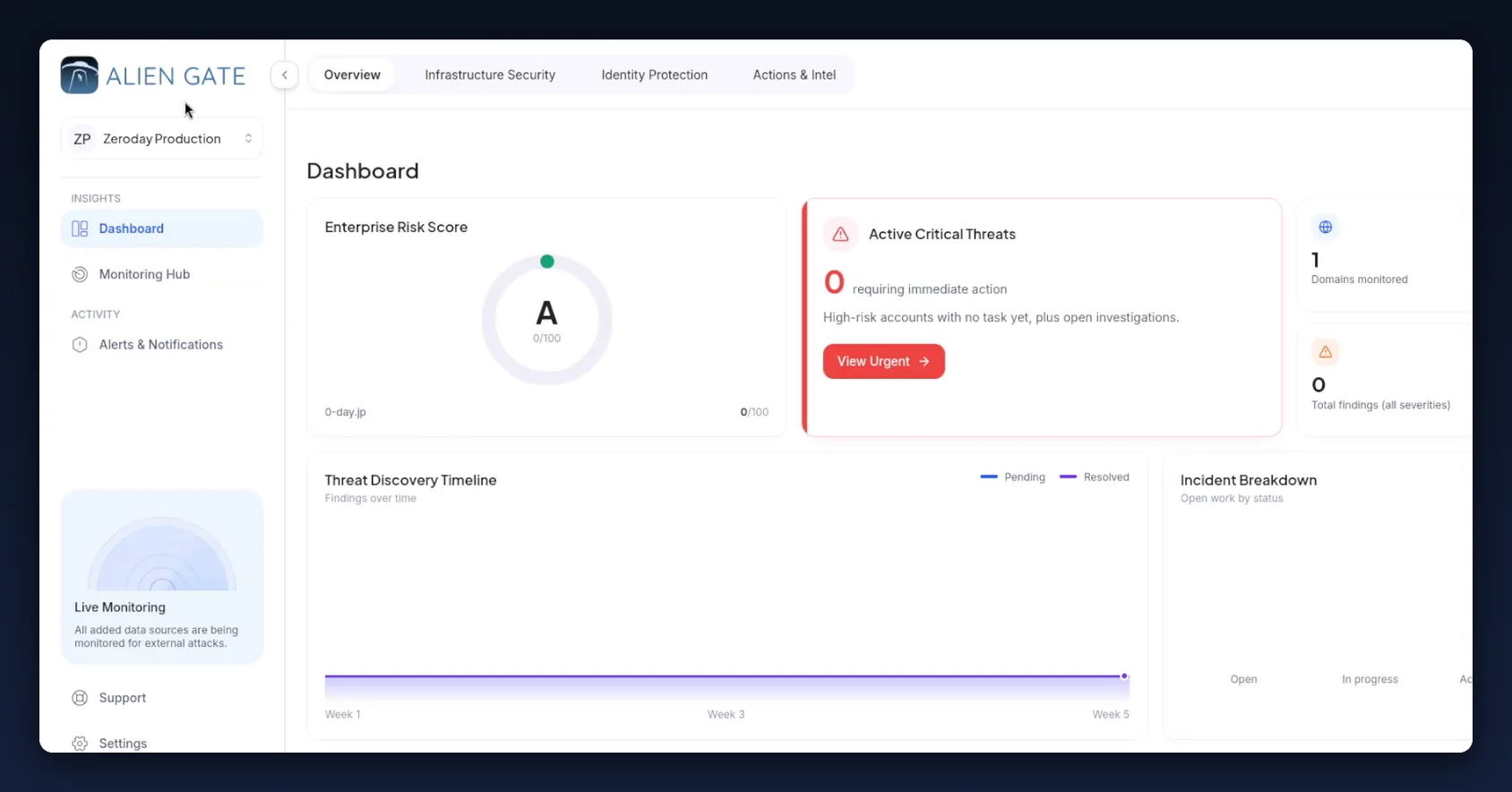
Use it to answer "where do we stand?". For "go and test this asset", move to Infrastructure Security.
Step 1 — Open the Vulnerability Scanner
Go to Infrastructure Security → Vulnerability Scanner (app.aliengate.io/dashboard/vulnerability-assessment).
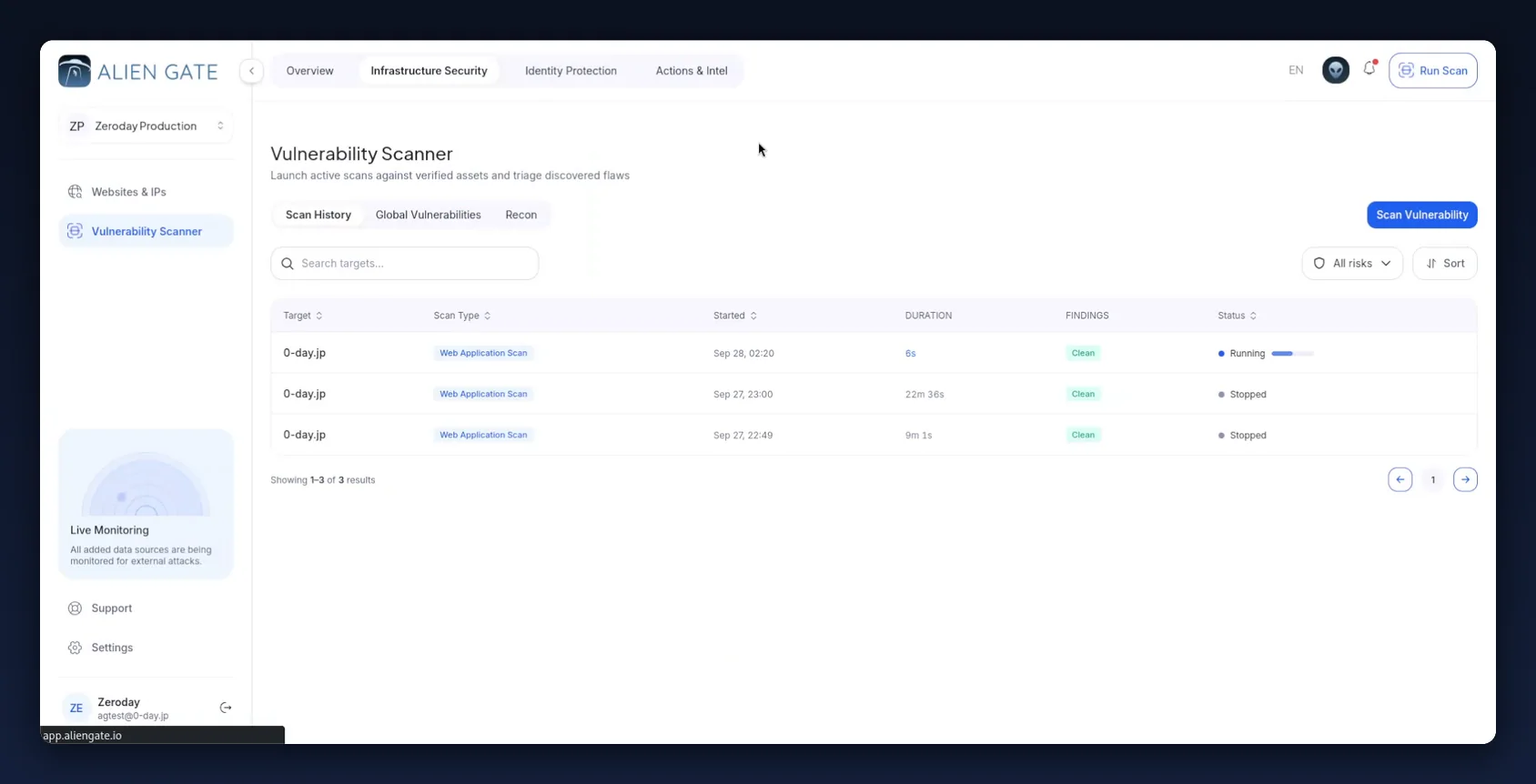
The page has three tabs:
| Tab | What it holds |
|---|---|
| Scan History | Every scan you have launched — target, scan type, start time, duration, findings count and status |
| Global Vulnerabilities | The de-duplicated findings list across scans, for triage |
| Recon | Observations from the recon engines (subdomains, exposed surface) — context, not vulnerabilities |
Scan History rows carry a Status of Queued, Running or Stopped, and a Findings badge (Clean when nothing has been raised yet). Use the search box, the All risks filter and Sort to work through a long history.
Step 2 — Open the Scanner Console
Click Scan Vulnerability (top right of the Scan History tab). The Scanner Console opens as a full-screen modal with three panes: scan type on the left, targets in the middle, and a live security terminal on the right.
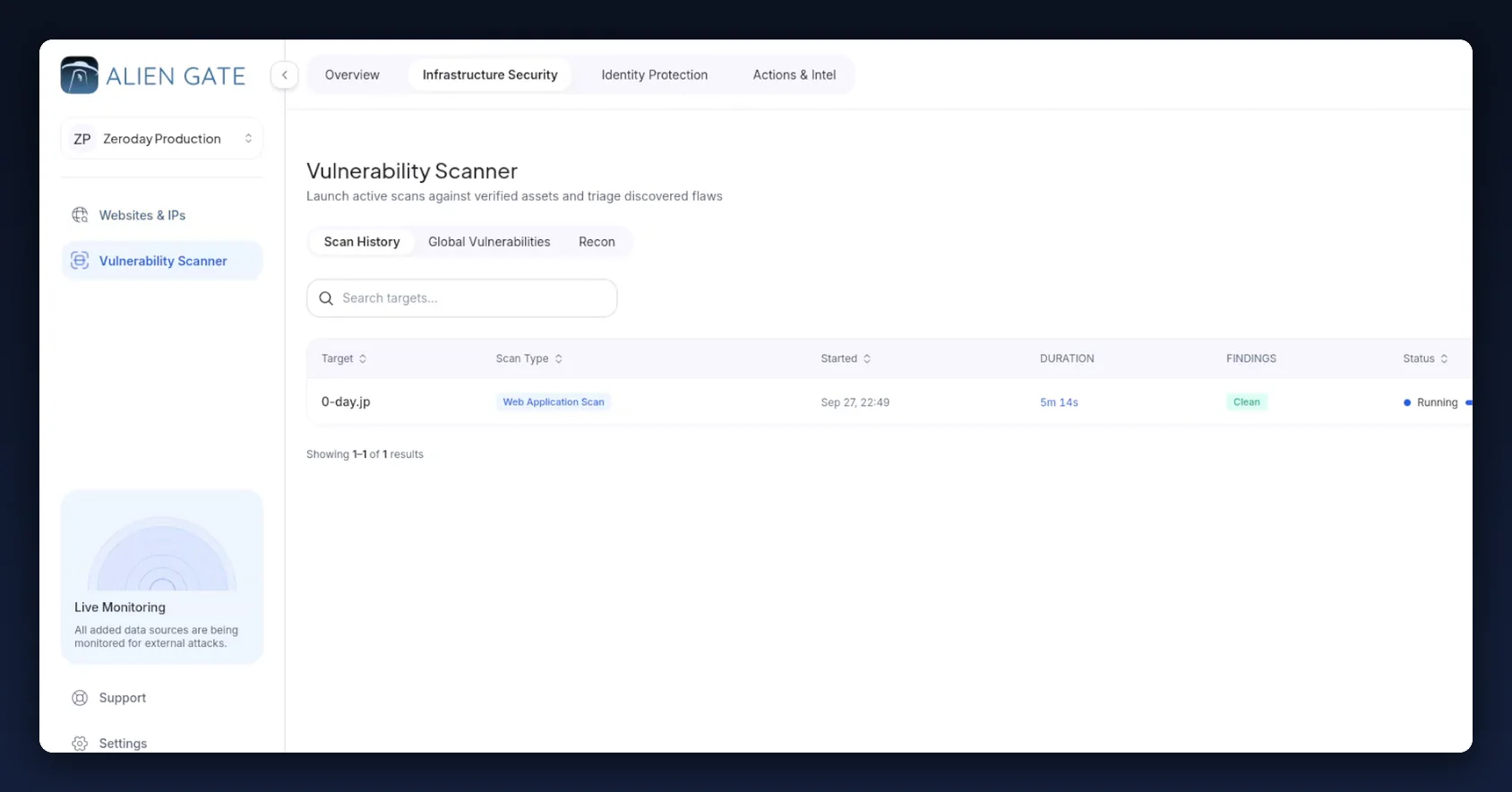
The terminal on the right is live from the moment the console opens — it reports engines loaded, SSL/TLS initialisation, perimeter reachability and the scanner node handling your job.
Step 3 — Choose a scan type
Three presets, shown with their typical runtime:
| Scan type | Typical duration | What it runs |
|---|---|---|
| Quick Perimeter Scan | ~30 min | SSL Analysis + Website Recon |
| Full Web Application Audit | ~90 min | Every scan engine |
| Custom | Varies | Only the engines you tick |
Choosing Custom expands the individual engines:
Vulnerability scans
| Engine | Duration | Use it for |
|---|---|---|
| Network Scan | ~15 min | Exposed ports and network-layer services |
| Web Application Scan | ~30 min | Injection, XSS, session handling, security headers, SSRF |
| SSL/TLS Analysis | ~10 min | Certificate and protocol configuration |
Specialised scanners
| Engine | Duration | Use it for |
|---|---|---|
| WordPress Scan | ~20 min | WordPress core, plugin and theme issues |
| Cloud Scan | ~15 min | AWS, Azure and GCP misconfigurations — bucket owners, users and more |
| Kubernetes Scan | ~20 min | Misconfigurations and vulnerabilities in Kubernetes |
Recon (observations, not vulnerabilities)
| Engine | Duration | Use it for |
|---|---|---|
| Website Recon | ~20 min | Technology and surface mapping |
| Subdomain Finder | ~10 min | Discovering hosts you did not know about |
Recommendation for a first assessment: pick Custom → Web Application Scan. It is the engine that actually exercises the application, it finishes in roughly half an hour, and it is the only engine that benefits from the authenticated scan in step 5. Add SSL/TLS Analysis if you also want the transport configuration checked.
Step 4 — Select your targets
The Scan Targets pane lists your verified assets. Filter with the All / Domains / IPs tabs, search by name, tick the assets you want, or use Select all. The counter under the list confirms how many are selected (0 of 1 selected), and the badge at the top of the pane shows the total available.
Start with one target. A single authenticated deep scan is easier to reason about — and easier to explain to the application owner — than five at once.
Step 5 — Enable authenticated scanning
This is the step that separates a surface scan from a real assessment. Without it, the scanner only sees your public pages. With it, it reaches everything behind the login.
Scroll to Authenticated scan and switch it to Enabled.
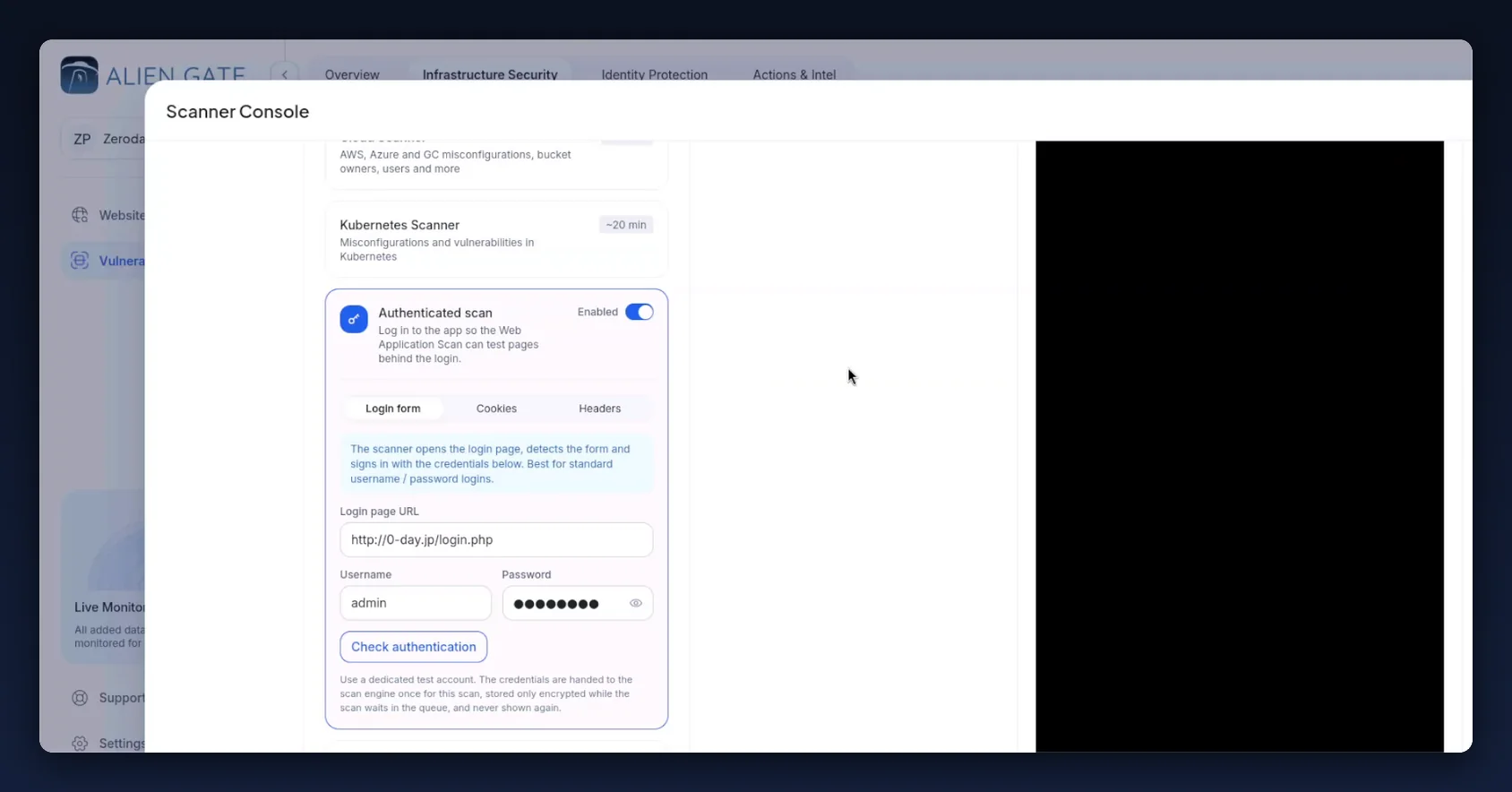
Three methods are available:
| Method | When to use it |
|---|---|
| Login form | Standard username / password logins. The scanner opens the login page, detects the form and signs in with the credentials you supply. |
| Cookies | You already have a valid session and want to hand the scanner the cookie directly. |
| Headers | Token or API-key authentication (for example a bearer token). |
For the Login form method, provide:
- Login page URL — the page holding the form, e.g.
http://0-day.jp/login.php(not the post-login landing page) - Username
- Password
Use a dedicated test account. AlienGate hands the credentials to the scan engine once for that scan, stores them encrypted only while the scan waits in the queue, and never shows them again. Give the test account the privilege level you actually want assessed — and never reuse a real administrator's personal account.
Step 6 — Verify the login before you launch
Click Check authentication. Do not skip this. A deep scan that silently failed to log in wastes 30 minutes and produces a clean-looking report of your login page.
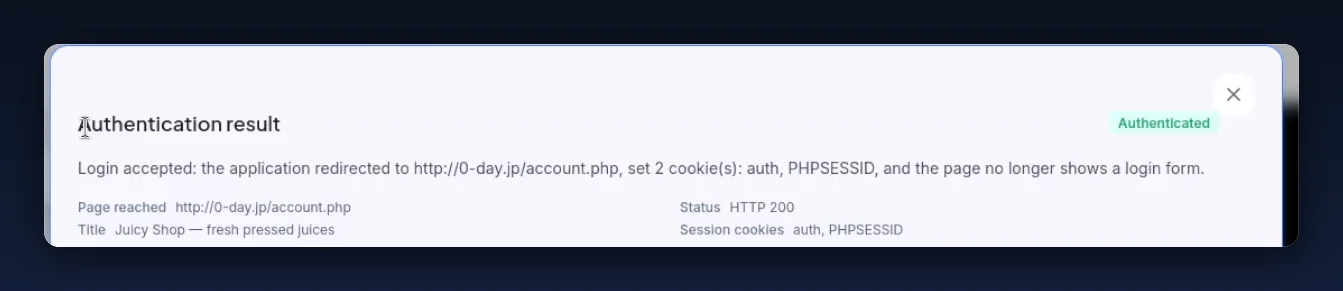
A successful check returns an Authenticated badge and the evidence behind it:
- the redirect the application performed and the cookies it set,
- Page reached — the URL the scanner ended on,
- Title — the page title it saw,
- Status — the HTTP status code,
- Session cookies — the cookies now held,
- a rendered preview of the page, so you can confirm by eye that it is the logged-in view and not the login form again.
If the check fails, the usual causes are: the login URL points at the landing page rather than the form; the form is rendered by JavaScript after load; there is a CAPTCHA or MFA prompt; or the account is locked. Fix the cause and re-check — switching to the Cookies or Headers method is the normal workaround for MFA and token-based logins.
Step 7 — Tune the scan options
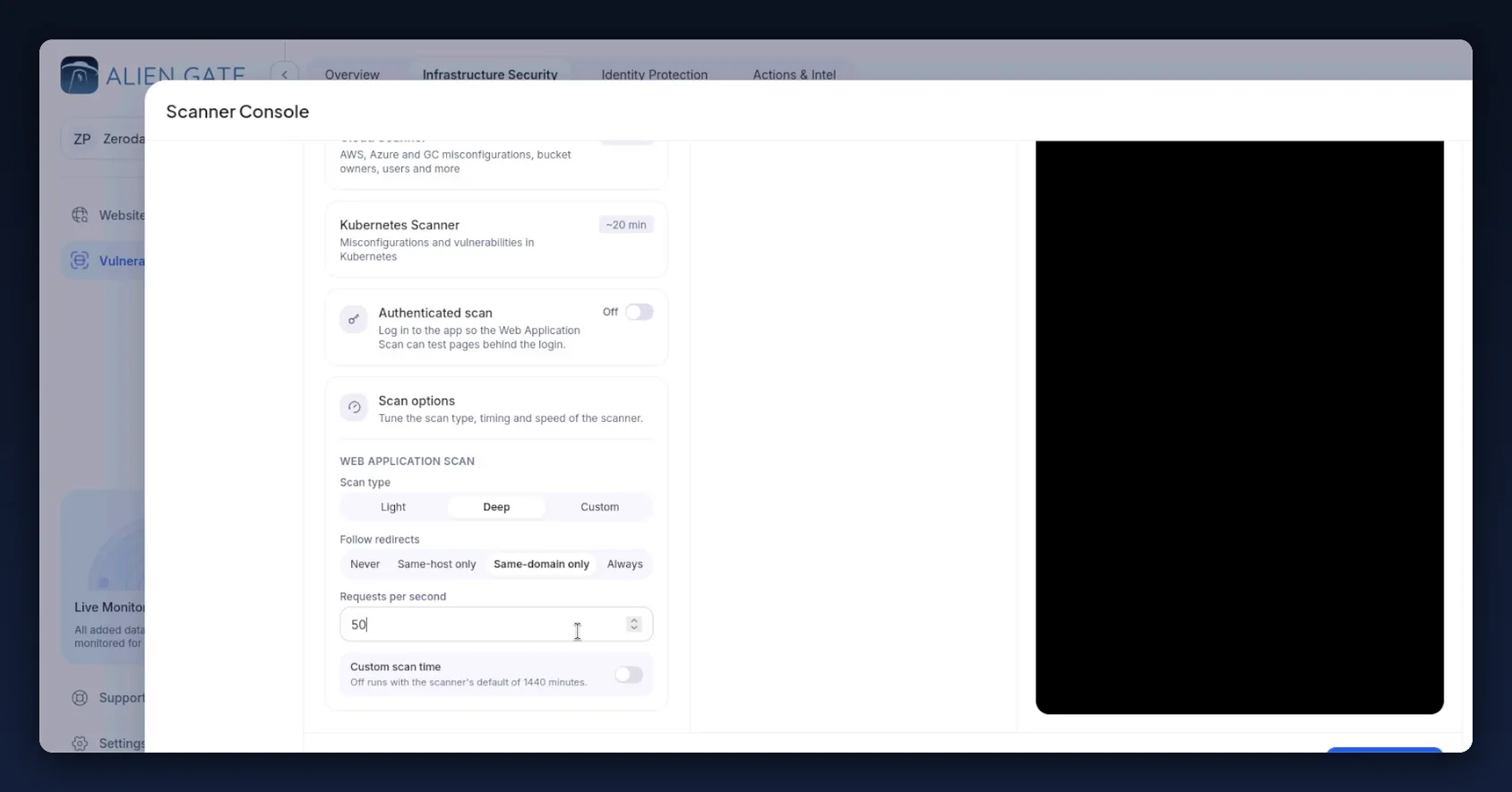
The Scan options section controls the depth, scope and speed of the scan.
| Option | Values | Guidance |
|---|---|---|
| Scan type | Light · Deep · Custom | Deep for a real assessment. Light is a fast sanity check. |
| Follow redirects | Never · Same-host only · Same-domain only · Always | Same-domain only is the safe default — it covers subdomains you own without wandering onto third-party hosts. |
| Requests per second | Numeric, default 100 |
Lower it for production. 50 is a reasonable starting point; drop further if the app is rate-limited or fragile. |
| Custom scan time | Toggle | Off runs with the scanner's default of 1440 minutes. Turn it on only when you need a hard time box. |
Requests per second is the setting most worth thinking about. It is your blast-radius control: 100 rps against a small production application is a load test you did not plan.
Step 8 — Launch the scan
Click Launch Scan at the bottom of the console. The scan appears immediately in Scan History as Queued, then flips to Running once a scanner node picks it up.
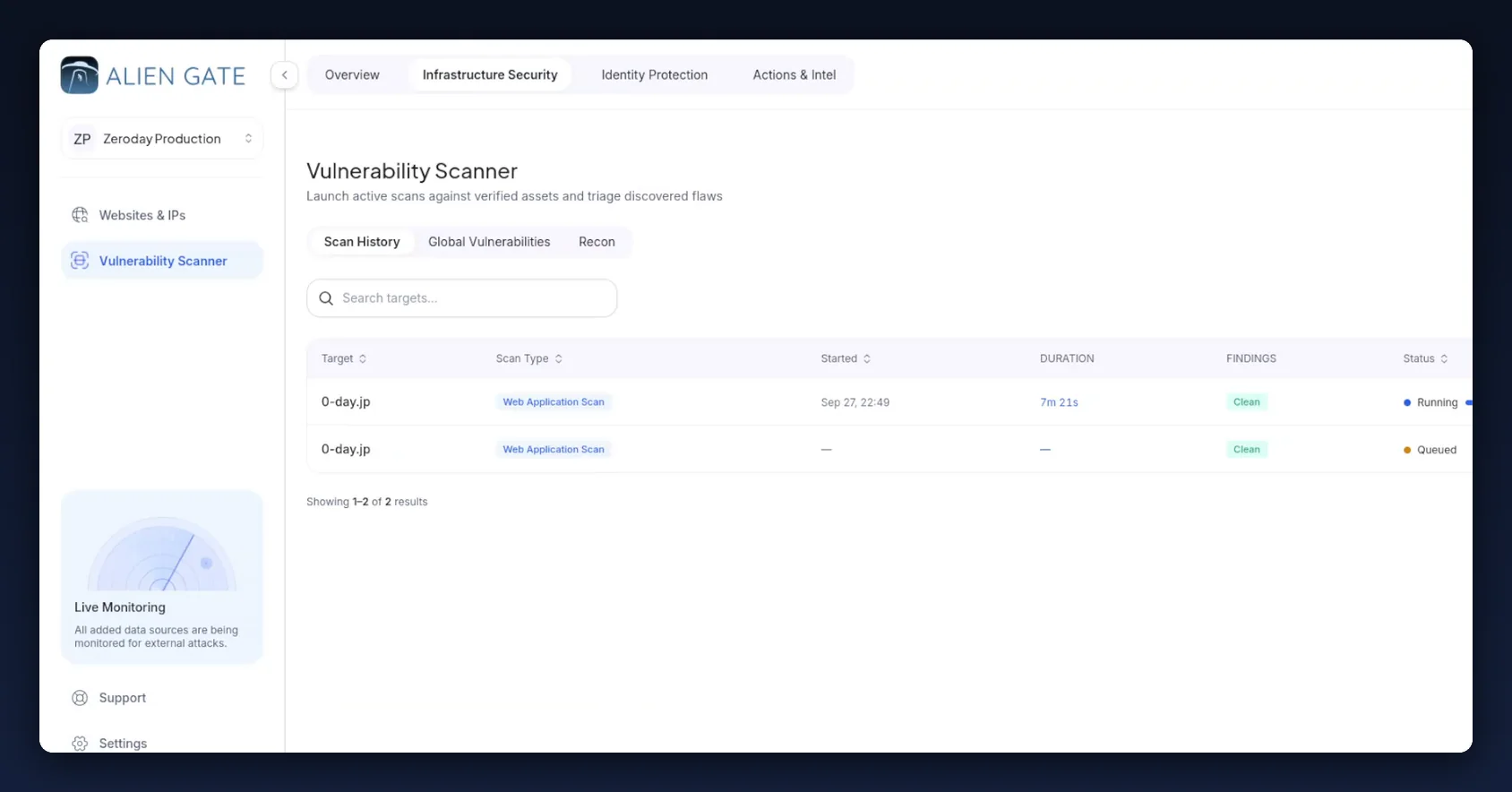
You can queue more than one scan and leave the page — scans run server-side and keep going after you close the tab.
Step 9 — Watch the scan live
Reopen the Scanner Console on a running scan to get the live view.
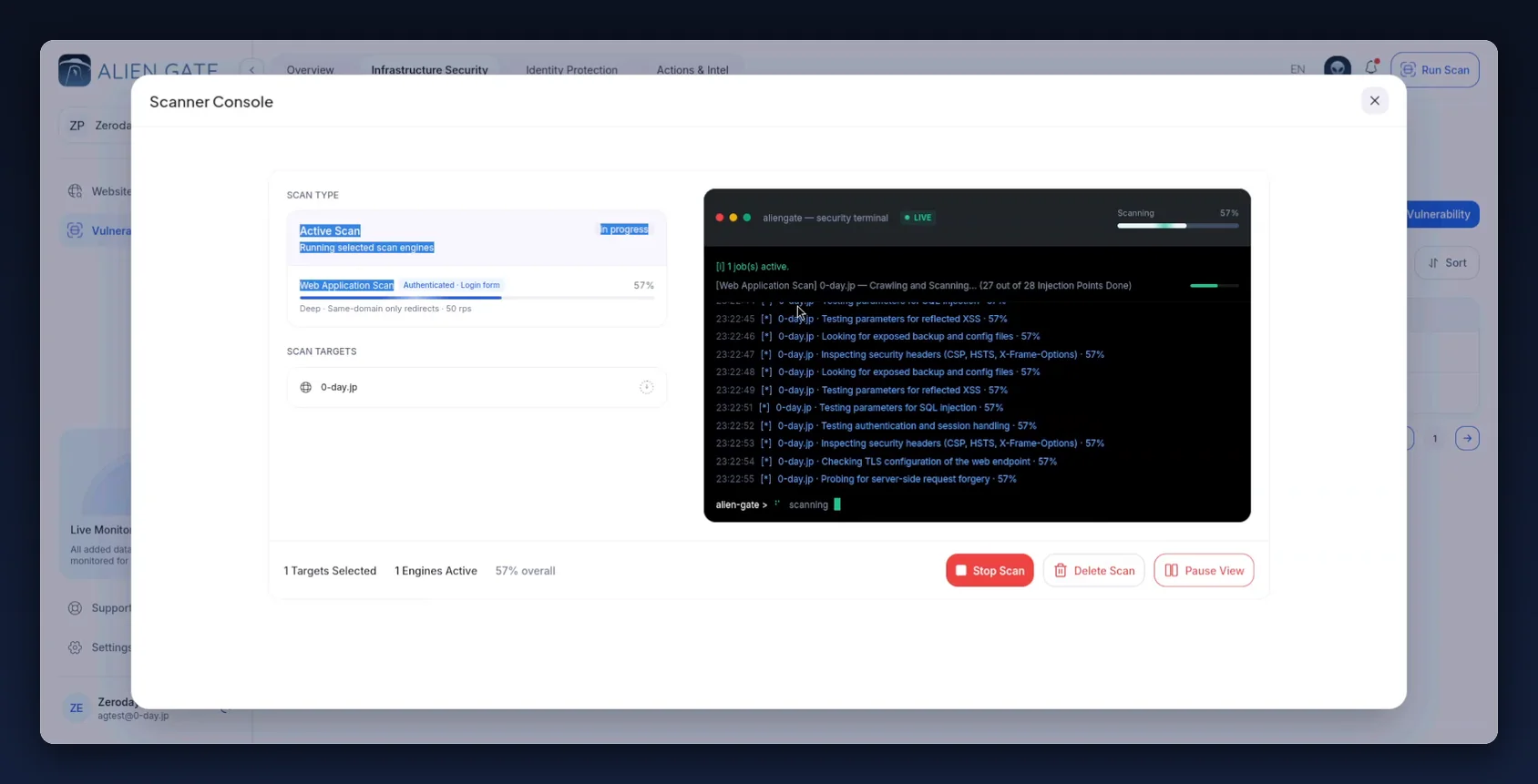
The console shows:
- Active Scan — In progress, with the engine, the authentication mode (
Authenticated · Login form) and percentage complete, - the effective configuration as a one-line summary —
Deep · Same-domain only redirects · 50 rps, - a LIVE terminal streaming timestamped activity: crawling progress and injection points done, parameters tested for SQL injection and reflected XSS, exposed backup and config files, security headers (CSP, HSTS, X-Frame-Options), TLS configuration, authentication and session handling, server-side request forgery,
- a footer summary — targets selected, engines active, overall percentage.
Three controls are available while it runs:
| Control | Effect |
|---|---|
| Pause View | Freezes the terminal output so you can read it. The scan keeps running. |
| Stop Scan | Ends the scan. Findings already discovered are kept; the run is marked Stopped. |
| Delete Scan | Removes the scan and its results. |
Watching the log is the fastest way to catch a misconfiguration early — if every line reports the same page, your crawl scope or authentication is wrong, and it is cheaper to stop and fix it than to wait 30 minutes.
Step 10 — Triage the findings
When the scan finishes, switch to the Global Vulnerabilities tab. Pick the scan from the selector at the top — the active filter shows as a chip, e.g. Scan: Web Application Scan · 0-day.jp · Sep 27, 23:00.
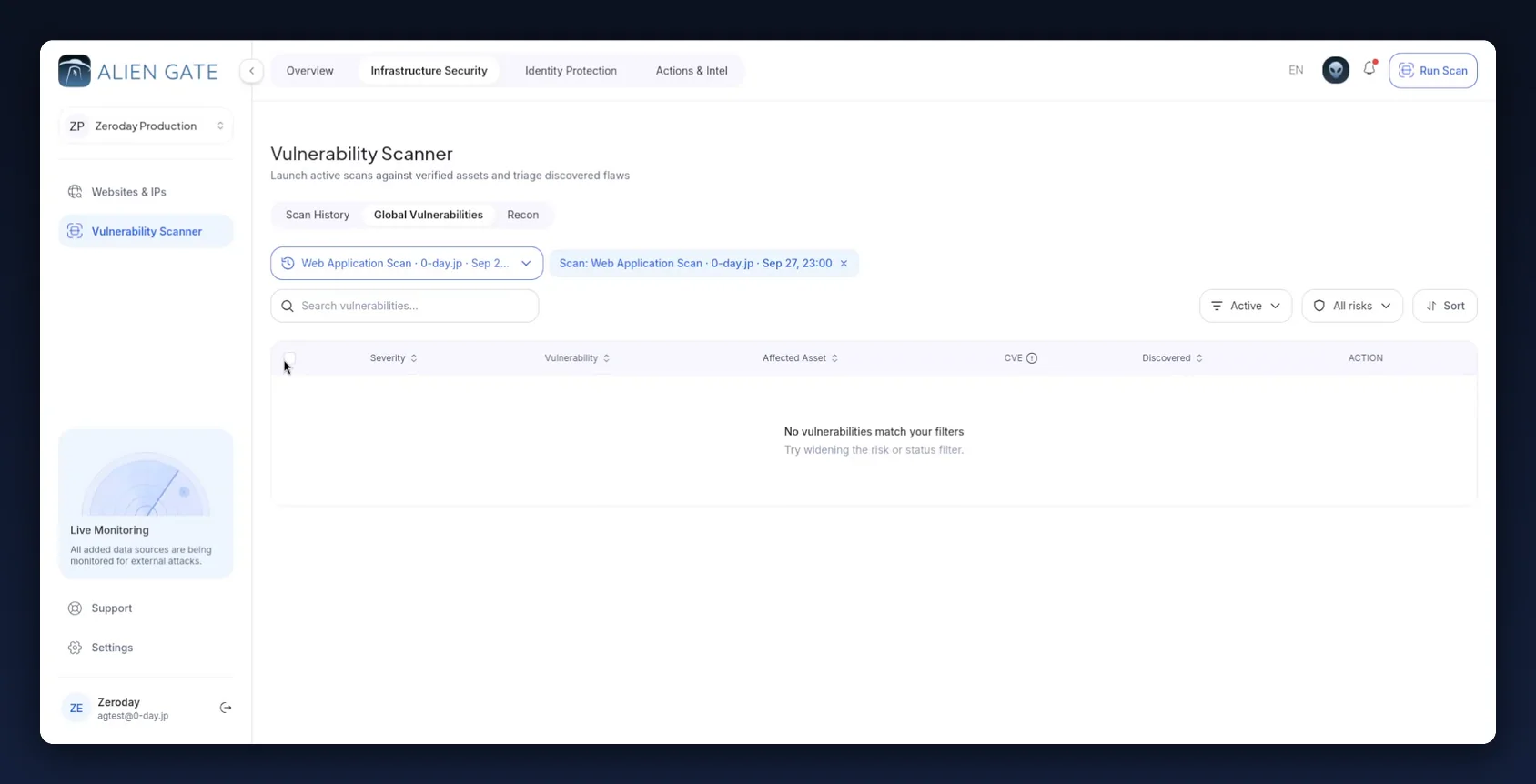
The table gives you, per finding: Severity, Vulnerability, Affected Asset, CVE, Discovered and an Action column. On top of that:
- Search vulnerabilities — find a specific class of issue by name,
- Active — status filter, so resolved and accepted findings drop out of the view,
- All risks — severity filter,
- Sort — order by severity or discovery date,
- row checkboxes for bulk actions.
If the table is empty and you expected findings, widen the filters before you conclude the asset is clean — the empty state (No vulnerabilities match your filters) is telling you about the filter, not the asset. Check the Findings column in Scan History to see whether the scan actually raised anything.
A workable triage order:
- Critical and High first, regardless of which asset they are on.
- Within a severity, sort by Affected Asset and group by owning team — one ticket per team beats one ticket per finding.
- Anything with a CVE goes to patch management; anything without one is a code or configuration change.
- Mark false positives as resolved with a note, so the next scan's diff stays meaningful.
Step 11 — Retest and close the loop
A vulnerability assessment is only finished when the fixes are verified.
- When a fix ships, re-run the same scan configuration — same engines, same authentication, same depth. A different configuration is not a retest.
- Compare against the previous run in Scan History: duration, findings count, and the Global Vulnerabilities list filtered to the new scan.
- Set a cadence. Basic supports weekly scans, Premium daily — schedule to your plan's limit rather than scanning ad hoc, so the Threat Discovery Timeline on the dashboard becomes a trend rather than a set of dots.
Quick reference
The ten-second version
Infrastructure Security → Vulnerability Scanner
  → Scan Vulnerability
    → Scan type:   Custom → Web Application Scan
    → Targets:     select one verified asset
    → Auth:        Enabled → Login form → Check authentication
    → Options:     Deep · Same-domain only · 50 rps
    → Launch Scan
  → Scan History (watch)  →  Global Vulnerabilities (triage)
Scan statuses
| Status | Meaning |
|---|---|
Queued |
Accepted, waiting for a scanner node |
Running |
In progress — live console available |
Stopped |
Ended early by you; partial results retained |
Common mistakes
| Mistake | Consequence | Fix |
|---|---|---|
| Launching without authentication | Only public pages tested; report looks clean | Enable authenticated scan and verify it |
| Skipping Check authentication | 30 minutes spent scanning the login page | Always verify before launching |
| Leaving requests per second at 100 | Load spike on a production app | Lower to 50 or below for production |
Follow redirects: Always |
Scanner wanders onto hosts you do not own | Use Same-domain only |
| Reading an empty Global Vulnerabilities table as "clean" | Real findings hidden by a filter | Widen the filters; cross-check the Findings column in Scan History |
Where to go next
- Infrastructure Security → Websites & IPs — add and verify more assets before your next scan
- Recon tab — subdomains and surface discovered along the way; good input for your next round of targets
- Alerts & Notifications — get told about new critical findings instead of checking the dashboard
- Support — in-app, from the bottom of the left sidebar
Screenshots in this article were captured from AlienGate against 0-day.jp, a deliberately vulnerable application used for demonstration. Values shown — workspace name, target, credentials and timings — are from that demonstration environment.