

If McAfee suddenly tells you that your information was "found on the dark web," it is natural to feel alarmed.
"Has my email address been leaked?"
"Can they see my password too?"
"Should I cancel my credit card?"
"Why am I getting this notification when I don't even subscribe to McAfee?"
All of these questions probably hit you at once.
Let us start with the conclusion: McAfee "found on the dark web" notifications come in two kinds, genuine notifications and fake warnings impersonating McAfee.
If the alert is genuine, your email address, password or other details may be included in data from a past breach. If it is fake, it may be a scam display abusing your browser's notification feature, or an attempt to lure you to a tech-support scam or a phishing site.
The most important thing at this stage is not to click the notification in a panic. Be especially careful if you see messages like "Take action now," "Your device is infected," "Call this number" or "Payment required."
Speaking from the field as CyberCrew's white-hat hackers, these notifications are designed to scare you into acting. That is exactly why the first thing to do is not to believe the content, but to check where the notification is coming from.
In this article, we walk through how to tell in 30 seconds whether a McAfee notification is real or fake, what to do if your information really has been leaked, how to get rid of fake warnings, and how to avoid going through the same worry again.
McAfee "Found on the Dark Web": are there real and fake versions?
Not every McAfee "found on the dark web" notification is a scam. McAfee offers a feature that monitors whether your email address or personal information appears in breached data on the dark web. If you subscribe to McAfee, or are using a trial version that came preinstalled on your PC, you may see a legitimate notification.
On the other hand, there are also plenty of fake warnings that use McAfee's name and logo without permission. The most common ones abuse browser notifications in Chrome, Edge and other browsers. Messages such as "Virus found," "Your McAfee protection has expired" or "Your information was found on the dark web" pop up in the lower-right corner of the screen or in your phone's notification tray.
In these cases, the notification is not actually coming from McAfee itself; it is simply being sent by a suspicious website you opened in the past. McAfee has also issued an official warning about fake pop-up notifications impersonating McAfee.
In other words, the first thing to look at is not the wording of the notification.
What you need to look at is where the notification is being displayed from.
- Is it shown inside the McAfee app?
- Did it arrive by email?
- Is it appearing as a Chrome or Edge notification?
- Or is it only being shown on some unfamiliar website?
Simply separating these cases will greatly improve the accuracy of your real-or-fake judgment.
If it's real: how dark web monitoring works
If the notification is genuine, McAfee's identity monitoring feature may have detected a leak of your email address, phone number, credit card details or similar information. McAfee explains that its dark web personal information detection can monitor up to 60 types of data.
The dark web is part of the internet that cannot be found through an ordinary Google search. Not all of it is used for crime, but it can be abused as a place where stolen email addresses, passwords, credit card details, identity documents, phone numbers and more are bought, sold and shared.
Information can leak for more than one reason.
- A service you used in the past suffered a data breach.
- You entered your email address and password on a fake site.
- You reused the same password across multiple services.
- Your device was infected with malware that stole your credentials.
- You left an old account you signed up for long ago unattended.
Through routes like these, information can leak without you noticing.
A common situation is "I don't recognize the site name shown." For example, when a notification shows an unfamiliar service or domain name, it is tempting to conclude "I've never used that, so it must be fake." In reality, the name shown may be the source of an earlier breach, an ad network, the pre-acquisition name of a service, or the name of a third-party service.
So it is risky to decide the alert is fake just because you do not recognize the name. Check whether the same detection appears in your legitimate McAfee account.
If it's fake: how scams abuse browser push notifications
The most common fake is one that abuses browser push notifications.
When you open a suspicious site, you may see a prompt asking "Allow notifications?" If you accidentally click "Allow," that site can send notifications to your PC or phone from then on.
After that, McAfee-style warnings may keep appearing in the lower-right corner of your screen or your phone's notification tray, even when the browser is closed.
- "Virus detected"
- "Your personal information is at risk"
- "Found on the dark web"
- "Update now"
- "Your protection has expired"
These messages stoke anxiety and ultimately steer you to a fake security software purchase page, a phishing site, or the phone number of a remote-support scam.
McAfee's own explanation also describes fake pop-up notifications following this pattern: get the user to allow notifications, then display fake warnings. In other words, it is not McAfee randomly showing odd notifications; in some cases, a website you previously allowed is abusing McAfee's name to send them.
If the notification source shows an unfamiliar domain such as "electrocol.com," it is likely a browser notification from that site rather than from McAfee itself. In that case, the right response is not to click the notification and to remove the site in your browser's notification settings.
Correctly telling real from fake is the important first step. However, when a company email address or business account is involved, handling it on your own may not be enough. CyberCrew continuously identifies and manages corporate risk through dark web monitoring and vulnerability assessments. Start with a free consultation.
How to tell real from fake
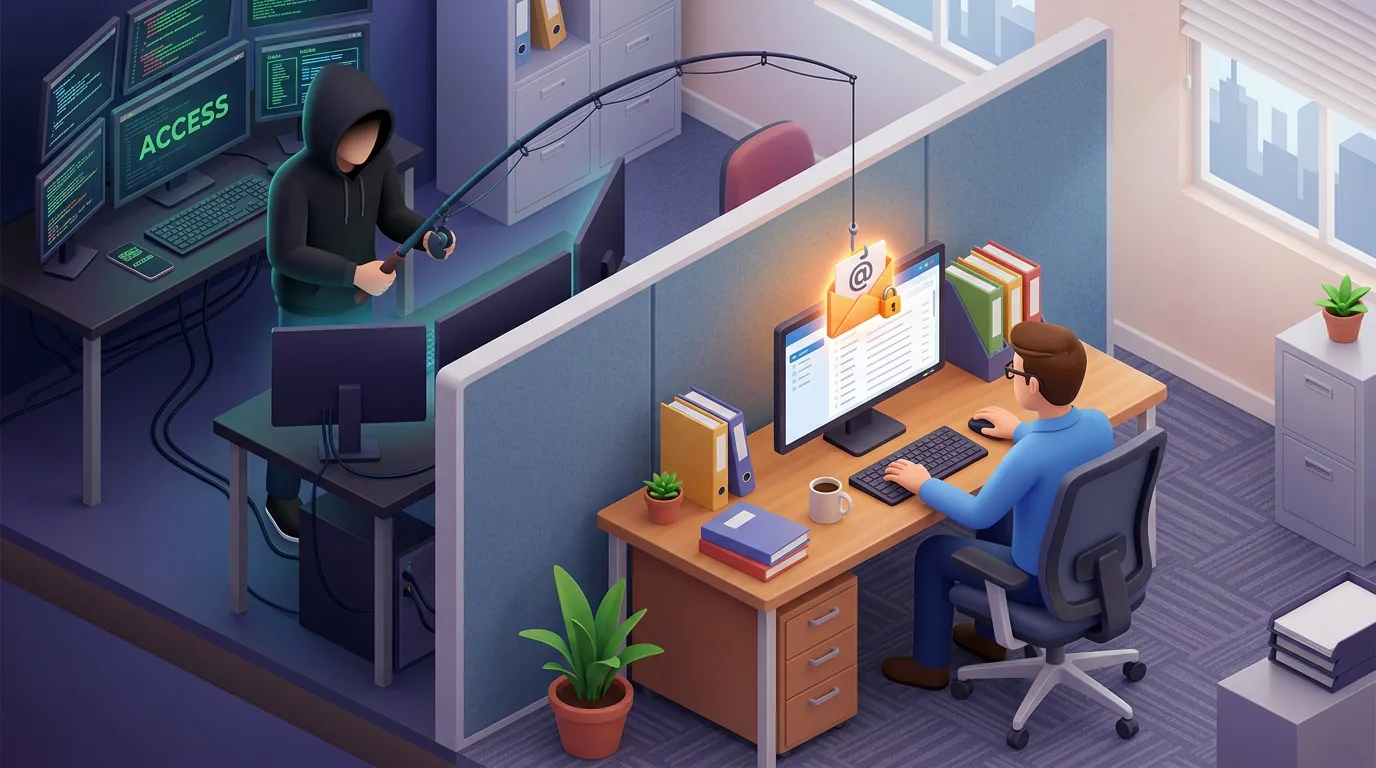
When telling real from fake, checking the following three things is faster than relying on specialist knowledge.
| What to check | Likely genuine | Likely fake |
|---|---|---|
| Whether you have McAfee | You subscribe, are on a trial, or it came preinstalled on your PC | You don't remember subscribing, or you don't use McAfee |
| Where the notification appears | Inside the McAfee app, your official account page, or legitimate email | Browser notifications in Chrome, Edge, Safari, etc., or pop-ups on suspicious sites |
| Sender / notification source | Official McAfee domain, in-app notification | Unfamiliar domain, pushes you to call a phone number, urges immediate payment |
The one to check most carefully is where the notification appears.
If it is shown inside the McAfee app and you can see the same content after logging in to your official account, it may be genuine. If, on the other hand, it appears as a Chrome or Edge notification and the source is an unfamiliar URL, it is very likely a fake warning.
If it arrived by email, pay attention to the sender as well. In its guidance on spotting scam emails, McAfee gives sender examples such as info@smtx.mcafee.com. However, sender names and email addresses can be spoofed. Even if the sender looks plausible, it is safer not to click the links in the email directly.
To check, do not use the buttons in the email. Instead, go to the official McAfee website via a search or a bookmark, log in yourself and check there.
To decide in 30 seconds, check in this order:
- Do you subscribe to McAfee, or are you using a trial?
- Is the notification inside the McAfee app, or is it a browser notification?
- Does the notification source show an unfamiliar domain?
- Is it pushing you to call, pay or install something?
- If you log in directly on the official site, can you see the same notification?
If any of these five include a browser notification, an unfamiliar domain, a push to call, or a push to pay, strongly suspect a fake.
The notification source, whether you have McAfee, and what it is trying to get you to do: checking these three lets you decide in most cases. If you are still unsure, or if a company-domain email address is involved, contact CyberCrew. With the right preparation in advance, the damage from cyberattacks can be kept to a minimum. Start with a free consultation.
If it's real: 5 steps to take right now
Even if the notification is genuine, there is no need to immediately imagine the worst. What matters is confirming what was detected and taking action before it can be abused.
Information detected on the dark web is generally hard to "delete." Once data is in circulation, it may be copied and reposted elsewhere. That is why, rather than aiming for deletion, it is important to make the leaked information unusable.
STEP 1 | Check what type of information was detected
First, check what was detected. The urgency changes significantly depending on whether it is only your email address, whether passwords are included, or whether credit card or bank details are involved.
| Information detected | Urgency | Likely risk | First action |
|---|---|---|---|
| Email address only | Medium | More spam and phishing | Watch for suspicious email and review important accounts |
| Email + password | High | Unauthorized logins, impersonation | Change the password on every service that uses it |
| Phone number | Medium | SMS scams, scam calls | Watch for suspicious SMS and calls |
| Credit card details | High | Fraudulent charges | Contact your card issuer and review your statements |
| Bank / financial information | Very high | Fraudulent transfers, account abuse | Contact your financial institution and change login details |
| Name, address, date of birth | Medium to high | Impersonation, abuse of identity verification | Check notifications from identity-verification services |
The priority of your response differs between a case where only your email address was detected and one that includes passwords or card details.
The most dangerous is an email-and-password combination. Attackers use that combination to try logging in to other services as well. If you reuse passwords, the damage can spread very quickly.
STEP 2 | Change your passwords
If a password was detected, or may have been leaked, change it immediately. Especially if you use the same password across multiple services, you need to set priorities and change them all in one go.
A good way to think about the order of changes:
| Priority | Target | Reason |
|---|---|---|
| 1 | Online banking, brokerage, credit cards, payment services | They lead directly to financial loss |
| 2 | Email accounts | They can be abused to reset passwords for other services |
| 3 | Google, Apple and Microsoft accounts | They are tied directly to your phone, cloud and credentials |
| 4 | Social media, online shopping, subscriptions | They lead to impersonation, fraudulent purchases and exposure of personal data |
| 5 | Old membership sites you no longer use | Abandoned accounts become entry points for attacks |
Set a different password for each service. If you cannot remember them all, using a password manager is the realistic option.
One note here: the idea that "changing your password regularly keeps you safe" is now somewhat outdated. The US NIST Digital Identity Guidelines also take the approach of changing passwords when there is suspicion of a leak or compromise, rather than on an arbitrary schedule.
In other words, what matters is not changing them every month.
It is not reusing passwords and changing them immediately when a leak is suspected.
STEP 3 | Turn on two-step verification (multi-factor authentication)
Once you have changed your passwords, be sure to set up two-step verification too. With it enabled, even if your password becomes known, it is much harder for an attacker to log in.
These are the accounts to prioritize:
| Account | Why you should set it up |
|---|---|
| Google Account | It is connected to Gmail, Google Drive, YouTube and Android |
| Apple Account | It is tied to your iPhone, iCloud and Apple Pay |
| Microsoft account | It is tied to Outlook, OneDrive and Windows sign-in |
| Online banking and brokerage | It leads directly to financial loss |
| Social media | It can be abused for impersonation and scam DMs |
| Online shopping sites | It can lead to fraudulent purchases and exposure of your address |
If you use Google, check 2-Step Verification for your Google Account. Apple, Microsoft, social networks and banking apps have similar settings.
SMS authentication is better than nothing, but where possible, choosing a stronger method such as an authenticator app, passkeys or a security key gives you more peace of mind.
STEP 4 | Monitor your credit cards and bank accounts
If credit card or financial information was detected, check your statements immediately. If there are charges you do not recognize, contact your card issuer or financial institution.
In situations like these, it is best to contact your card issuer early:
| Situation | Response |
|---|---|
| Your card number may have been leaked | Contact your card issuer and have the card reissued if needed |
| You remember entering the security code as well | Contact your card issuer urgently |
| There are charges you don't recognize | Report the fraud, suspend the card and request an investigation |
| You may have entered your bank login details | Change your password and contact your financial institution |
| You sent copies of your identity documents | Consider contacting the police, a consumer affairs center and your financial institution |
Fraudulent use does not always start with a large amount. Attackers may test whether a card works with a small charge, which can then lead to much larger losses.
Do not assume "I'm fine because nothing has happened yet." If financial information is involved, we recommend acting early.
STEP 5 | If you are still worried, ask a professional to investigate
You have changed your passwords. You have checked your card statements. You have turned on two-step verification.
If you are still worried, there are cases where it is better to consult a professional.
In particular, situations like these are hard to judge on your own:
- You clicked a fake warning
- You entered personal information or card details
- You installed a remote-access app
- You called a "support" number
- A company email address was detected
- The warning appeared on a work device
- Your login history shows access you don't recognize
- You suspect a malware infection
- You have already suffered fraudulent charges or impersonation
Especially when a company email address or work device is involved, it may not be a purely personal problem. Attackers use credentials not only to break into personal accounts, but also to get into internal systems, cloud services, VPNs and SaaS accounts.
CyberCrew checks risk from the attacker's perspective through corporate security assessments and risk evaluations, dark web monitoring, vulnerability assessments, penetration testing and more. If you want to keep continuous track of leaks involving your company domain or business email, a service like ALIENGATE, which combines dark web intelligence with vulnerability scanning, is also an option.
If it's fake: how to remove the notifications and what to do if you clicked
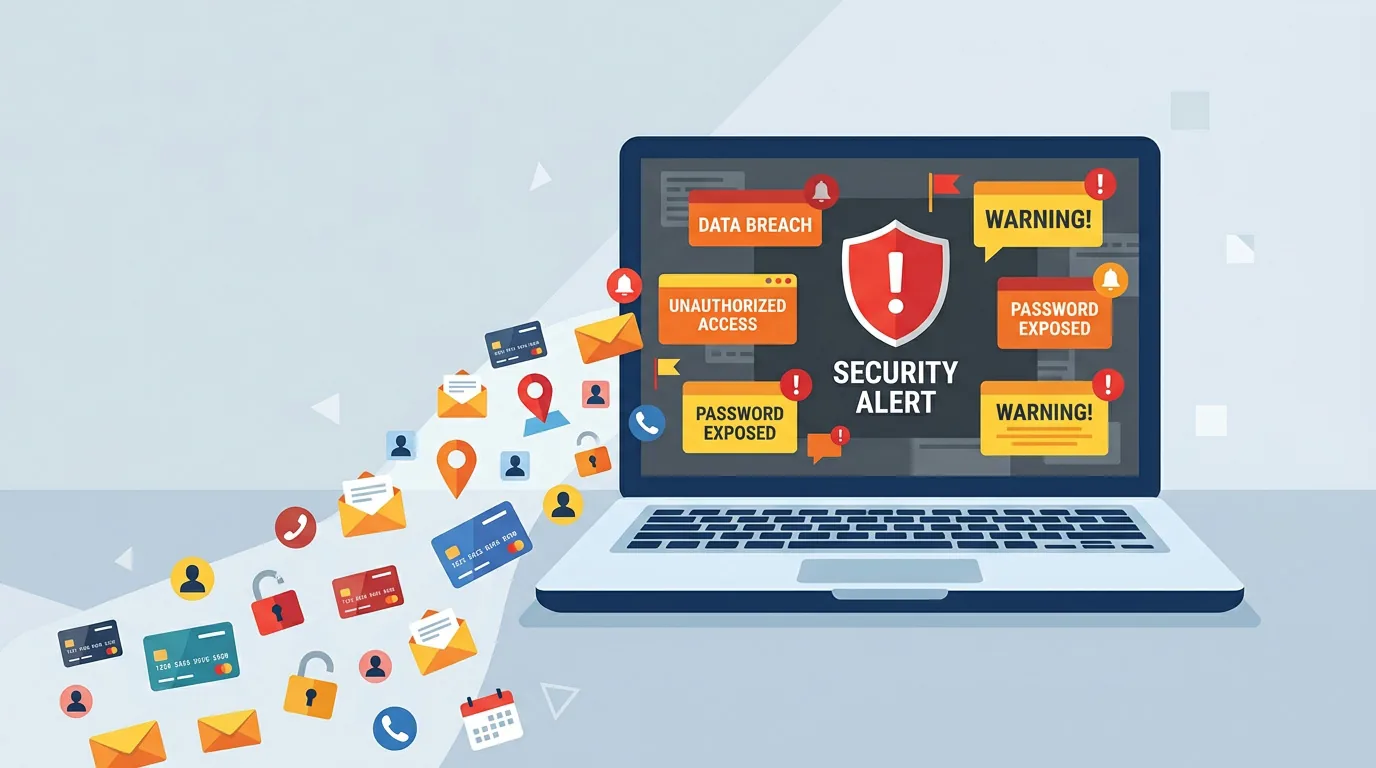
If it is fake, the first priority is to stop the notifications. Most fake warnings do not appear because your PC or phone is actually infected; they are simply warning-style notifications sent by a site you allowed to send browser notifications.
In this case, check your browser's notification settings before reinstalling any security software.
Blocking fake notifications by browser
The basic steps for each browser are below. The exact screens vary slightly by version, but the idea is the same.
| Browser / device | Steps |
|---|---|
| Chrome (PC) | Settings → Privacy and security → Site settings → Notifications → Remove or block suspicious URLs from the allowed sites |
| Edge | Settings → Cookies and site permissions → Notifications → Block suspicious sites |
| Firefox | Settings → Privacy & Security → Notification permission settings → Remove suspicious sites |
| Safari (Mac) | System Settings → Notifications, or check notifications in Safari's website settings |
| iPhone (Safari) | Settings → Notifications, and check Safari's history and website data. Close any suspicious tabs |
| Android (Chrome) | Chrome → Settings → Site settings → Notifications → Block suspicious sites |
In Chrome, you can review notification permissions site by site by following Google's official guide to changing notification settings.
What you are looking for is any site in the "Allowed" list that you do not recognize. If you see an unfamiliar URL, a URL with an unnatural string of letters and numbers, or one that looks like an ad, remove or block it.
If you are still uneasy after stopping the notifications, clear your browser history and cache and run a scan with trustworthy security software. Keep in mind, though, that the appearance of a notification does not necessarily mean your device is infected.
What to do if you clicked by mistake
Even if you clicked a fake warning, clicking alone does not necessarily mean immediate financial loss. What matters is what you did after clicking.
| What you did after clicking | Risk level | Response |
|---|---|---|
| Just clicked and closed it | Low to medium | Close the tab, block the notifications, clear browser history |
| Entered your name, email or phone number | Medium | Watch out for suspicious email, SMS and calls |
| Entered a password | High | Change the password immediately, along with every service that uses the same one |
| Entered credit card details | High | Contact your card issuer to discuss suspending and reissuing the card |
| Downloaded an app or file | High | Disconnect from the network and run a security scan |
| Called a number or allowed remote access | Very high | Contact your bank and card issuer. Change important account passwords from a different device |
The most dangerous case is installing a remote-access app. Once the other party can see your screen, they may be able to view your online banking, email, password manager and internal company systems.
In this case, first disconnect from the network. Then change the passwords for your important accounts from a separate, safe device and contact your card issuer and financial institutions. If it is a company device, contact your IT department or security team immediately.
Special precautions when a fake warning appears on your phone
Seeing "Virus detected" on your phone can be quite alarming. But there is no need to conclude right away that your phone is infected just because of a warning on a web page or a browser notification.
On an iPhone, it is not common for an entire device to be easily taken over just by viewing an ordinary web page. There are still risks, however, such as entering your Apple ID or password on a fake site, installing a suspicious configuration profile, or allowing calendar notification spam.
On Android, check whether you have installed any suspicious apps. Be especially careful with APKs installed from outside the official store, apps that request accessibility permissions, and apps that ask for device administrator rights. On Android, it is also a good idea to check the status of Google Play Protect.
The basics are the same on a phone:
- Don't click the notification
- Don't call
- Don't install apps
- Don't enter passwords or card details
- Check your browser notifications
- Remove suspicious apps or profiles
"A warning appeared" does not mean "infection confirmed." Stay calm and check what you allowed and what you entered.
Removing browser notifications, scanning, changing passwords: you can deal with a fake warning if you work through the steps calmly and in order. However, if you allowed remote access or clicked a fake warning on a company device, we recommend consulting a professional as soon as possible. CyberCrew also operates an emergency incident response desk.
Preventing a repeat: keeping your information off the dark web
To be honest, individual effort alone cannot reduce the risk of a data leak to zero, because breaches can also happen on the side of the services you use.
What you can do, however, is make it hard for leaked information to be abused.
These five things matter most:
- Don't reuse passwords
- Turn on two-step verification
- Don't click suspicious notifications or emails
- Check the login history of important accounts
- Have a way to find out about leaks quickly
The key is not only "don't let it leak," but also "don't let the damage spread if it does."
Choosing security software (stay with McAfee or switch?)
Whether you stay with McAfee or switch to Norton or Trend Micro Virus Buster, it is best not to decide on price alone. These are the five points to look at:
| Comparison point | What to check |
|---|---|
| Number of devices | How many PCs, phones and tablets it can protect |
| Dark web monitoring | Whether it covers only email addresses, or phone numbers, card details and more |
| VPN | Whether it protects your connection on public Wi-Fi |
| Support | Whether there is Japanese-language support, scam consultation and recovery assistance |
| Renewal price | Check not only the first-year price, but also the price from year two onward |
McAfee provides antivirus, VPN and personal information protection through products such as McAfee Total Protection.
Norton offers some Norton 360 plans that include dark web monitoring.
Trend Micro offers Virus Buster Total Security, with plans that include personal data leak monitoring, a VPN and more.
Rather than one being definitively the best, it is better to choose based on how you will use it.
- To protect your family or multiple devices together: compare the multi-device plans from McAfee, Norton and Virus Buster
- If dark web monitoring is your priority: check which types of information are monitored
- If Japanese-language support is your priority: check what support is offered and how to contact it
- If you also want to cover a company domain or business email: consider a business-grade monitoring service such as ALIENGATE rather than consumer software
Prices change with promotions. Before buying, always check the first-year price, renewal price, number of supported devices and cancellation terms on the official website.
Basic rules for password management
The biggest danger in password management is reuse.
Suppose, for example, that the email address and password you used on an online shopping site are leaked. If you also used that password for Gmail, social media, online banking and your company's cloud services, attackers will try logging in with the same combination.
This is what makes data leaks so frightening.
A leak at one service leads to unauthorized logins at another.
The basic rules are:
- Use a different password for each service
- Make passwords long and hard to guess
- Don't use your name, birthday, phone number or company name
- Use a password manager
- Change passwords immediately if a leak is suspected
- Always set up two-step verification
"Using an easy-to-remember password with small tweaks" is dangerous. Variations such as Password2025! and Password2026! are easy for attackers to predict as well.
If you cannot remember them all, don't force yourself to memorize them; use a password manager. In practice, that is the safer way to operate.
Alternatives now that Google's dark web report has been discontinued
Previously, you could check a dark web report from your Google Account. However, Google's dark web report stopped running new scans on January 15, 2026, and became unavailable on February 16, 2026. McAfee has also written about what to watch out for after the end of Google's dark web report.
As a result, you can no longer rely on Google alone to keep checking whether your Gmail address appears in breached data.
Alternatives include the following:
| Method | Best for | Notes |
|---|---|---|
| ALIENGATE | Companies that want continuous visibility into leaks involving their company domain, business email and organization | Suited to corporate and organizational protection rather than personal use |
| Identity monitoring from McAfee and others | People who want to check personal email, phone numbers, card details and so on | What is monitored and how alerts work varies by plan |
| Google Password Manager | People who want to check the strength of passwords saved in Google | Covers saved passwords only |
| Have I Been Pwned | People who want a quick check of whether an email address appears in known breaches | You have to interpret the results and respond yourself |
What we at CyberCrew recommend here is this: when a company email or your own company domain is involved, don't stop at a one-off email check.
For companies, the issue is not just "does our email address appear?"
Those credentials may be used to break into VPNs, SaaS, cloud services and internal systems.
ALIENGATE is a security application that combines dark web intelligence with vulnerability scanning, handling not just the discovery of leaked information but also the management of public-facing assets and vulnerabilities and the recording of remediation status, all in one flow.
If you just want to check a personal Gmail address once, a free service like Have I Been Pwned is an option. But if you want to keep watching risk continuously as a company or organization, it is more realistic to use a system like ALIENGATE that covers monitoring, scanning and response management.
Everyday habits to watch
Finally, let us summarize what you can do day to day. All of these are basic, but real-world damage often comes from gaps in the basics.
First, don't click links in suspicious emails or SMS messages. Even if a message claims to be from a bank, card issuer, delivery company or security software vendor, don't log in through its link. Simply making a habit of opening the official app or a bookmark instead lowers your risk considerably.
Next, avoid important logins and payments on public Wi-Fi. If you must use it, take precautions such as using a VPN, not logging in to financial services, and reviewing your device's sharing settings.
Be careful about where you install apps from as well. On iPhone, stick to the App Store; on Android, Google Play. It is safer to avoid installing from anywhere other than the official stores.
And don't allow browser notifications casually. News sites or services you use for work may be fine, but if an unfamiliar site asks you to "allow notifications," declining is generally the right call.
For anything cybersecurity, talk to CyberCrew
Data leak notifications are a major source of worry for individuals and companies alike. In particular, when company email addresses, work devices, cloud services, internal systems or customer information are involved, it is better not to leave it to personal judgment alone.
CyberCrew is a cybersecurity firm with white-hat hackers on staff. We provide security assessments and risk evaluations that incorporate the attacker's perspective, vulnerability assessments, penetration testing, dark web monitoring, and planning and support for security measures.
In particular, contact us early if:
- A company email address was found on the dark web
- You suspect passwords for internal accounts have leaked
- You clicked a fake warning
- You allowed remote access
- There are signs of unauthorized logins
- You need to organize the risks to explain them to business partners or internally
- You want to check your public-facing assets and vulnerabilities as well
For companies, looking at leaked information alone is not enough. Where do the leaked credentials actually lead? Are there weaknesses in assets visible from outside? Is the environment in a state that makes it easy for attackers to get in? You need to look that far.
CyberCrew's ALIENGATE is a preventive security application that brings together dark web intelligence, vulnerability scanning, public-facing asset management and remediation tracking. It is a good fit for companies that don't want a data leak to end at "we found it," but want to carry it through to response and re-verification.
Frequently asked questions (FAQ)
Below, we answer the questions that people searching for "McAfee found on the dark web" tend to worry about most.
Is the McAfee warning real or fake?
It could be either.
If you subscribe to McAfee or are using a trial, and you can see the same notification inside the McAfee app or on your official account page, it may be genuine.
On the other hand, if it suddenly appears as a browser notification in Chrome, Edge or another browser, if the source is an unfamiliar domain, or if it urges you to call or pay, it is very likely a fake warning.
If you are unsure, don't click the link in the notification; go directly to the official McAfee website and check there.
Is "Info smtx McAfee com" a real address?
The correct form is info@smtx.mcafee.com. McAfee itself lists this address as an example of a legitimate sender.
However, email display names and senders can be spoofed. Seeing info@smtx.mcafee.com alone does not guarantee that a message is safe.
Rather than logging in through a link in the email, open the official McAfee website yourself and check. And if the message urges you to pay, call, allow remote access or enter personal information, suspect a scam.
Do I really need McAfee's identity monitoring?
It depends on how you use the internet.
For people who regularly use online shopping, social media, cloud services, online banking and credit cards, having a way to learn about leaks early is useful. People who reuse passwords in particular can use a leak alert as a prompt to act early.
However, identity monitoring is not a feature that prevents leaks; it is a feature that helps you notice them. It only becomes meaningful when, after receiving an alert, you take action such as changing passwords, setting up two-step verification and checking your cards.
For personal use, consider identity monitoring from McAfee or similar products; for monitoring a company domain or business email, consider a business-grade service such as ALIENGATE.
Can information leaked to the dark web be deleted?
In general, you should assume it cannot.
Information that has circulated on the dark web or in breach databases may be copied and reshared elsewhere. Even if the original posting disappears, that does not mean the data is completely gone.
That is why the focus should be on "neutralizing," not "deleting."
If a password leaked, change it.
Change it on every service that uses the same password.
If card details leaked, contact your card issuer.
Turn on two-step verification.
Check your login history.
Making the leaked information unusable in this way is the realistic response.
How much does McAfee cost per month?
McAfee's pricing varies by plan, contract length, promotions and renewal timing.
For that reason, rather than quoting a fixed price in this article, it is safer to check the latest price on McAfee's official pricing page before you buy.
Don't look only at the first-year price. Also check the renewal price from year two onward, the number of covered devices, whether auto-renewal is on, the refund terms and what identity monitoring covers.
I heard Google's dark web report was discontinued. Is that true?
Yes. Google's dark web report stopped running new scans on January 15, 2026, and became unavailable on February 16, 2026.
As a result, you can no longer keep checking for dark web leaks using your Google Account alone.
Alternatives for individuals include identity monitoring from McAfee and others, Google Password Manager, and free lookup services such as Have I Been Pwned. If you want to check for leaks involving a company domain or business email, a business-grade dark web intelligence service such as ALIENGATE is a better fit.
What should I do if I see "Virus detected"?
A "Virus detected" message that suddenly appears in your browser is, in most cases, a fake warning.
Be especially wary of messages like these:
- Call now
- Pay now
- Your protection has expired
- Start remote support
- Install this app
- A countdown pressuring you to hurry
First, don't click. Don't call either. Close the browser tab, check the notification source and block notifications from the suspicious site.
If your security software has genuinely detected something, open the software itself and follow its instructions to quarantine or remove the threat.
Why do McAfee notifications keep appearing on their own?
There are two main causes.
The first is that McAfee is installed on your PC and is showing expiration or identity monitoring notifications. If a trial version came preinstalled when you bought your PC, you may see notifications even if you don't remember subscribing.
The second is that a site you allowed to send browser notifications is displaying McAfee-style fake warnings. If the notification source shows Chrome, Edge, Safari or an unfamiliar URL, this is the more likely cause.
In that case, remove or block the suspicious site in your browser's notification settings.
How does it differ from Norton's dark web monitoring?
Both McAfee and Norton offer features that alert you to personal information leaks and detections on the dark web. However, what is monitored, the content of alerts, pricing, number of devices and scope of support vary by plan.
For Norton, you can check plans that include dark web monitoring on the official Norton website.
When comparing, don't just check whether dark web monitoring is included; also look at:
- Whether it can monitor more than email addresses
- Whether phone numbers and card details are covered
- Whether it tells you what to do after an alert
- Whether a VPN and password management are included
- Whether the renewal price is acceptable
For personal use, comparing McAfee and Norton may be enough. For business use, a service like ALIENGATE that covers leaked information together with vulnerabilities and public-facing assets is a better fit.
How can I check whether my Gmail address has been leaked?
There are several ways to check whether a Gmail address has been leaked.
For a quick personal check, there are email lookup services such as Have I Been Pwned. You will, however, need to interpret the results and respond yourself.
If you want to see the status of passwords saved in Google, also use the checkup feature in Google Password Manager.
If company Gmail, Google Workspace or email addresses on your own domain are involved, a one-off check is not enough. Before leaked information can be used in an attack, you need continuous monitoring, password changes, two-step verification and a review of your public-facing assets.
For a company-level check, providing a path to check your leak risk with ALIENGATE makes it easy to move naturally from the article to a consultation or evaluation.
Summary: if you see "found on the dark web," check where the notification came from
A McAfee "found on the dark web" notification may be genuine, or it may be a fake warning impersonating McAfee. What matters is not panicking over the wording alone, but checking where the notification is being displayed from.
If you can confirm the notification inside the McAfee app or on your official account page, it may be genuine. On the other hand, if it appears as a browser notification in Chrome, Edge or another browser, if an unfamiliar domain is the source, or if it urges you to call or pay, it is much more likely to be a fake warning.
If it is genuine, start by checking what type of information was detected. The order of your response depends on whether it is only your email address, whether passwords are included, or whether credit card or financial information is involved. Especially where passwords are concerned, it is important to change them immediately, including on every service where you reused them, and to set up two-step verification.
If it is fake, don't click the notification; block the suspicious site in your browser's notification settings. Even if you clicked, there may be no damage as long as you did not enter personal information or card details. Calmly check what you entered and what you allowed.
Also, you should assume that information once leaked to the dark web generally cannot be completely deleted. The realistic countermeasure is therefore not erasing the leaked information, but making sure it cannot be abused. Work through changing passwords, turning on two-step verification, contacting your card issuer and checking your login history, in order.
For a personal email address, checking with security software or a password checkup feature may be enough. But when a company email address or your own domain is involved, a one-off check is not enough, because leaked credentials may be used to attack VPNs, cloud services and internal systems.
If you want to keep continuous track of your risk as a company, we recommend using a system like ALIENGATE that lets you review dark web intelligence, vulnerability scanning, public-facing asset management and remediation records in one place.
A notification is not the end of the story. If you tell real from fake correctly and respond in the right order, you can keep the damage to a minimum. Check where the notification came from first; if it is real, respond according to the type of information; if it is fake, block the notifications. Getting these basics right is what matters most.

![How to Check Whether Your Data Is on the Dark Web: Four Free Tools and What to Do If You've Been Leaked [2026]](/images/blog/how-to-check-dark-web-leaks/cover.en.webp)