

- Audience: security engineers and application owners who want the Web Application Scan to test the pages behind a login
- Applies to:
app.aliengate.io— Infrastructure Security → Vulnerability Scanner → Scanner Console → Authenticated scan - Time to complete: ~5 minutes to configure and verify; the scan itself runs as long as a normal Web Application Scan
- Follows on from: Article 01 — How to Run a Vulnerability Assessment
What you will end up with
By the end of this guide you will have:
- a Web Application Scan that signs in to your application before it crawls, so the pages behind the login are tested too,
- the right authentication method for your application picked from the three AlienGate supports — login form, cookies or headers,
- a Check authentication result that proves the login worked before you spend scan time on it,
- a way to tell from the finished scan whether the authenticated part actually ran.
Before you start: use a dedicated test account, never a real user's. The credentials are handed to the scan engine once for this scan, stored only encrypted while the scan waits in the queue, and never shown again — but an authenticated deep scan submits forms, follows links and sends thousands of real requests as that user. Start on staging when you can, and tell the owning team.
Why scan authenticated at all?
An unauthenticated scan only sees what a visitor sees: the login page, the marketing pages, whatever is public. Most of a real application — the account area, the admin panel, the API the front end talks to, the file upload, the search — only exists after a session is established. If the scanner never gets a session, none of that is tested, and the report says "no findings" about code it never reached.
There is a second reason. An authenticated scan behaves like a malicious logged-in user, which is a different and larger attack surface than an anonymous one: more forms to inject into, more parameters to tamper with, more objects to reference by id. Broken access control, the most common vulnerability class in the OWASP Top 10, is almost impossible to find without a session.
So: if your application has a login, the scan you actually want is an authenticated one.
Which scan types support authentication
Authentication belongs to the Web Application Scan. Switch it on in the Scanner Console and the crawler and the active tests both run as the logged-in user. The other engines — Network, SSL/TLS, Subdomain Finder, Website Recon, WordPress, Cloud, Kubernetes — work from the outside and do not use it.
Under Scan options, the Web Application Scan's scan type is Light · Deep · Custom — and switching authentication on removes one of them. The product says so in amber under the control:
Light is not available with authentication turned on. Choose Deep or Custom, or turn off authentication.
That is the product being coherent rather than restrictive. A Light pass is a quick surface check; pairing it with a session would spend the login on a crawl too thin to reach anything the login unlocks. Deep is the setting that makes authentication worth supplying.
Step 1 — Open the Scanner Console and enable Authenticated scan
Go to Infrastructure Security → Vulnerability Scanner and click Run scan to open the Scanner Console. Pick your target and make sure Web Application Scan is among the selected scan types.
Scroll the scan-type column to the Authenticated scan card. It is Off by default.
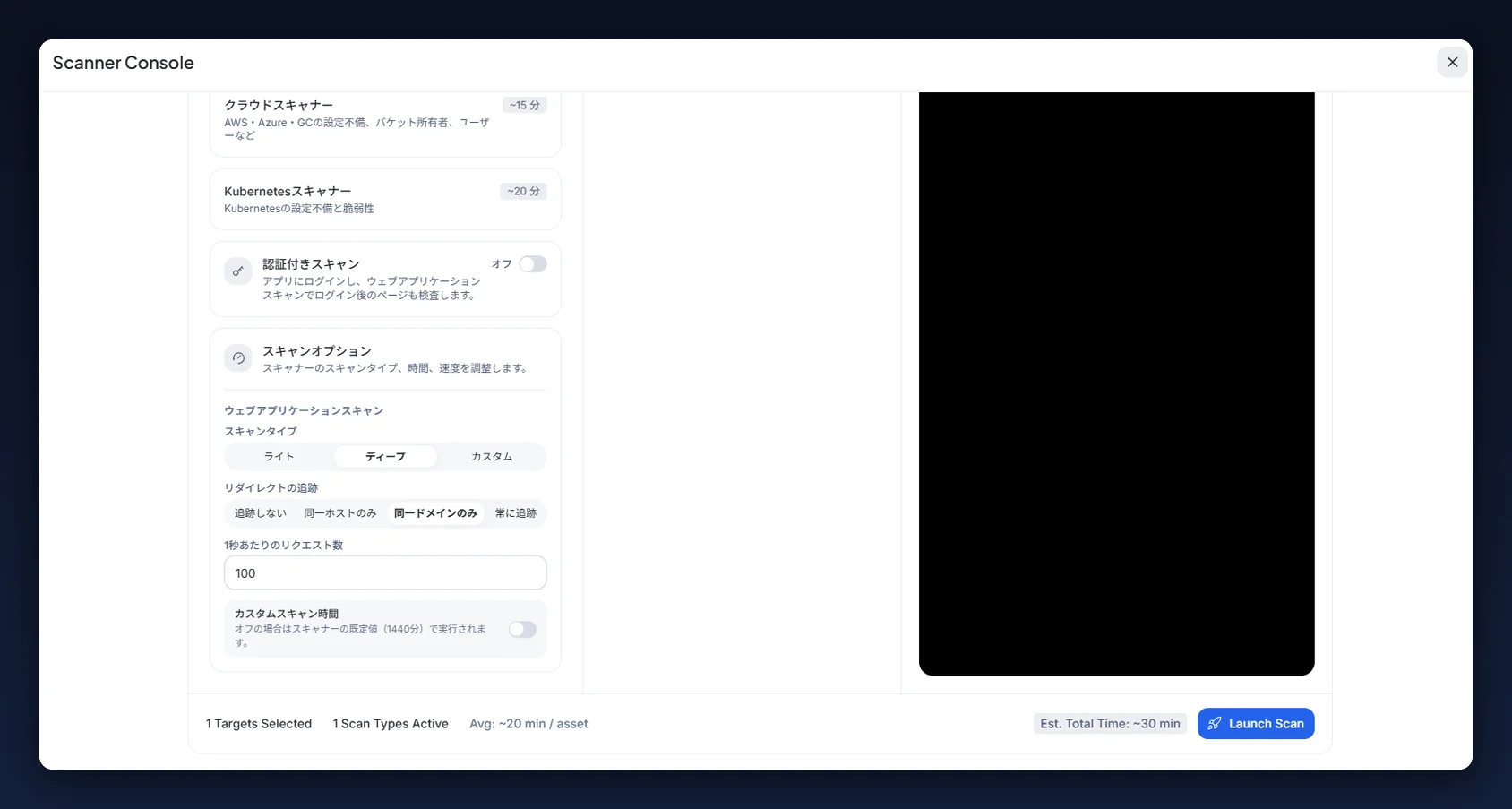
Switch it to Enabled. The card expands and shows three tabs — Login form, Cookies and Headers — one for each way AlienGate can obtain a session. Pick the one that matches how your application logs users in; the sections below explain each.
Step 2 — Choose an authentication method
| Method | Use it when | What you provide |
|---|---|---|
| Login form | The app has a classic username / password form | Login page URL, username, password |
| Cookies | You can log in with a browser and copy the session cookie | The Cookie header of an authenticated session, plus a page to verify |
| Headers | The app authenticates with a token in a request header (JWT, API key, bearer token) | The header lines that carry the session, plus a page to verify |
If you are not sure, start with Login form: the scanner does the logging-in for you, and Check authentication tells you immediately whether it worked.
Method 1 — Login form
The scanner opens the login page in a headless browser, detects the form, fills in the credentials and submits it — the same thing you would do by hand. Best for standard username / password logins.
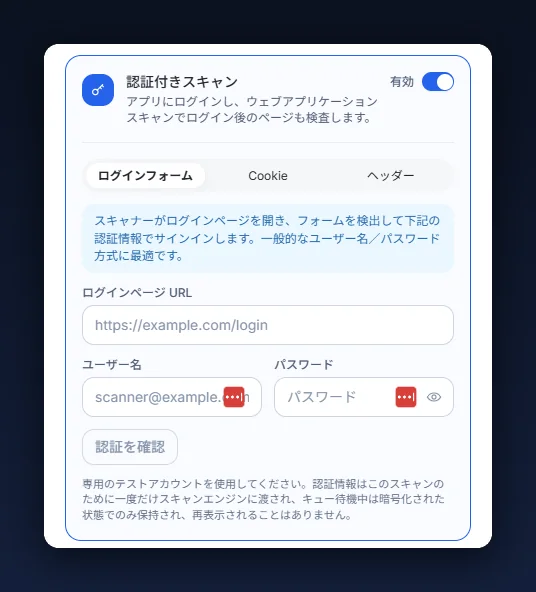
Fill in:
- Login page URL — the page that actually contains the login form, starting with
http://orhttps://. This is usually not the target's home page; for the demo target it ishttp://0-day.jp/login.php. - Username and Password of the dedicated test account.
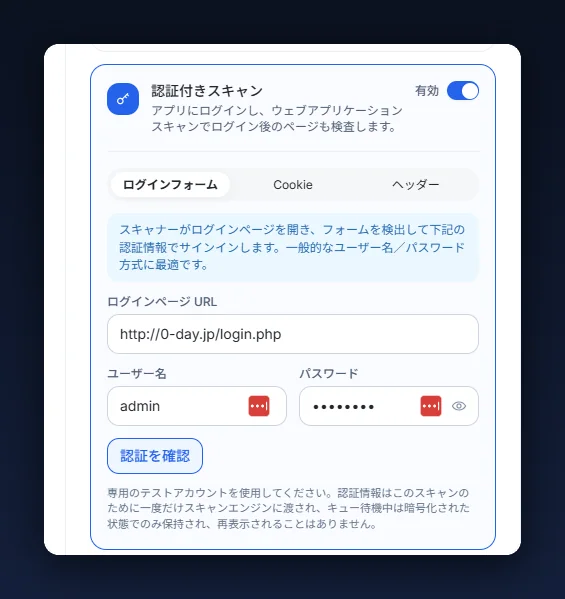
Then click Check authentication (Step 3).
Method 2 — Cookies
Some login flows are hard to automate — single sign-on, multi-step forms, one-time codes. For those, log in yourself with a browser and hand the scanner the session cookie. The scanner then behaves like a browser that is already logged in: every request carries the cookie, and the crawl starts directly on the authenticated pages.
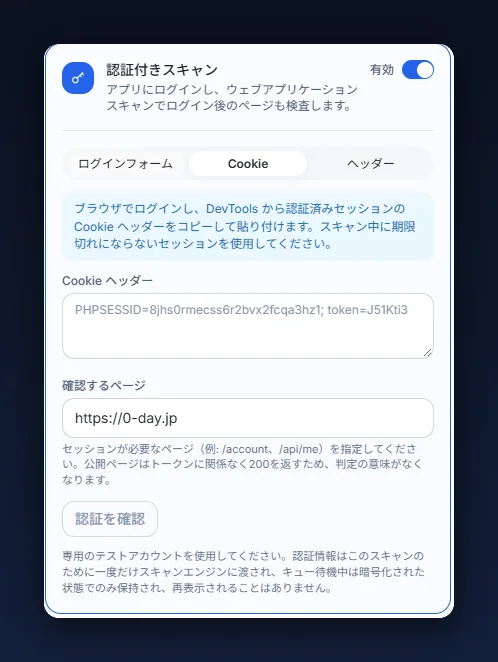
Fill in:
- Cookie header — the full value of the
Cookierequest header from your logged-in session, exactly as the browser sends it:name=valuepairs separated by;, for examplePHPSESSID=8jhs0rmecss6r2bvx2fcqa3hz1; token=J51Kti3. How to copy it is in the section How to get the session cookie below. - Page to verify — a page that requires a session, such as
/accountor/api/me. The check loads this page with your cookie; a public page returns200with or without a session, so it proves nothing.
Use a session that will not expire during the scan. If your application logs users out after a period of inactivity, log in freshly just before you launch, and consider raising the session timeout on the test account.
Method 3 — Headers
For token-based logins — JWTs, API keys, bearer tokens — the session does not live in a cookie but in a request header. Paste the header lines that carry your session and the scanner adds them to every request.
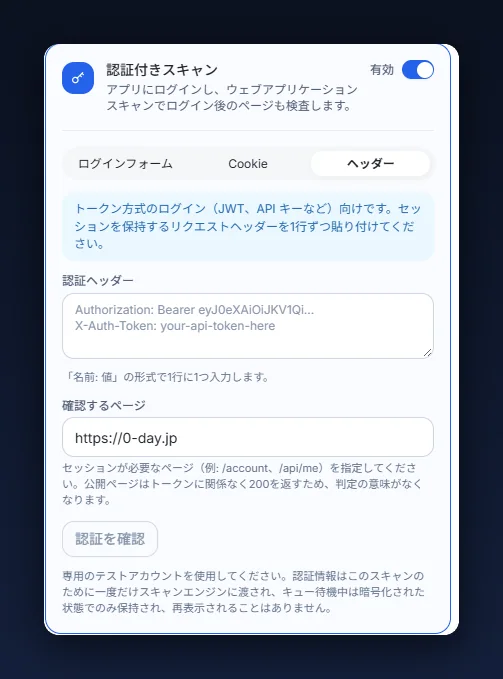
Fill in:
- Authentication headers — one header per line, in the form
Name: value. For example:
Authorization: Bearer eyJ0eXAiOiJKV1QiLCJhbGciOiJIUzI1NiJ9...
X-Auth-Token: your-api-token-here
A Cookie: line works here too, so you can combine a cookie with a token if the application needs both.
- Page to verify — as for cookies: a page that only answers
200with a valid session.
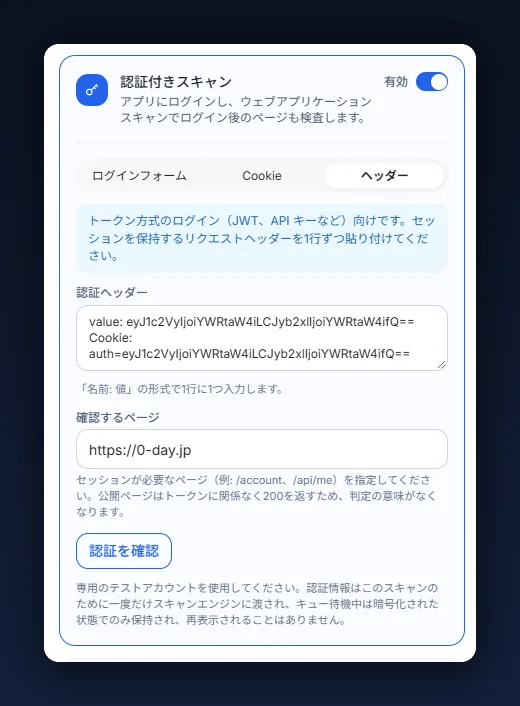
Where the token comes from depends on the application: the Authorization header of any request your browser makes after login (visible in DevTools → Network → Headers), or a token issued by the application's API. Tokens expire — check the exp claim of a JWT and make sure it outlives the scan.
Step 3 — Check authentication before you launch
Every method has a Check authentication button. Use it. It takes a few seconds and it is the difference between an authenticated scan and a scan that believes it was authenticated.
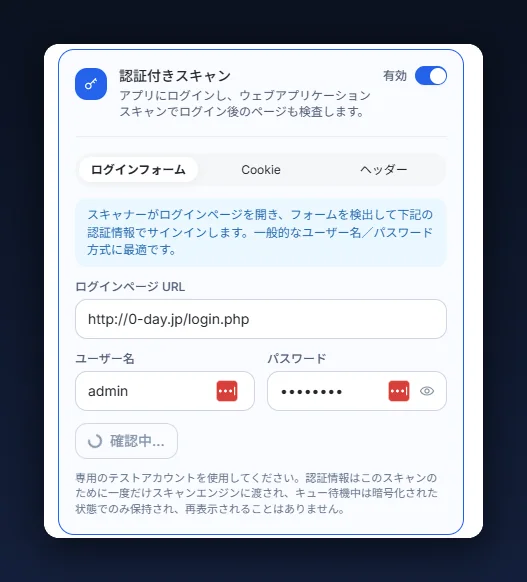
AlienGate logs in with a headless browser using exactly the details you entered and shows you what it found:
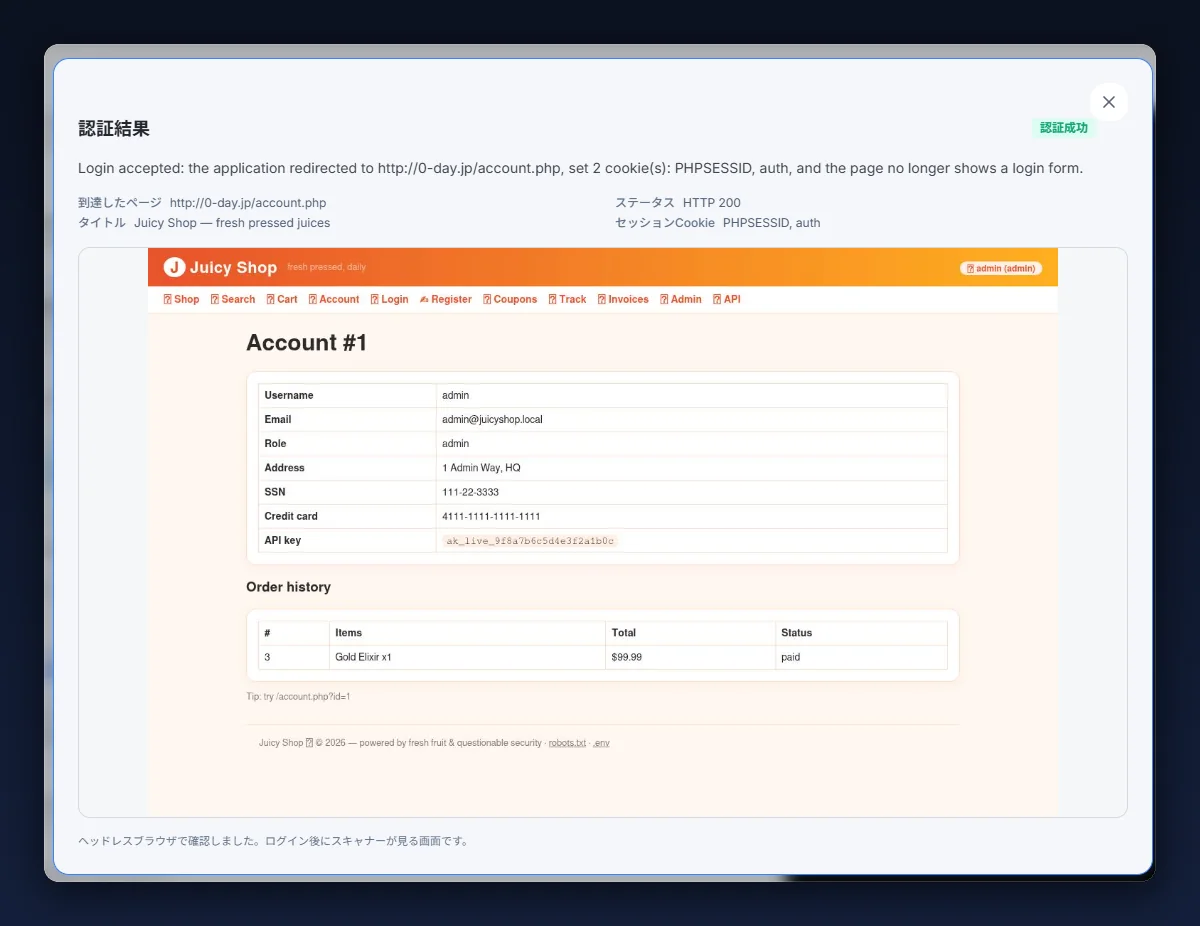
The result panel has four parts:
- Verdict — Authentication succeeded or failed, with the reason in one sentence. For a login form the scanner checks three things: the application redirected away from the login page, it set session cookies, and the page it landed on no longer shows a login form. In the example:
Login accepted: the application redirected to http://0-day.jp/account.php, set 2 cookie(s): PHPSESSID, auth, and the page no longer shows a login form. - Page reached, Title, Status and Session cookies — the facts behind the verdict.
- A rendered preview of the page the scanner sees after logging in. This is the screen the crawler will start from. If it shows your account page, you are good. If it shows the login form again, an error, or a "session expired" message, the scan would have run unauthenticated.
- A note that the check was made with a headless browser — the same one the scan uses.
For cookies and headers the check loads the Page to verify with your session and judges by the response: a 200 on a page that needs a session, without a redirect to the login page, is a pass.
Do not leave or refresh the Scanner Console while the check runs. If it fails, the usual causes are, in order: wrong login page URL (the page must contain the form), a typo in the credentials, a cookie or token that has already expired, a page-to-verify that is public, and a firewall or WAF that blocks the scanner — see Which IP addresses do AlienGate scans come from?.
Step 4 — Launch the scan
With a green check, set the Scan options (Deep, follow redirects same domain, the default 100 requests per second unless your application cannot take it — lower it for a modest instance or one behind a rate limiter, since a throttled scan produces coverage gaps rather than a slower scan) and click Launch Scan.
Before you click, read the summary bar along the bottom of the console: Targets Selected, Scan Types Active, the average time per asset, an Authenticated marker and Est. Total Time. That marker is your last confirmation that credentials are attached to this scan — if it is absent, the toggle came back off and you are about to run an unauthenticated crawl. The queued scan then shows an Authenticated badge in the scan history so you can tell it apart from unauthenticated runs later.
Everything else — watching the live console, reading the findings, moving them to the Issue Tracker — is the same as an ordinary scan: follow Article 01 from Step 9 and Article 02.
How to tell the authenticated part ran
Three signs, in the finished scan:
- The scan carries the Authenticated badge.
- The Recon tab and the crawled-URL list contain pages that only exist behind the login — your account page, settings, the API endpoints the front end calls. An unauthenticated scan of the same target lists far fewer.
- Findings reference authenticated pages and parameters. On the demo target, the authenticated scan is what surfaces the
/account.php?id=object reference and the injection points in the order and coupon forms.
If none of these are true, the session was lost during the scan — typically an expiry, or the crawler hit the logout link. Give the test account a longer session, and re-run.
How to get the session cookie (Chrome)
- Log in to the application normally in Chrome with the test account.
- Open Developer Tools (Menu → More tools → Developer Tools, or
Ctrl+Shift+I) and go to the Network tab. - Load a page that requires the login (your account page) so a request appears in the list.
- Click that request, open its Headers tab and scroll to Request Headers.
- Copy the whole value of the Cookie header — it looks like
PHPSESSID=a765feb13b4112f3d12f3dfa12e; aaid=ad4b654ad48f4d545a64d75ea— and paste it into the Cookie header field.
The same panel shows the Authorization header if the application uses a token instead; paste that line into the Headers method.
Behind the scenes
A web vulnerability scan has two phases: crawling (discovering pages, forms and parameters) and active testing (sending payloads to what it found). To run both as a logged-in user the scanner needs a session.
- With Login form, the scanner first performs the login itself in a headless browser, collects the session cookies the application set, and uses them on every request from then on.
- With Cookies or Headers, you have already done the login, so crawling and testing start straight away with the session you supplied.
Either way the scanner can only use the session; it cannot know whether the application is still honouring it halfway through. That is why the pre-flight check exists, and why the crawled-URL count is the thing to look at afterwards. A session that expires ten minutes into a ninety-minute scan produces a report that looks complete and is not.
Quick reference
| I want to… | Do this |
|---|---|
| Test pages behind a username/password login | Authenticated scan → Login form → login URL + test credentials → Check authentication |
| Scan behind SSO / MFA / a multi-step login | Log in with a browser → Cookies → paste the Cookie header → page to verify |
| Scan an API or SPA that uses a bearer token | Headers → Authorization: Bearer … (one header per line) → page to verify |
| Know the login worked before spending scan time | Check authentication and read the rendered preview |
| Know the login stayed logged in during the scan | Compare crawled URLs and findings against an unauthenticated run |
| Keep the session alive for a long Deep scan | Longer session timeout on the test account; fresh cookie/token right before launch |
| Stop the crawler logging itself out | Exclude the logout URL, or use a test account with a long session |