

- Audience: security engineers, IT managers and CISOs who have marked findings as fixed and need to prove it
- Applies to:
app.aliengate.io— Actions & Intel → FixTrail / Issue Tracker, and Infrastructure Security → Vulnerability Scanner - Time to complete: about 10 minutes of configuration; the retest itself runs as long as the original scan
- Follows on from: Article 02 — The Scan Is Done: How to Review the Results and Start Fixing
About this article. It documents one complete retest cycle in a demonstration workspace against
0-day.jp, a deliberately vulnerable application. Screenshots were taken with the AlienGate interface set to English; Article 02 was captured in Japanese and includes a JA ↔ EN glossary. The language switcher is in the app's top bar. Quick-reference tables are at the end.
Why a retest is required
Marking a finding Fixed in the Issue Tracker records a claim: a person completed the remediation checklist and believes the fix is live. The claim can be wrong. A deployment may have missed an environment, a WAF rule may match the sample payload rather than the vulnerability class, or a later merge may have reverted the patch.
AlienGate therefore keeps two distinct states:
| State | What it means | Who sets it |
|---|---|---|
| Fixed · awaiting re-test | A person completed the remediation steps and marked the finding fixed | You |
| Fixed · Verified | A re-scan of the same target with the same engine no longer reported the finding | The scanner |
Only the second state is evidence. This article shows how to move a finding from the first state to the second, and how to avoid the three configuration mistakes that produce false verifications.
Step 1 — Review the backlog in FixTrail
Open Actions & Intel → FixTrail (app.aliengate.io/dashboard/fixtrail).
FixTrail is the remediation timeline: each vulnerability's path from detection, through the Issue Tracker and its remediation steps, to the re-scan that verifies the fix, grouped per website and server. It is the page that answers "what still has to be proven?".
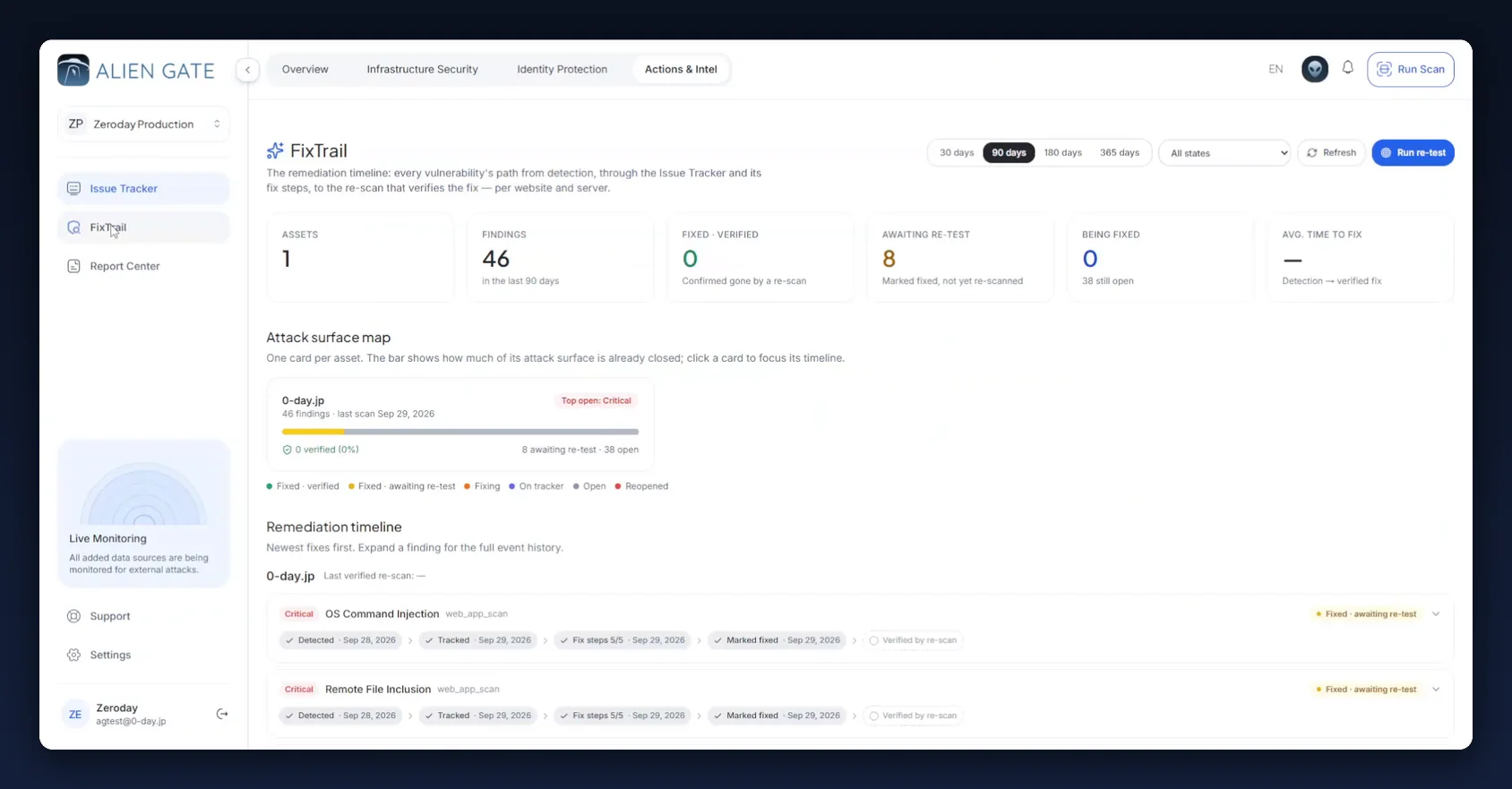
Six counters run across the top:
| Counter | Caption | Meaning |
|---|---|---|
| Assets | — | Assets in the current view (here: 1) |
| Findings | in the last 90 days | The denominator; changes with the date range (here: 46) |
| Fixed · Verified | Confirmed gone by a re-scan | Findings verified by a retest — the only number that counts as evidence (here: 0) |
| Awaiting re-test | Marked fixed, not yet re-scanned | The retest work queue (here: 8) |
| Being fixed | N still open | Findings in progress, and the open total (here: 0 in progress, 38 open) |
| Avg. time to fix | Detection → verified fix | Mean time from detection to a verified fix (here: —) |
Avg. time to fix is measured to the verified fix, not to the marked fix. It stays empty until the first retest completes.
Header controls:
- 30 / 90 / 180 / 365 days sets the window (default 90).
- All states filters by state. Set it to Fixed · awaiting re-test to build a retest list.
- Refresh reloads the data after a scan finishes.
- Run re-test opens the scan configuration directly.
Below the counters, the attack surface map shows one card per asset with a bar for the share of its attack surface already closed:
0-day.jp                                    Top open: Critical
46 findings · last scan Sep 29, 2026
▓▓▓▓▓░░░░░░░░░░░░░░░░░░░░░░░░░░░░░░░░░░
✓ 0 verified (0%)        8 awaiting re-test · 38 open
Check the last scan date. If it is older than the deployment that contained the fixes, the asset has not been retested.
The legend under the map defines every state:
| State | Meaning |
|---|---|
| 🟢 Fixed · verified | Marked fixed and confirmed gone by a re-scan |
| 🟡 Fixed · awaiting re-test | Marked fixed, not yet confirmed |
| 🟠 Fixing | Work started, not yet marked fixed |
| 🔵 On tracker | In the Issue Tracker, no work started |
| ⚪ Open | Detected, not moved to the tracker |
| 🔴 Reopened | Was verified or marked fixed, and a later scan reported it again |
Reopened is the only state that indicates a regression. It is covered at the end of this article.
Step 2 — Read the event history and note the engine and target
Scroll to Remediation timeline. Findings are listed newest fixes first, grouped under their asset. The group heading shows the asset and its Last verified re-scan date (a dash when no retest has verified anything yet).
Each row is a five-stage pipeline:
Critical  OS Command Injection   web_app_scan                    ● Fixed · awaiting re-test

✓ Detected      ✓ Tracked       ✓ Fix steps 5/5   ✓ Marked fixed    ○ Verified by re-scan
  Sep 28, 2026    Sep 29, 2026     Sep 29, 2026      Sep 29, 2026
A hollow fifth chip means the finding is awaiting re-test. Click the chevron on the right of a row to expand its full history.
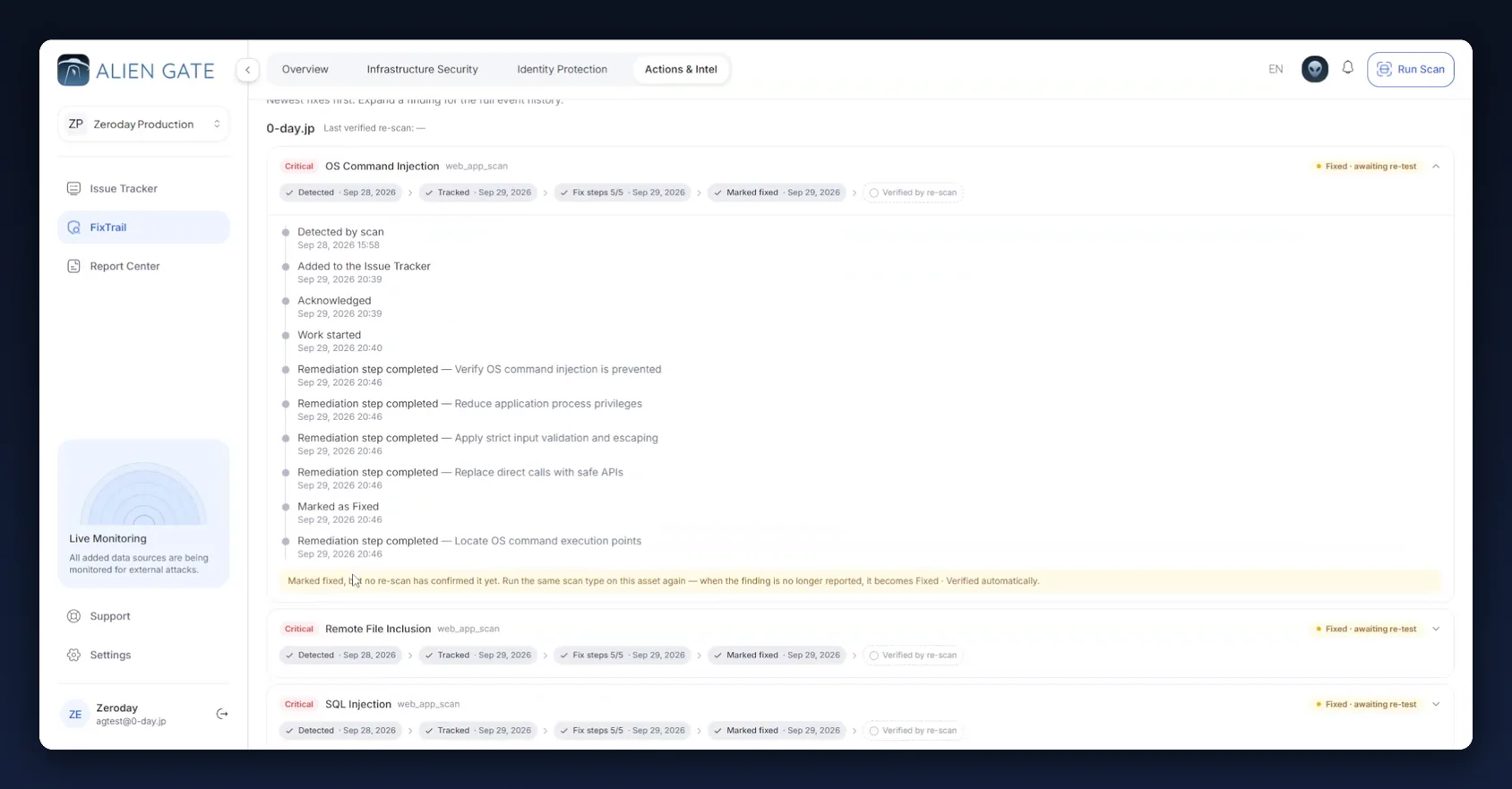
● Detected by scan                                             Sep 28, 2026 15:58
● Added to the Issue Tracker                                   Sep 29, 2026 20:39
● Acknowledged                                                 Sep 29, 2026 20:39
● Work started                                                 Sep 29, 2026 20:40
● Remediation step completed — Verify OS command injection is prevented   20:46
● Remediation step completed — Reduce application process privileges      20:46
● Remediation step completed — Apply strict input validation and escaping 20:46
● Remediation step completed — Replace direct calls with safe APIs        20:46
● Marked as Fixed                                              Sep 29, 2026 20:46
● Remediation step completed — Locate OS command execution points         20:46

  ⚠ Marked fixed, but no re-scan has confirmed it yet. Run the same scan type on
    this asset again — when the finding is no longer reported, it becomes
    Fixed · Verified automatically.
The callout states the three rules of verification:
- Verified is never set by hand. There is no button. A re-scan changes the state.
- It must be the same scan type on the same asset. A different engine, or the same engine against a different host, verifies nothing.
- Verification is an absence, not a result. A finding is verified because it stopped being reported. A retest that is weaker than the original scan reports fewer findings, and every missing finding is recorded as a verified fix.
Two fields in this view define the retest configuration. Record both:
| Field | Where it appears | What it gives you |
|---|---|---|
Engine tag, e.g. web_app_scan |
Next to the finding title | The scan engine to re-run |
Asset heading, e.g. 0-day.jp |
Above the finding group | The target to re-run it against |
Also check the timestamps. In the example, all five remediation steps and Marked as Fixed were recorded within the same minute. That pattern usually means the checklist was completed to clear the board rather than as the work was done. The retest settles the question either way: a finding that was not actually fixed is reported again.
Step 3 — Define a valid retest
A retest is valid only when it reproduces the conditions of the scan that found the vulnerability. Confirm five settings against the original run:
| Must match | Why | Where to read the original value |
|---|---|---|
| Target | A finding is proven on one host. www.0-day.jp does not verify 0-day.jp |
FixTrail asset heading, or the finding's Target field |
| Engine | Each engine tests a different class. SSL/TLS Analysis never reports OS Command Injection, so running it "verifies" every web finding by omission | Engine tag on the finding (web_app_scan, ssl_tls_analysis, wordpress_scan, …) |
| Authentication | A finding behind a login is invisible to an unauthenticated scan. This is the most common cause of false verification | Authenticated badge on the original run in Scan History |
| Scan depth | Light probes far less than Deep. A Deep finding retested at Light usually "passes" |
Scan options of the original run |
| Redirect policy | Determines which hosts and paths are reachable | Scan options of the original run |
Any configuration weaker than the original produces fewer findings, and each absence is recorded as a verified fix. If the original configuration cannot be reproduced, correct the configuration before retesting.
The breadth of the original session does not need to match. A finding from web_app_scan is verified by a web_app_scan-only retest (about 30 minutes). A Full Web Application Audit (about 90 minutes) also works and is the right choice when the backlog spans several engines.
Resulting retest plan for the example: 0-day.jp · Web Application Scan · authenticated (login form) · Deep · same-domain redirects.
Step 4 — Configure the scan: one engine, one target
Open the Scanner Console either with Run re-test in the FixTrail header, or via Infrastructure Security → Vulnerability Scanner → Scan History → Scan Vulnerability. The second route passes the original run, which is useful for reading its settings.
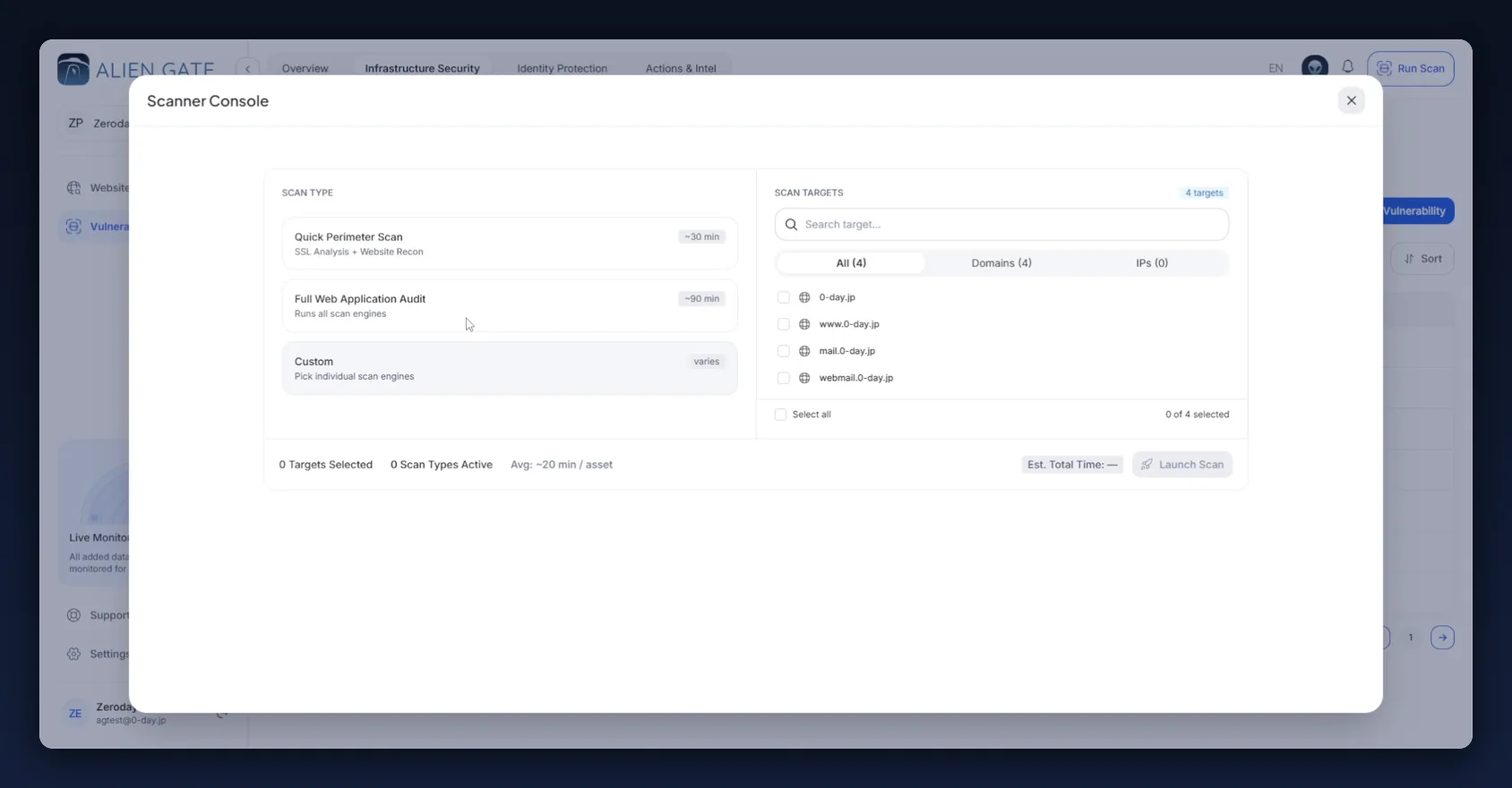
Three scan types are available:
| Scan type | Time | What it runs |
|---|---|---|
| Quick Perimeter Scan | ~30 min | SSL Analysis + Website Recon |
| Full Web Application Audit | ~90 min | All scan engines |
| Custom | varies | Individually selected engines |
Select Custom. It is the only option that runs exactly the engine that raised the finding.
Custom lists the engines by group, with the web and network engines pre-selected:
| Group | Engine | Time |
|---|---|---|
| Web & network scans | Network Scan | ~15 min |
| Web Application Scan | ~30 min | |
| SSL/TLS Analysis | ~10 min | |
| Platform scanners — WordPress · Cloud · Kubernetes | WordPress Scan | ~20 min |
| Cloud Scan | ~15 min | |
| Kubernetes Scan | ~20 min | |
| Reconnaissance — observations, not vulnerabilities | Website Recon | ~20 min |
| Subdomain Finder | ~15 min |
Clear every engine except Web Application Scan. The estimate drops from about 90 to about 30 minutes.
In Scan Targets, select only 0-day.jp. The tab row (All (4) / Domains (4) / IPs (0)) and the footer counter (1 of 4 selected) confirm the selection.
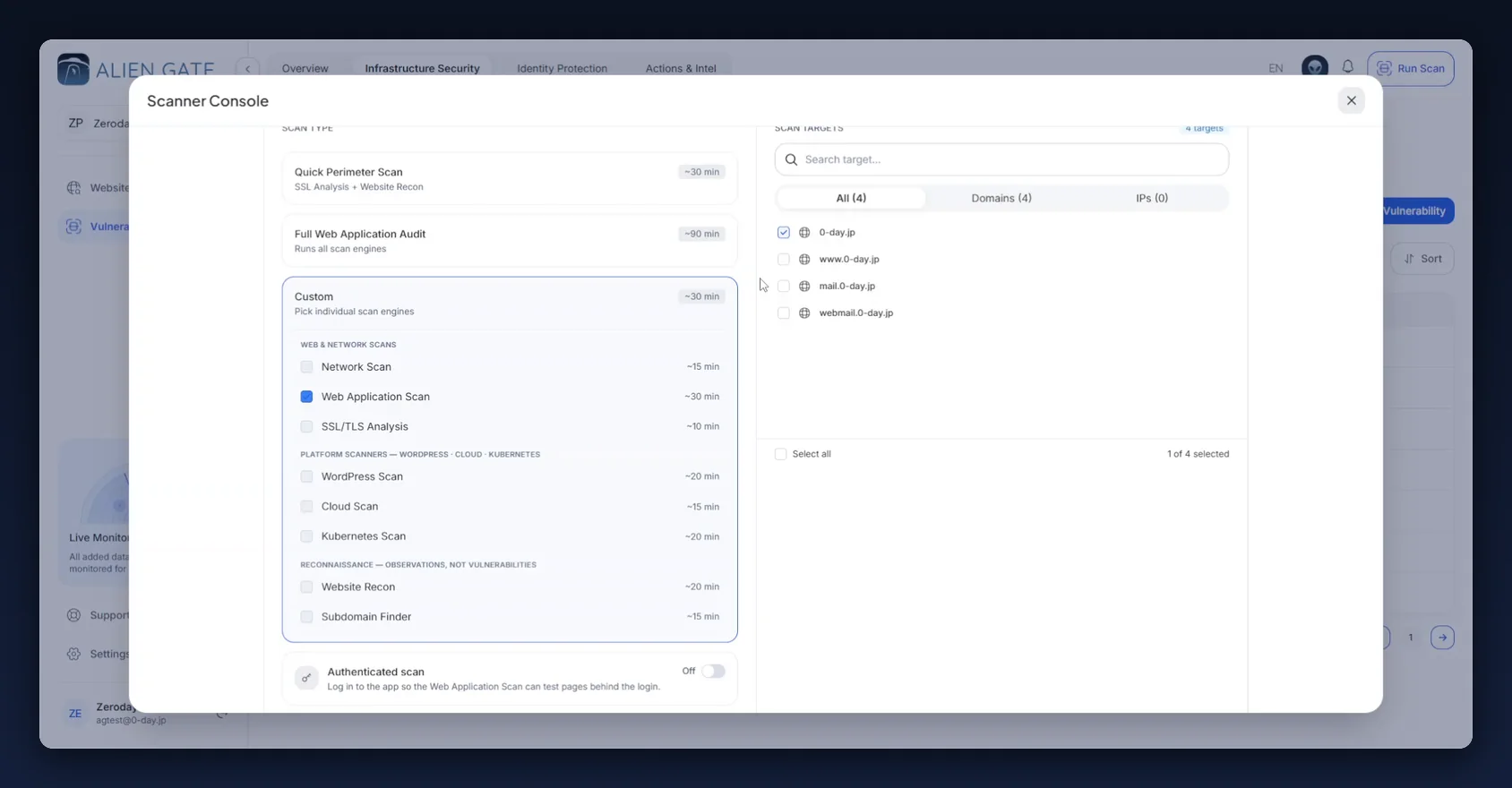
Target and engine now match the original run.
Step 5 — Configure authentication and check it
The original scan was authenticated, so enable Authenticated scan. Article 04 covers the three methods; for this application it is a login form.
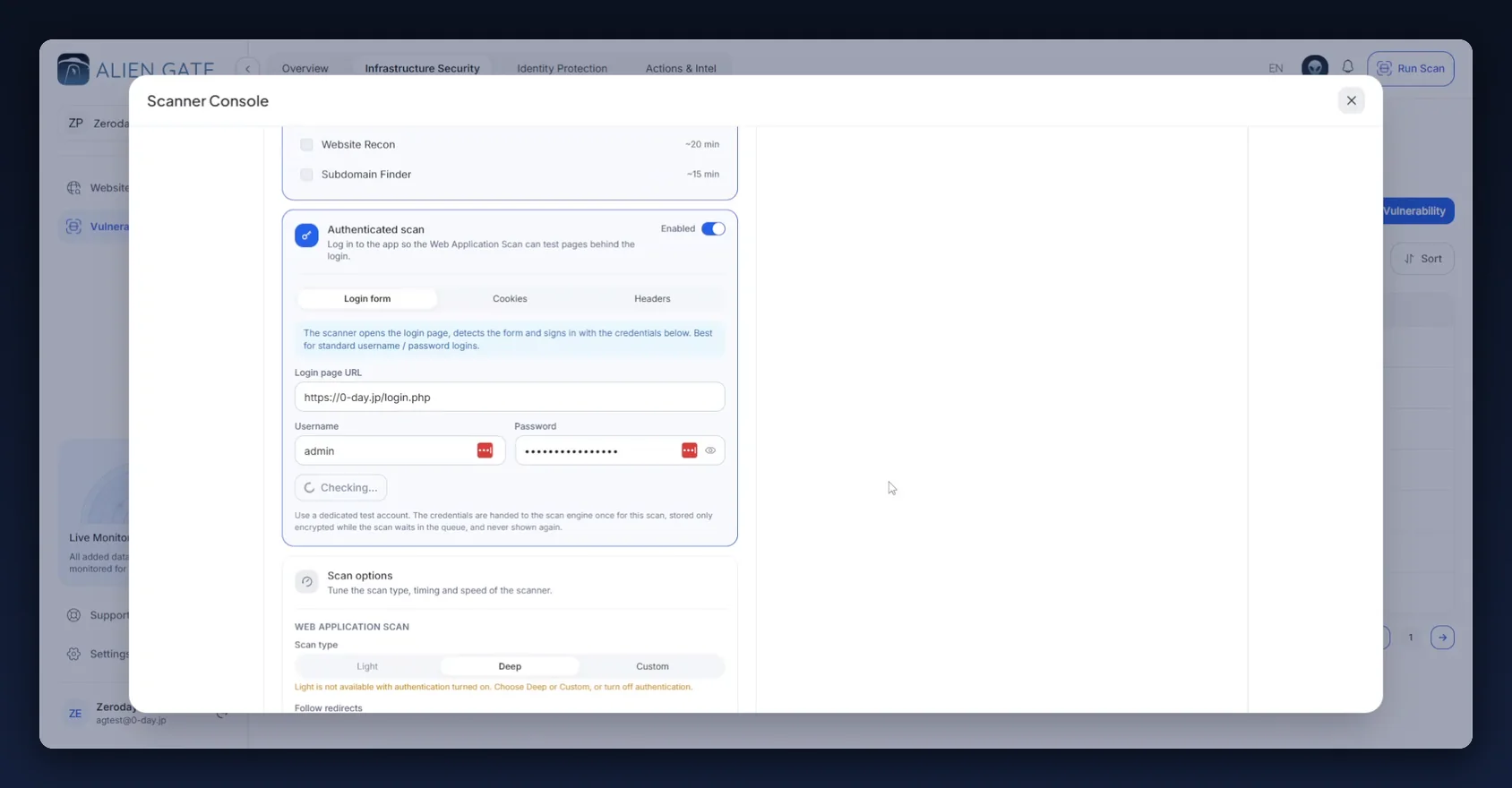
| Field | Value |
|---|---|
| Login page URL | https://0-day.jp/login.php |
| Username | admin |
| Password | (hidden) |
Click Check authentication before launching. It performs a real sign-in against the target; on success the console footer shows an Authenticated pill. Do not launch without it. A failed or expired login makes the scanner spend the run on the login page and then record every finding behind it as fixed.
The console notes: "Use a dedicated test account. The credentials are handed to the scan engine once for this scan, stored only encrypted while the scan waits in the queue, and never shown again." Every scan, including a retest, is configured from scratch. Use the same dedicated scanner account with the same privilege level as the original scan.
Step 6 — Match the scan depth
Open Scan options. With Web Application Scan selected, four settings are shown:
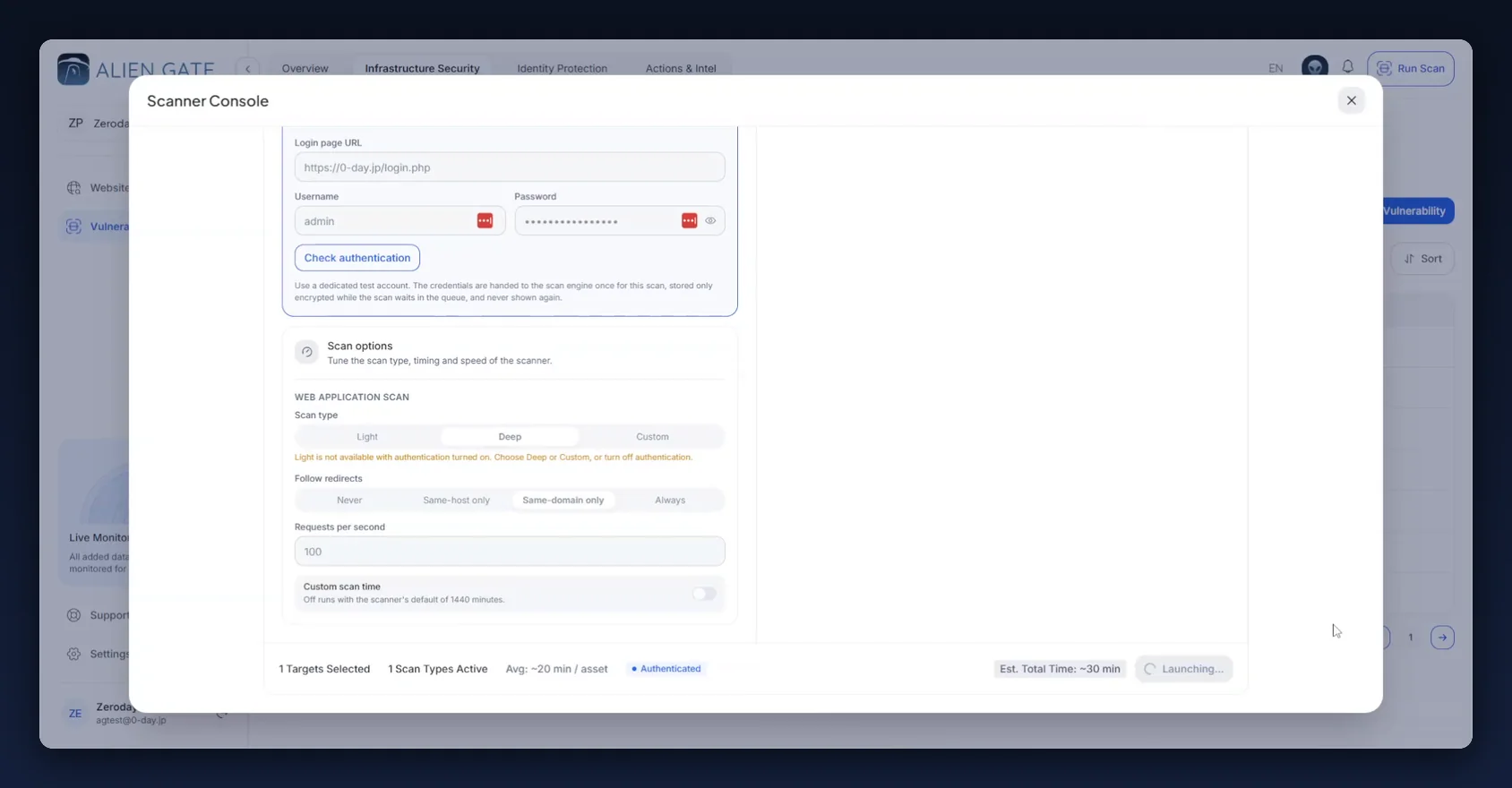
| Option | Values | Setting for the retest |
|---|---|---|
| Scan type | Light / Deep / Custom | Match the original: Deep. With authentication enabled, Light is not available; the console states this |
| Follow redirects | Never / Same-host only / Same-domain only / Always | Match the original: Same-domain only. This setting changes which pages are reachable and therefore what can be found |
| Requests per second | numeric (default 100) |
Leave as is. Lowering it slows the scan without making it shallower |
| Custom scan time | toggle | Off (scanner default of 1440 minutes) |
The footer summarises the configuration:
1 Targets Selected    1 Scan Types Active    Avg: ~20 min / asset    ● Authenticated
                                              Est. Total Time: ~30 min    [Launch Scan]
Confirm 1 Targets Selected · 1 Scan Types Active · Authenticated, Deep and same-domain redirects before launching. All five settings from Step 3 now match.
Step 7 — Launch and confirm the authenticated run
Click Launch Scan. The console switches to the live view.
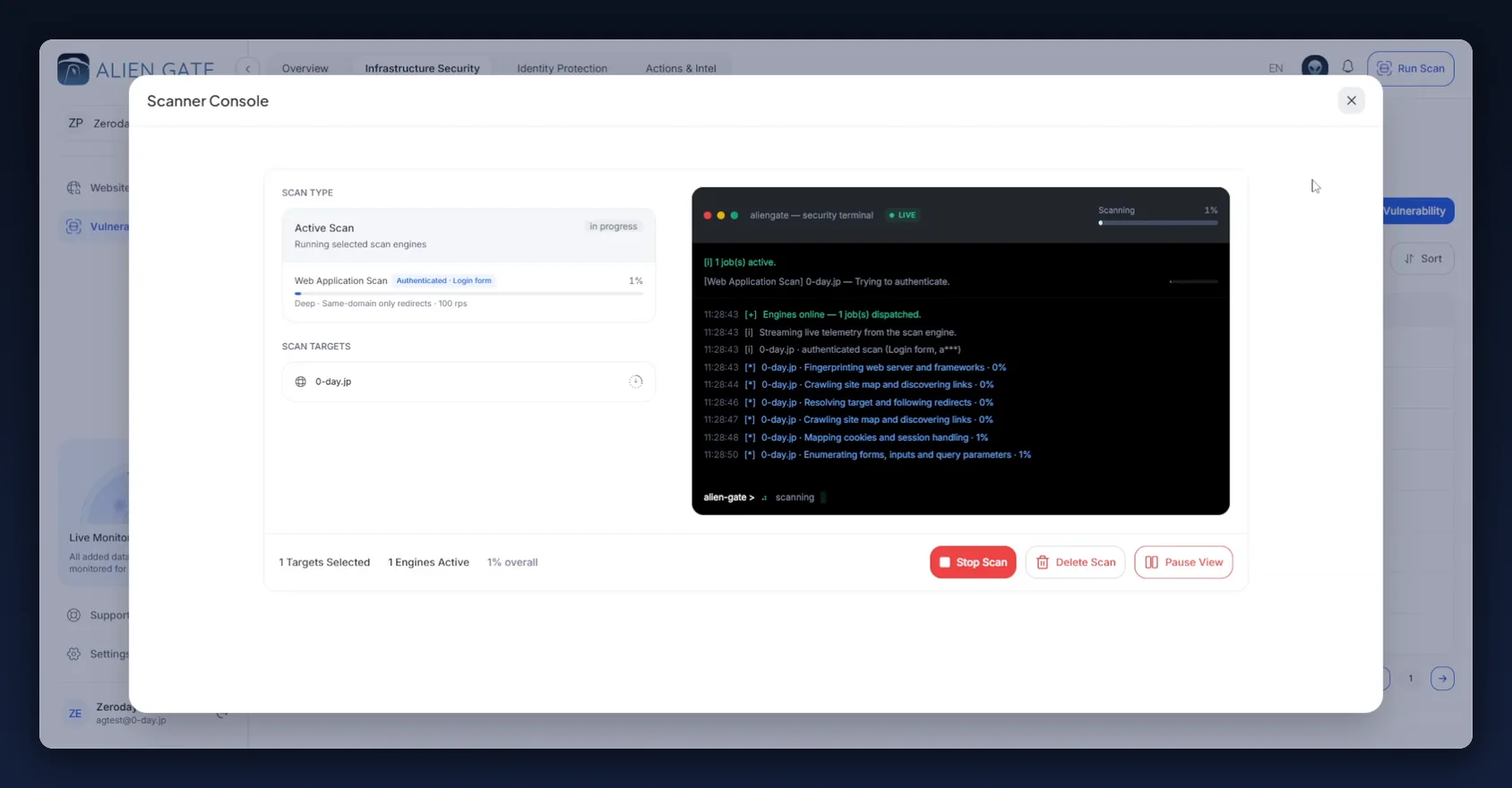
The left panel restates the configuration while the scan runs:
Active Scan                                              in progress
Running selected scan engines

Web Application Scan   [Authenticated · Login form]            1%
Deep · Same-domain only redirects · 100 rps
The right panel streams telemetry from the scan engine:
aliengate — security terminal                    ● LIVE        Scanning 1%

[i] 1 job(s) active.
[Web Application Scan] 0-day.jp — Trying to authenticate.
11:28:43  [+]  Engines online — 1 job(s) dispatched.
11:28:43  [i]  Streaming live telemetry from the scan engine.
11:28:43  [i]  0-day.jp · authenticated scan (Login form, a***)
11:28:43  [*]  0-day.jp · Fingerprinting web server and frameworks · 0%
11:28:44  [*]  0-day.jp · Crawling site map and discovering links · 0%
11:28:46  [*]  0-day.jp · Resolving target and following redirects · 0%
11:28:48  [*]  0-day.jp · Mapping cookies and session handling · 1%
11:28:50  [*]  0-day.jp · Enumerating forms, inputs and query parameters · 1%
Confirm the line authenticated scan (Login form, a***). It shows the retest is running authenticated. If it is missing, stop the scan with Stop Scan and correct the authentication; an unauthenticated run verifies findings it never tested.
Pause View freezes the log for reading; the scan continues. The console can be closed; the scan runs server-side and appears in Scan History when complete.
Step 8 — Read the result in Scan History
When the scan completes, open Infrastructure Security → Vulnerability Scanner → Scan History.
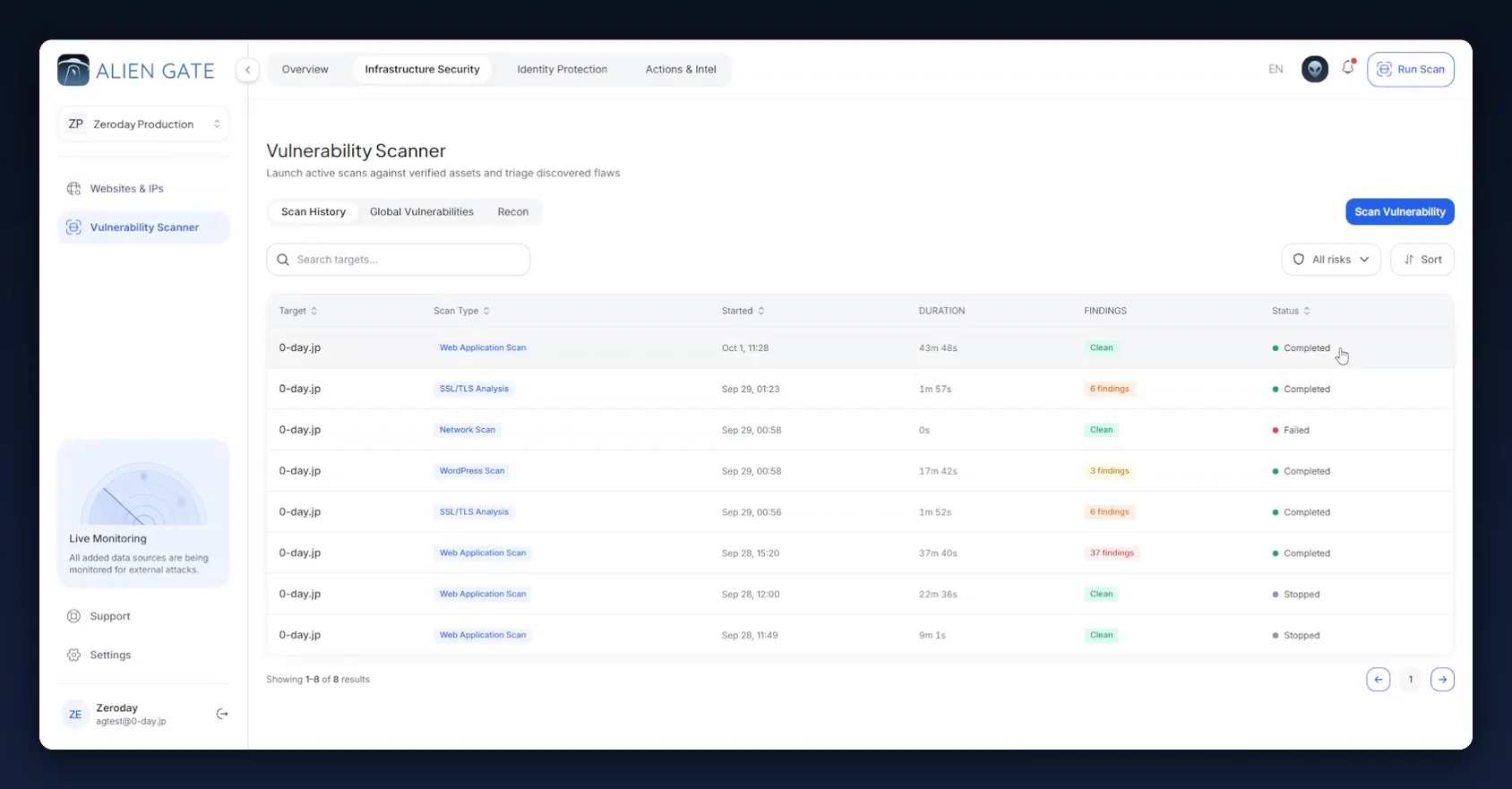
| Target | Scan Type | Started | Duration | Findings | Status |
|---|---|---|---|---|---|
| 0-day.jp | Web Application Scan | Oct 1, 11:28 | 43m 48s | Clean | Completed |
| 0-day.jp | SSL/TLS Analysis | Sep 29, 01:23 | 1m 57s | 6 findings | Completed |
| 0-day.jp | Network Scan | Sep 29, 00:58 | 0s | Clean | Failed |
| 0-day.jp | WordPress Scan | Sep 29, 00:58 | 17m 42s | 3 findings | Completed |
| 0-day.jp | Web Application Scan | Sep 28, 15:20 | 37m 40s | 37 findings | Completed |
Compare the two Web Application Scan rows: same target, same engine, 37 findings in the original run, Clean in the retest, and durations in the same range (37m 40s and 43m 48s). The comparable duration is the evidence that the retest performed comparable work. Attach both rows to the remediation ticket.
Two checks before accepting the result:
A duration far shorter than the original means the retest did less work, not that the application became safer. A Web Application Scan that finishes in two minutes when the original took forty did not crawl the application: the login failed, the login URL changed, or a WAF blocked the scanner.
Cleanmeans no severity-bearing findings, not no output. This retest added fourInfo-level rows (Interesting files found, Unsafe security header: Content-Security-Policy, Cross-Site Request Forgery, Administration consoles found) and still reads Clean. Always confirm against the Global Vulnerabilities list, not the badge alone.
Step 9 — Confirm the state change in Global Vulnerabilities and the Issue Tracker
Open Vulnerability Scanner → Global Vulnerabilities. A banner at the top of the page reports the result:
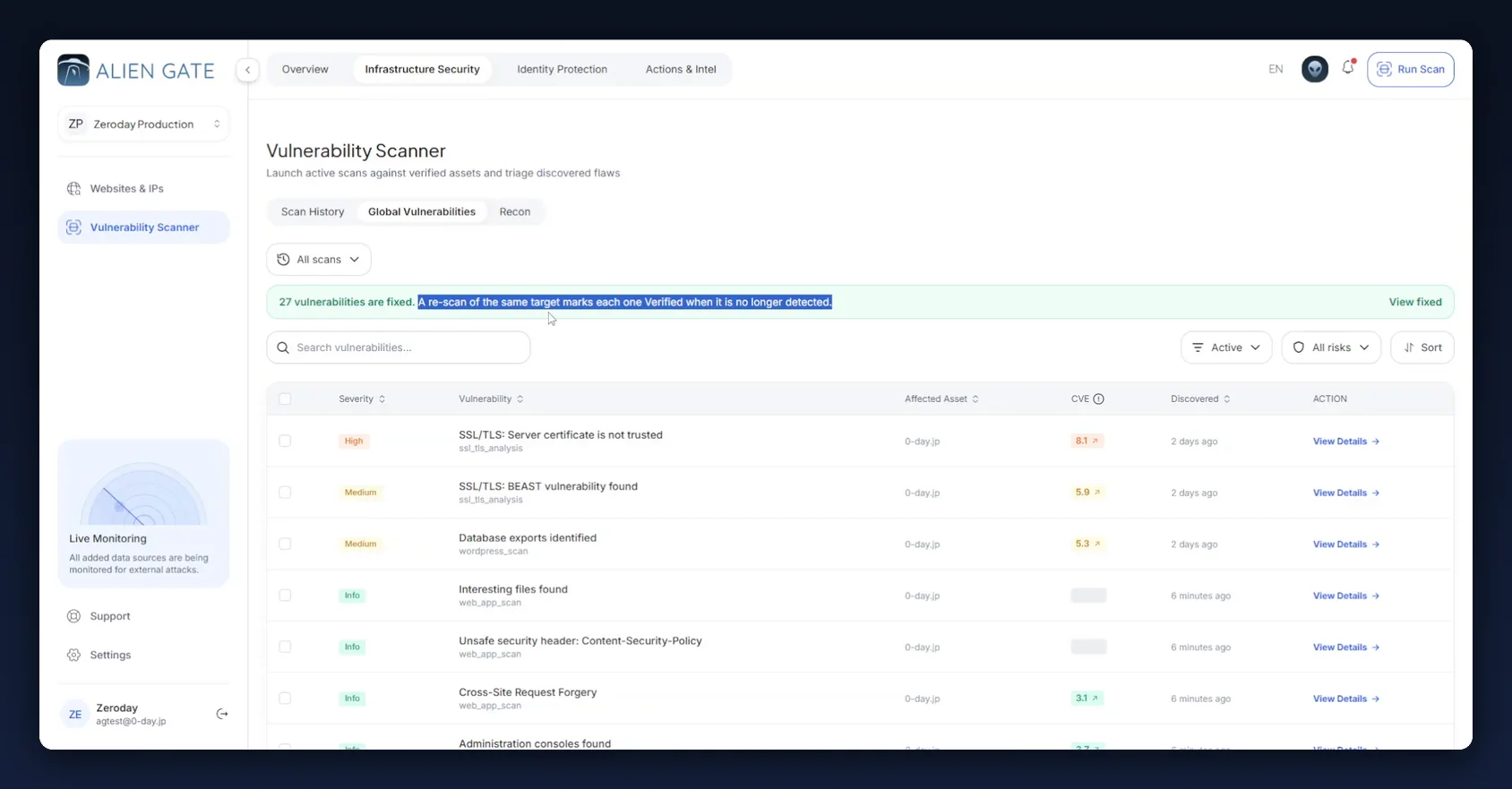
27 vulnerabilities are fixed. A re-scan of the same target marks each one Verified when it is no longer detected. — View fixed
In the example, 8 findings were awaiting re-test and 27 were verified: the 8 marked fixed, plus 19 that the same fixes closed without anyone tracking them. No status was set manually; the findings stopped being reported and the platform recorded the verification.
Filters for reading the result:
| Filter | Setting | Shows |
|---|---|---|
| All scans | the retest run | Only what this retest reported |
| Active | default | Findings still open |
| View fixed (banner) | — | The findings that were just verified |
| All risks | — | Severity filter |
Open one of the verified Critical findings, from the banner or from Actions & Intel → Issue Tracker:
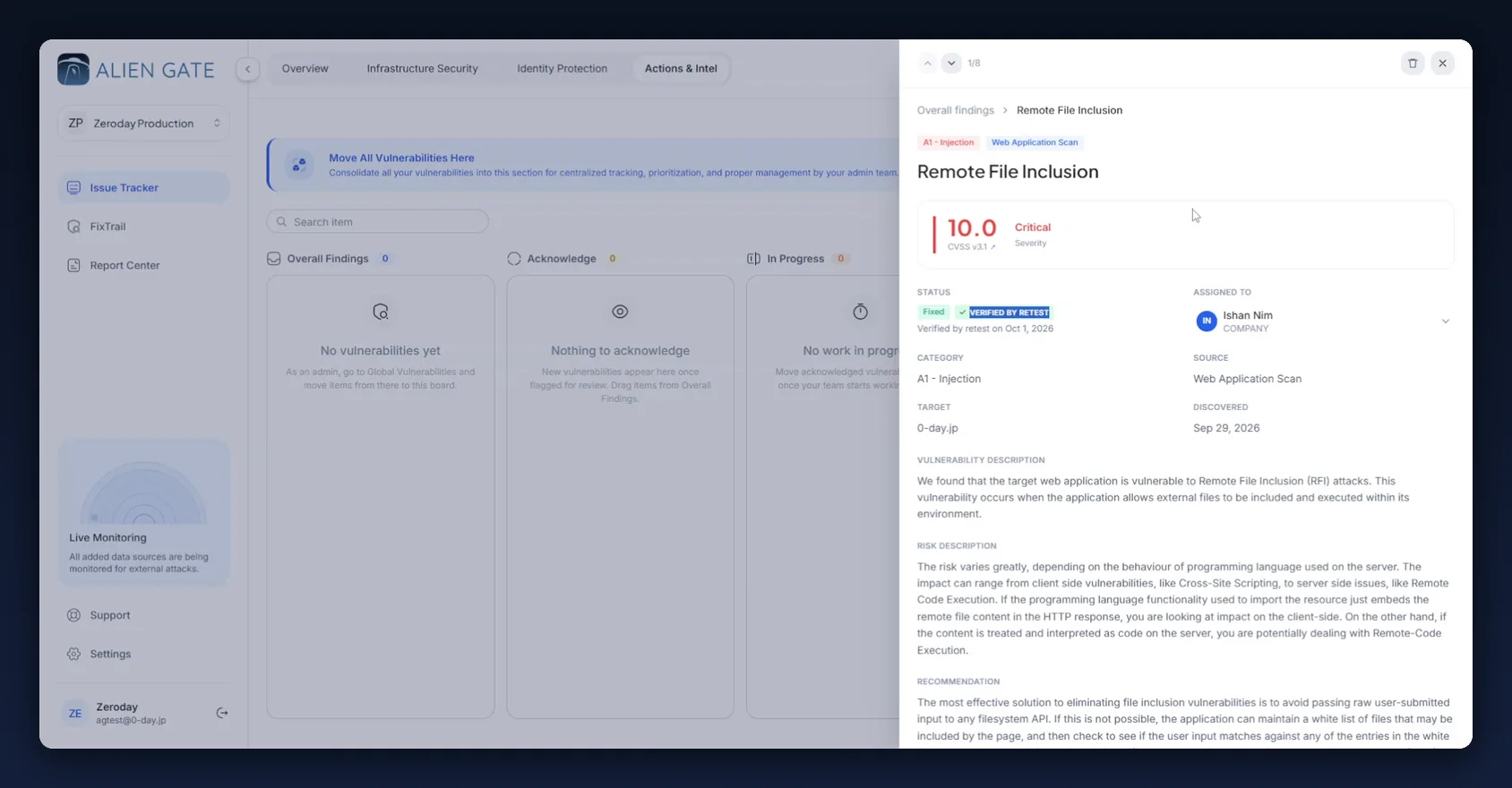
Remote File Inclusion                        A1 - Injection   Web Application Scan
10.0  CVSS v3.1                                                      Critical

STATUS                                       ASSIGNED TO
[Fixed]  [✓ VERIFIED BY RETEST]              Ishan Nim · COMPANY
Verified by retest on Oct 1, 2026

CATEGORY            A1 - Injection           SOURCE       Web Application Scan
TARGET              0-day.jp                 DISCOVERED   Sep 29, 2026
The VERIFIED BY RETEST badge carries the date, the CVSS score and the source engine, and remains on the record after the issue leaves the board. Together with the two Scan History rows from Step 8, it is the complete audit evidence for the fix.
Step 10 — Confirm the metrics in FixTrail
Return to Actions & Intel → FixTrail and click Refresh.
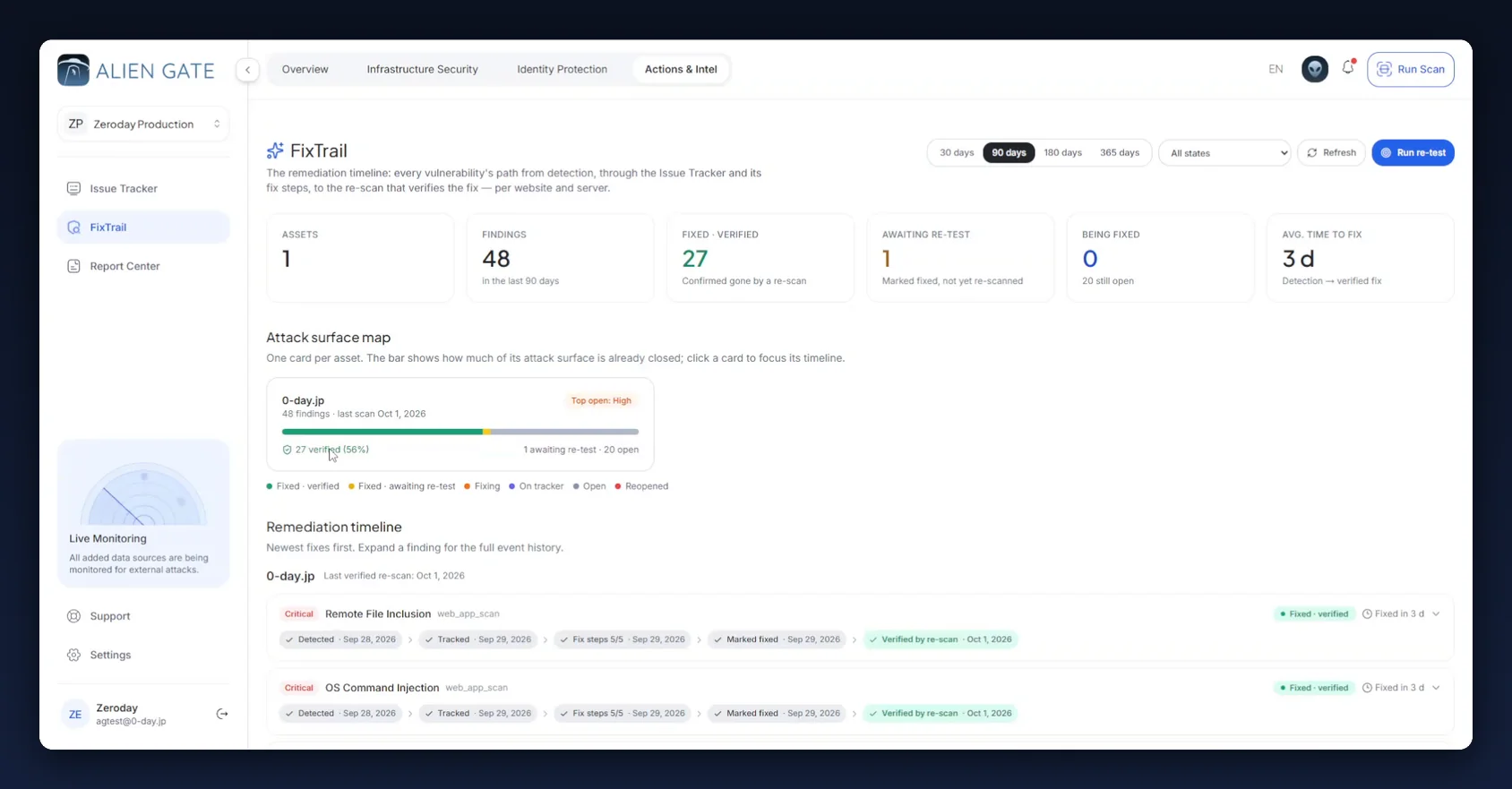
| Counter | Before the retest | After |
|---|---|---|
| Findings (90 days) | 46 | 48 |
| Fixed · Verified | 0 | 27 |
| Awaiting re-test | 8 | 1 |
| Being fixed · still open | 0 · 38 open | 0 · 20 open |
| Avg. time to fix | — | 3 d |
The asset card reflects the change:
0-day.jp                                        Top open: High      ← was: Top open: Critical
48 findings · last scan Oct 1, 2026
▓▓▓▓▓▓▓▓▓▓▓▓▓▓▓▓▓▓▓▓▓▓▓▓▓▓▓▓▓▓▓▓░░░░░░░
✓ 27 verified (56%)        1 awaiting re-test · 20 open
Three points for the remediation report:
- Avg. time to fix is now populated (3 d). It is measured detection → verified fix and is the only remediation metric in the product backed by scanner evidence rather than a manual status.
- Findings rose from 46 to 48. The retest reported two findings that were not present three days earlier. A retest discovers as well as confirms; treat the delta as new intake.
- Top open dropped from Critical to High. The headline risk on the asset changed.
Awaiting re-test reads 1, not 0. One finding did not flip. The most common reason is that it came from an engine the retest did not run; see Troubleshooting.
Expand a verified finding. The fifth chip is now ticked and a green event closes the history:
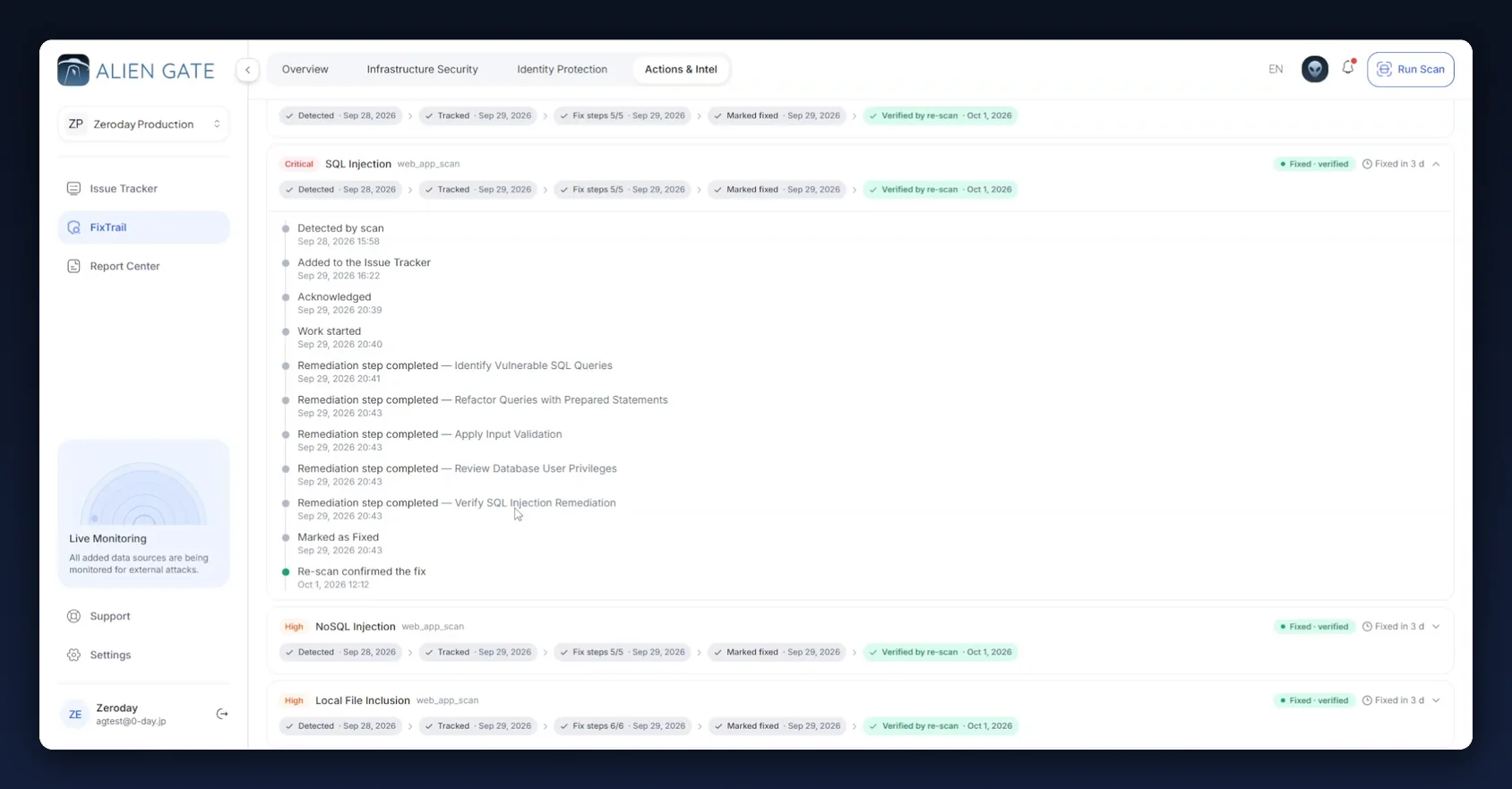
Critical  SQL Injection  web_app_scan           ● Fixed · verified   ⏱ Fixed in 3 d

✓ Detected    ✓ Tracked    ✓ Fix steps 5/5   ✓ Marked fixed   ✓ Verified by re-scan
  Sep 28        Sep 29        Sep 29            Sep 29            Oct 1, 2026

● Detected by scan                                        Sep 28, 2026 15:58
● Added to the Issue Tracker                              Sep 29, 2026 16:22
● Acknowledged                                            Sep 29, 2026 20:39
● Work started                                            Sep 29, 2026 20:40
● Remediation step completed — Identify Vulnerable SQL Queries           20:41
● Remediation step completed — Refactor Queries with Prepared Statements 20:43
● Remediation step completed — Apply Input Validation                    20:43
● Remediation step completed — Review Database User Privileges           20:43
● Remediation step completed — Verify SQL Injection Remediation          20:43
● Marked as Fixed                                         Sep 29, 2026 20:43
● Re-scan confirmed the fix                               Oct 1, 2026 12:12   🟢
The amber callout is replaced by the Re-scan confirmed the fix event and a Fixed in 3 d badge: a complete, dated, per-finding remediation record from detection to verified fix.
Step 11 — Check the dashboard
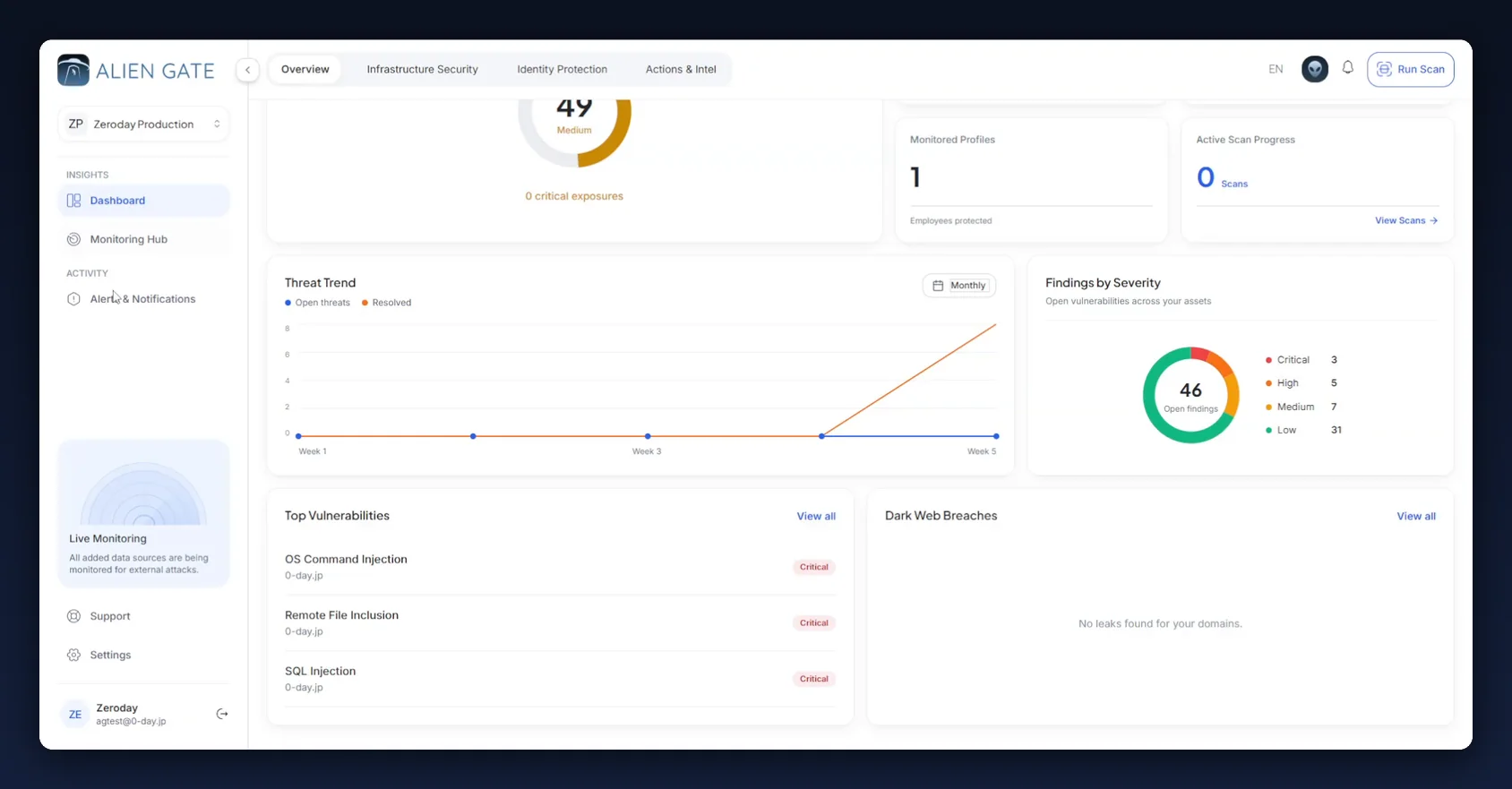
Open Overview → Dashboard. Before the retest, the dashboard showed 46 open findings, three Critical vulnerabilities at the top and no Recently Fixed section:
After the retest:
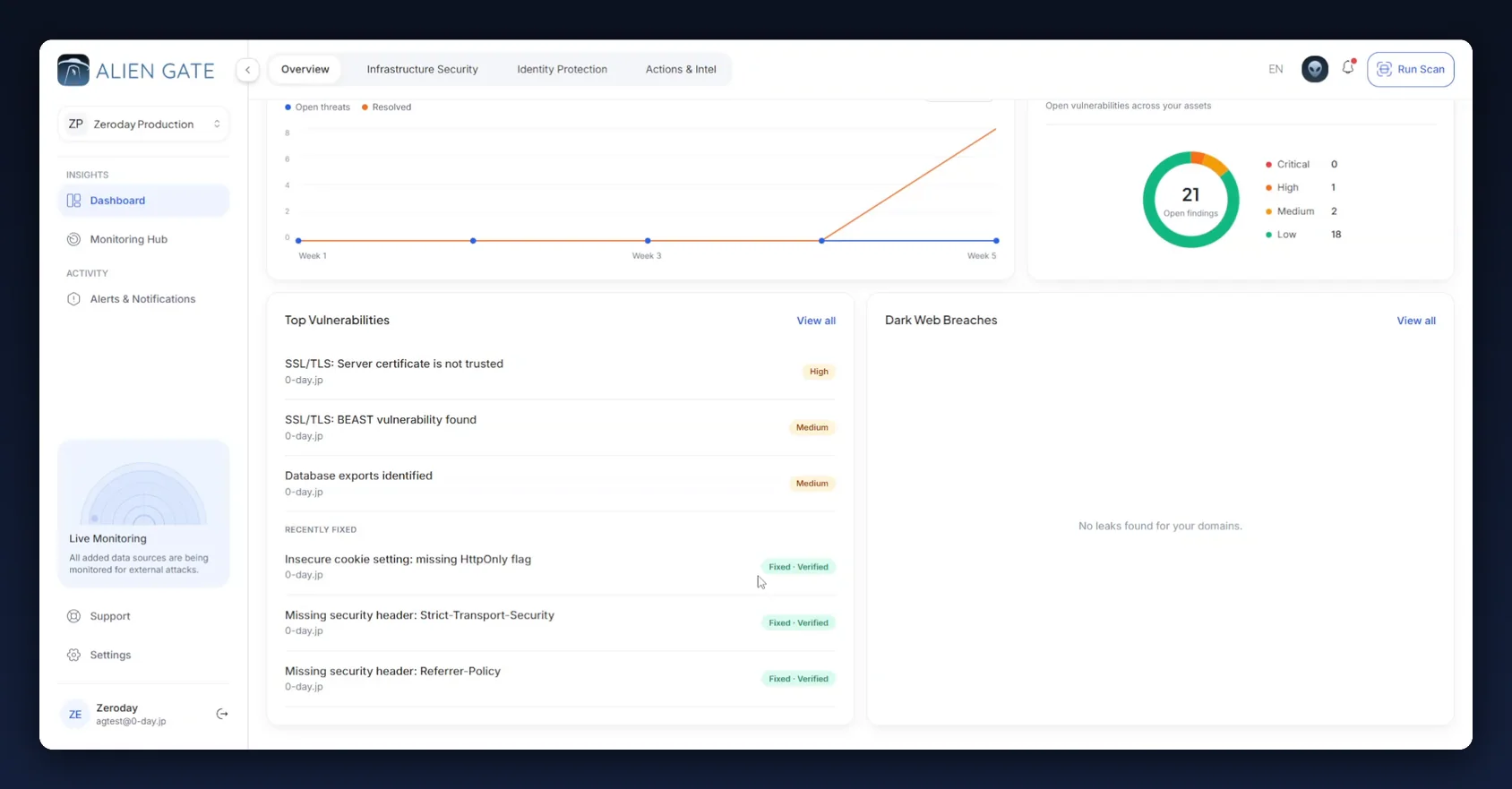
| Panel | Before the retest | After |
|---|---|---|
| Security Posture | 49 · Medium | 52 · Medium |
| Findings by Severity | 46 open — C 3 · H 5 · M 7 · L 31 | 21 open — C 0 · H 1 · M 2 · L 18 |
| Top Vulnerabilities | OS Command Injection · Remote File Inclusion · SQL Injection — all Critical | SSL/TLS: Server certificate is not trusted (High) · SSL/TLS: BEAST (Medium) · Database exports identified (Medium) |
| Recently Fixed | (absent) | Three entries, each tagged Fixed · Verified |
Critical is at zero and the remaining top findings are transport-layer and configuration issues. Note that all three came from ssl_tls_analysis or wordpress_scan, engines this retest did not run. They were not re-checked; they were out of scope.
Scope of a retest
A retest verifies only findings from the engine you re-ran, against the target you re-ran it on. Everything else is untouched.
A single web_app_scan against 0-day.jp verified 27 findings and left 20 open: the findings from SSL/TLS Analysis and WordPress Scan, which did not run. The remaining Awaiting re-test item is almost certainly among them. Match the run to the shape of the backlog:
| Backlog | What to run |
|---|---|
| One engine, one asset | Custom → that engine → that asset. Fastest and cleanest |
| Several engines, one asset | Full Web Application Audit on that asset (~90 min), or one Custom run per engine |
| One engine, several assets | Custom → that engine → select each asset. The estimate scales per asset |
| Everything | Full Web Application Audit → Select all. Schedule it outside business hours |
After every retest, check the Awaiting re-test counter in FixTrail. If it is not zero, some findings belong to an engine that has not been re-run.
Regressions: the Reopened state
When a verified finding is reported again by a later scan, it does not return to Open. It becomes Reopened:
| State | What it tells you |
|---|---|
| Open | Found, never fixed |
| Reopened | Was fixed and verified, then regressed |
A Reopened finding indicates that the fix did not hold: a revert, configuration drift, an environment that did not receive the deployment, or a fix applied to one host of a pool. Triage it ahead of new findings of the same severity; a regression is information about the delivery pipeline, not only about the application.
For the same reason, Avg. time to fix is a more useful indicator than a one-time verification count. A low average with no Reopened findings indicates a working remediation process. Recurring Reopened findings indicate a deployment problem.
Recommended retest cadence
| Trigger | Scope | Purpose |
|---|---|---|
| A batch of findings marked fixed | Custom → the engine that found them | Clear Awaiting re-test while the work is recent |
| After every production deployment | Custom → Web Application Scan → the affected asset | Catch regressions early |
| Monthly | Full Web Application Audit → all assets | Catch drift in engines that are rarely re-run |
| Before an audit or management review | Full Web Application Audit → all assets | Make every Fixed · Verified date current |
| After a Reopened finding appears | Custom → that engine → that asset, once the second fix is deployed | Confirm the second fix held |
Set the FixTrail date range to the reporting window. For quarterly reporting, use 90 days so the counters and the report agree.
Troubleshooting
| Symptom | Likely cause | Fix |
|---|---|---|
| Retest finished but findings stayed awaiting re-test | Wrong engine, or wrong target | Check the finding's engine tag and Target field; re-run that exact combination |
| Everything verified at once | Retest ran unauthenticated, or at a lower depth | Check Scan History for the Authenticated badge and compare durations; re-run with matching settings |
| Retest duration far below the original | Authentication failed, or the crawl was blocked | Re-run Check authentication; confirm the login URL still exists; check for a WAF block |
Retest row reads Failed, duration 0s |
Target unreachable from the scanner | Confirm DNS and that the host does not block the scanner's source addresses |
| Retest row reads Clean but new rows appeared in Global Vulnerabilities | Clean reports no severity-bearing findings; Info rows do not count |
Read the Global Vulnerabilities list filtered to that scan |
Avg. time to fix still shows — |
No finding has completed detection → verified yet | Complete one full cycle; the metric populates on the first verification |
| A verified finding is back, in red | Reopened: the fix regressed | Treat as a delivery-pipeline incident, not a new finding |
| Findings verified but the posture score barely moved | Remaining open findings are from engines that were not re-run | Check the FixTrail asset card: N awaiting re-test · N open |
Reference
State glossary
| Label | Where it appears | Meaning |
|---|---|---|
| Fixed · awaiting re-test | FixTrail, status pill | Marked fixed by a person; not yet confirmed |
| Fixed · verified | FixTrail, status pill | Confirmed gone by a re-scan |
| VERIFIED BY RETEST | Issue detail, status badge | Same state, shown on the finding, with the date |
| Verified by re-scan | FixTrail, fifth pipeline chip | The transition event, with its date |
| Re-scan confirmed the fix | FixTrail, event history | The timeline entry written when it happened |
| Fixed in N d | FixTrail, row badge | Detection → verified fix, for that finding |
| Last verified re-scan | FixTrail, asset heading | Most recent retest that verified anything on this asset |
| Reopened | FixTrail, legend and status | Was fixed; found again |
| Clean | Scan History, Findings column | No severity-bearing findings in that run |
Engine → what it can verify
| Engine tag on the finding | Re-run this | Time |
|---|---|---|
web_app_scan |
Web Application Scan | ~30 min |
ssl_tls_analysis |
SSL/TLS Analysis | ~10 min |
wordpress_scan |
WordPress Scan | ~20 min |
network_scan |
Network Scan | ~15 min |
cloud_scan |
Cloud Scan | ~15 min |
kubernetes_scan |
Kubernetes Scan | ~20 min |
Website Recon (~20 min) and Subdomain Finder (~15 min) are reconnaissance engines. They produce observations, not vulnerabilities, and verify nothing.
Retest checklist
Before clicking Launch Scan, confirm all six:
- Target matches the finding's asset exactly, including the subdomain
- Engine matches the finding's engine tag, and nothing else is selected
- Authenticated scan is enabled if the original was, and Check authentication passed
- Scan type (Light / Deep / Custom) matches the original run
- Follow redirects matches the original run
- The footer reads
1 Targets Selected · 1 Scan Types Active(or the intended scope) with the Authenticated pill
After completion, confirm all four:
- Duration is in the same range as the original run
- Scan History shows Completed, not Failed or Stopped
- The Global Vulnerabilities banner reports the number of findings that were verified
- FixTrail Awaiting re-test decreased by that number
Where to go next
- Article 01 — How to Run a Vulnerability Assessment — the full Scanner Console configuration reproduced for every retest
- Article 02 — The Scan Is Done: How to Review the Results and Start Fixing — evidence-led triage, the Issue Tracker and the remediation checklists this article verifies
- Actions & Intel → Report Center — download the English or Japanese PDF after a retest so the report carries the verified dates
- Settings — alerting, so a Reopened finding is delivered without opening the dashboard
Screenshots in this article were captured from AlienGate with the interface set to English, against 0-day.jp, a deliberately vulnerable application used for demonstration. Workspace names, scores, findings, timings and names are from that demonstration environment.