

- Audience: anyone bringing a new website, subdomain or host into an AlienGate workspace for the first time
- Applies to:
app.aliengate.io— Infrastructure Security → Websites & IPs → + Add Target - Time to complete: ~2 minutes in the product, plus however long it takes you to publish one text file to the web server
- Leads on to: Article 01 — How to Run a Vulnerability Assessment
What you will end up with
By the end of this guide you will have:
- a new host verified as yours, with the proof of ownership published on the host itself,
- that host listed as an asset in Websites & IPs, counted in your attack surface,
- its first discovery pass already running — started automatically by the verification, not by you,
- a target you can select in the Scanner Console and actually scan.
Why AlienGate makes you do this
An active vulnerability scan is an intrusive act. It crawls, it submits forms, it sends payloads. Pointing one at a host you do not control is, depending on where you are, somewhere between rude and illegal — and a platform that scanned anything you typed into a box would be a convenient weapon for someone else to misuse.
So AlienGate will not scan a host until you have proven you control it, and the proof it accepts is the one thing only a person with access to that server can do: publish a file on it.
This is the same mechanism search consoles and certificate authorities use, for the same reason. It takes two minutes and you only do it once per host.
The flow
Websites & IPs → + Add Target → enter the host
   ↓
Next Step panel                  AlienGate issues a token for this host
   ↓
Publish the token at /.well-known/aliengate-verify.txt
   ↓
Open that URL in a browser yourself      ← do not skip this
   ↓
Verify ──► Verifying Domain… ──┬─► Domain Verified Successfully!
                               └─► Verification Failed ──► fix the file ──► Verify Again
   ↓
Host appears in Websites & IPs, first discovery pass starts on its own
   ↓
Scannable: Scanner Console → Scan targets
Step 1 — Add the target and read the Next Step panel
Go to Infrastructure Security → Websites & IPs (app.aliengate.io/dashboard/manage-targets) and click + Add Target in the top right. Enter the host you want to bring in.
AlienGate issues a verification token for that host and shows the Next Step panel.
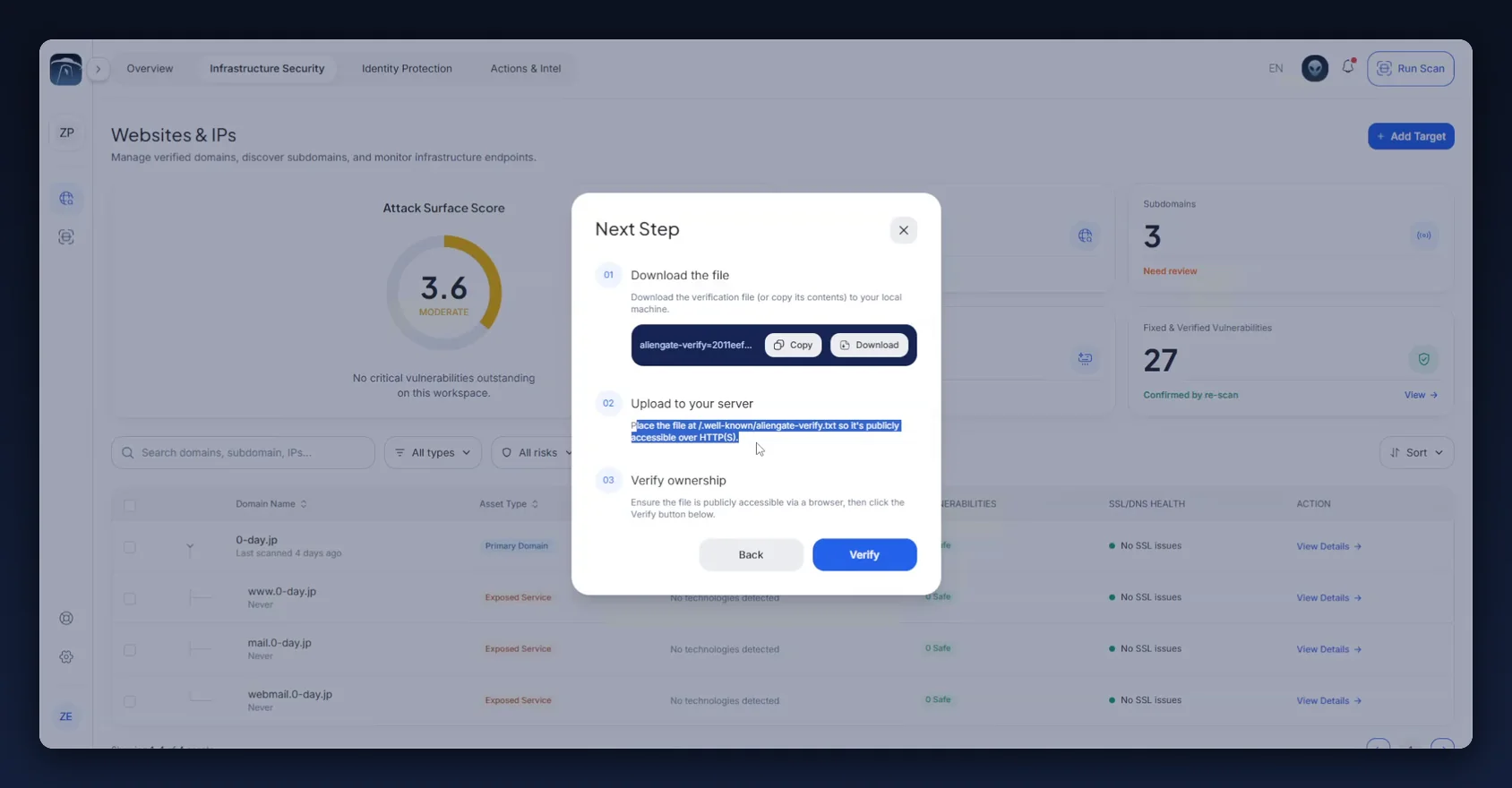
Three numbered steps, each stated by the product:
| # | Step | What the product says |
|---|---|---|
| 01 | Download the file | "Download the verification file (or copy its contents) to your local machine." |
| 02 | Upload to your server | "Place the file at /.well-known/aliengate-verify.txt so it's publicly accessible over HTTP(S)." |
| 03 | Verify ownership | "Ensure the file is publicly accessible via a browser, then click the Verify button below." |
The token sits in the dark field under step 01 — it reads like aliengate-verify=2011eef8b74c4498 — with a Copy button and a Download button. Either route works: copy the string and write the file yourself, or download the ready-made file and upload it unchanged.
The field is elided for display. The panel shows the token truncated (
aliengate-verify=2011eef…). Use Copy or Download rather than typing what you can see.
Two details decide whether this works on the first attempt:
- The path is exact:
/.well-known/aliengate-verify.txt, at the root of that host. Not/aliengate-verify.txt, and not the same path on the parent domain. The leading dot makes.well-knowna hidden directory on Unix-like systems, which is the single most common reason it goes missing from a deploy. - "Publicly accessible over HTTP(S)" means publicly: no login, no IP allowlist, no VPN, no
Deny from allinherited from a parent directory. The verifier is an anonymous client on the internet with no session and no special treatment.
Step 2 — Publish the file, then look at it yourself
Put the file on the server by whatever route you normally ship static files — a deploy, an upload, a volume mount, a one-line nginx location block. Then, before you touch Verify, open the URL in a browser.

What you want to see is the token, as plain text, and nothing else.
This check takes one second and it is the difference between verifying on the first attempt and going round the loop three times. It catches things the verification error will not explain for you:
- a web server returning a styled 404 page with HTTP 200 — the file "exists" and contains your error template,
- a redirect to HTTPS landing on a certificate the verifier will not accept,
- a file saved as
aliengate-verify.txt.txtby an editor with extensions hidden, - the file served as a download rather than inline, because the server sets an attachment disposition on
.txt, - the parent directory listing being disabled in a way that also blocks the file,
- a CDN or WAF serving a challenge page to clients it does not recognise.
If a browser on a network you do not control can read the token, the verifier can too. That is the whole test. Checking from inside the office network or over the VPN proves nothing — use a phone on mobile data, or a private window with the VPN off.
Step 3 — Verify
Back in the Next Step panel, click Verify.
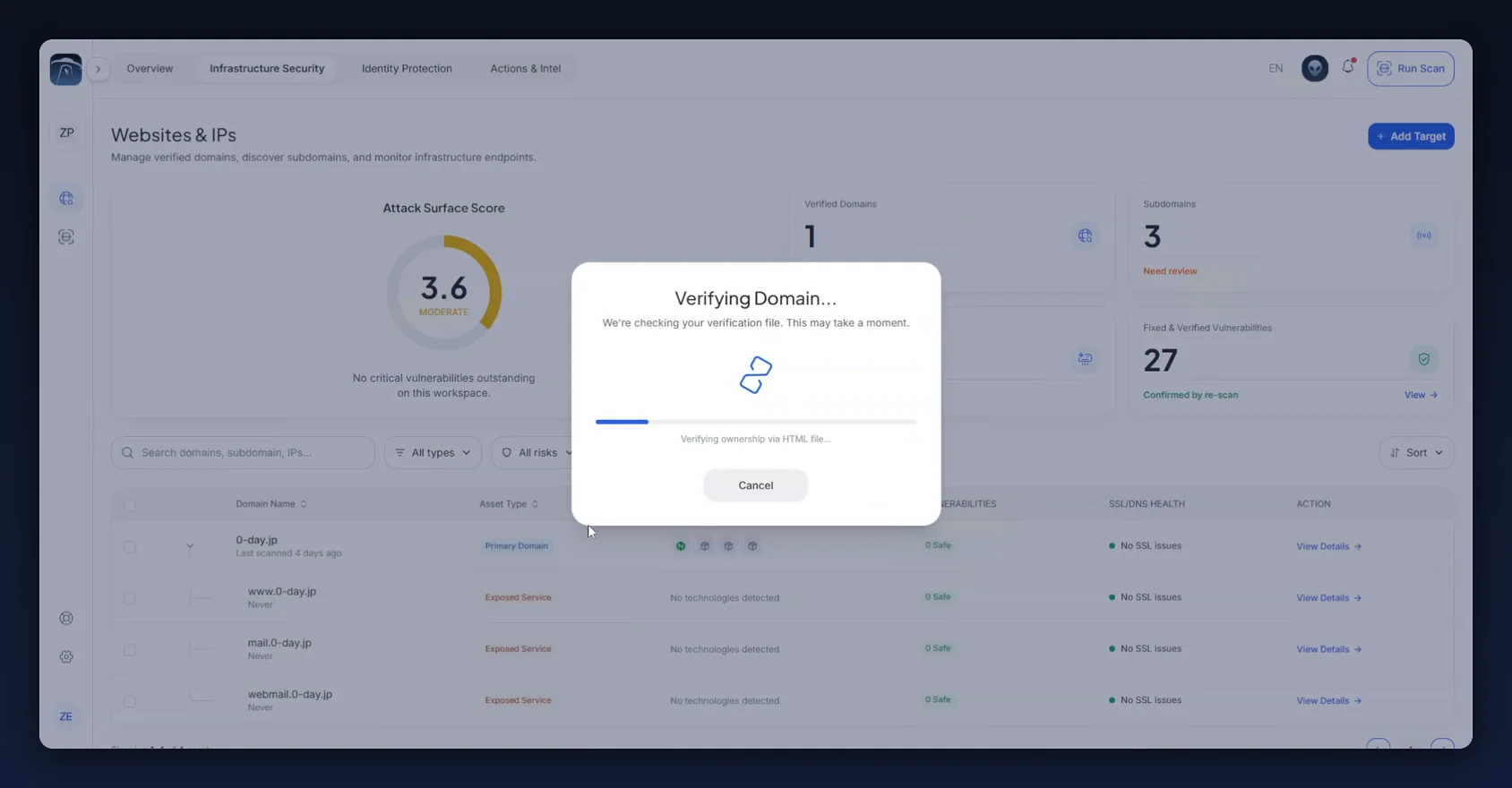
AlienGate shows Verifying Domain… — "We're checking your verification file. This may take a moment." — with a progress bar and the subtext Verifying ownership via HTML file…. There is a Cancel button if you realise mid-check that you published the wrong thing.
If the fetch does not find a matching token you get Verification Failed, with Cancel and Verify Again. Fix the file and re-run the check; the token does not change between attempts, so there is nothing to re-copy.
When it succeeds:
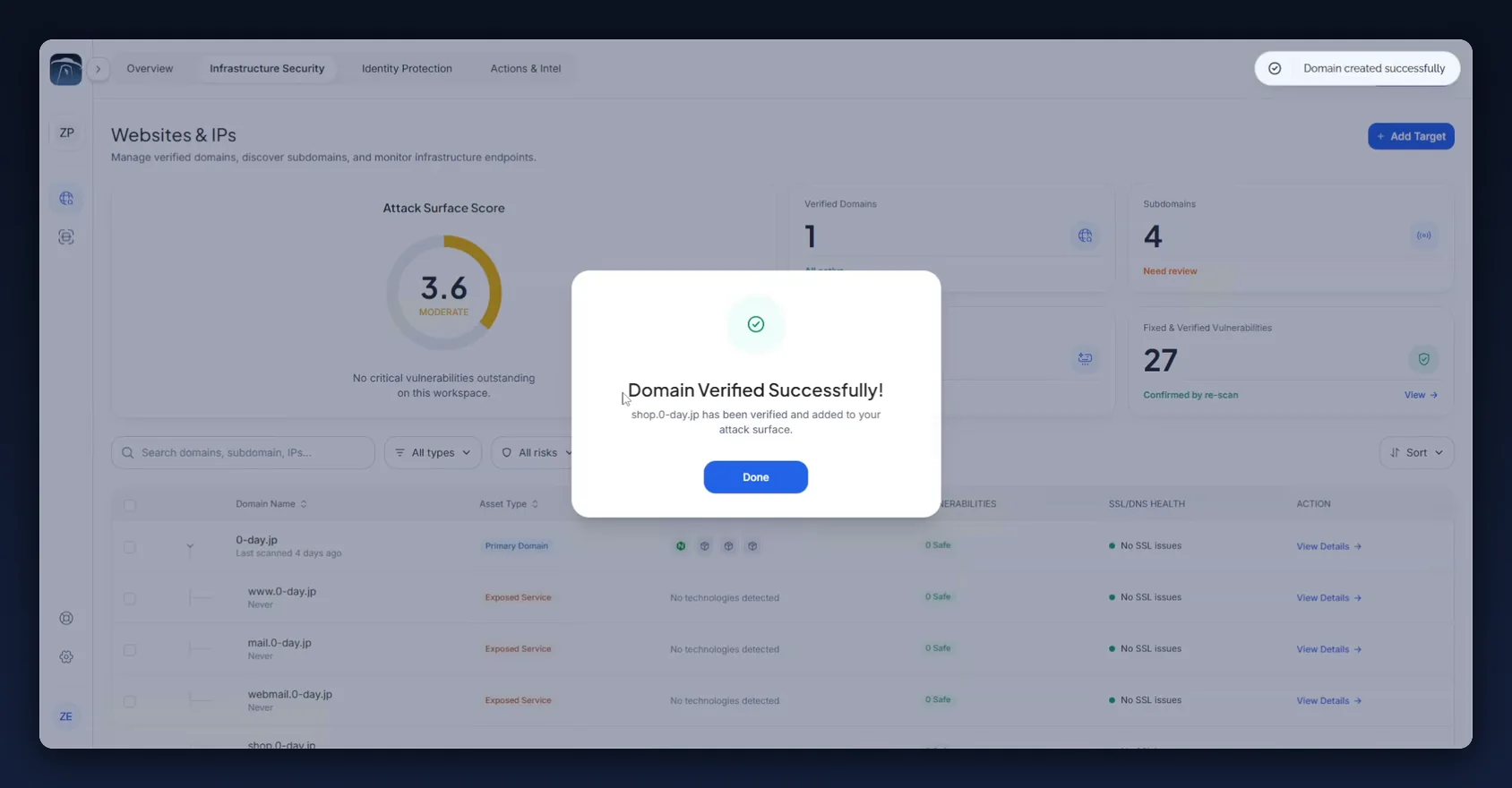
Domain Verified Successfully! — "shop.0-day.jp has been verified and added to your attack surface." Click Done. A Domain created successfully toast confirms it in the top right.
Leave the file in place. Nothing in the product tells you to remove it, and removing it is how a host stops verifying the next time the platform checks. Treat
/.well-known/aliengate-verify.txtas part of the site, and make sure your deploy pipeline keeps shipping it.
Step 4 — Read what changed on Websites & IPs
The asset list reloads with the new host in it.
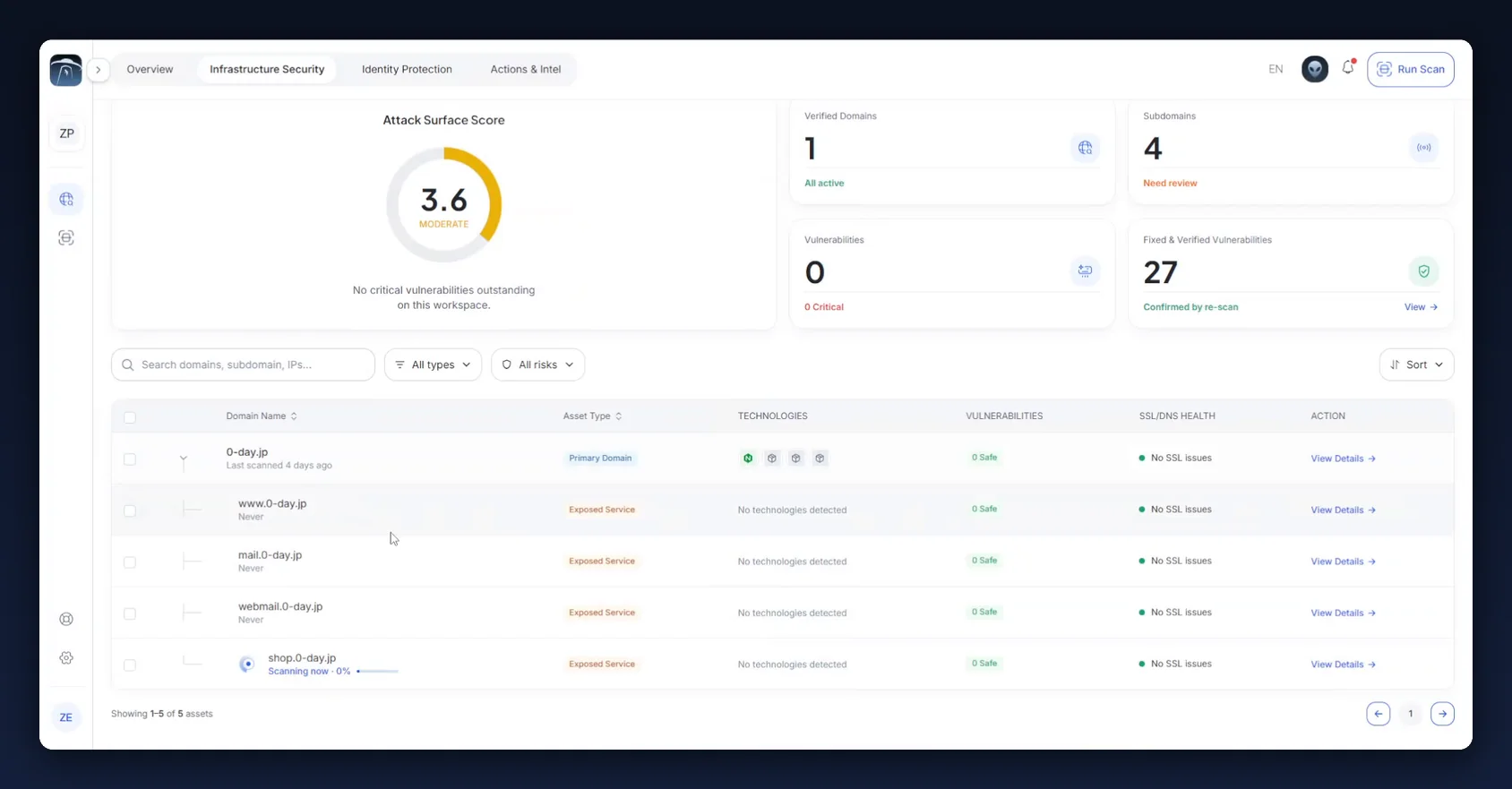
Three things changed, and only one of them is the obvious one:
1. The host is in the table. It has a row, classified Exposed Service under the primary domain, showing No technologies detected, 0 Safe vulnerabilities and No SSL issues.
2. The Subdomains counter went up; Verified Domains did not. In the capture, Subdomains moved from 3 to 4 while Verified Domains stayed at 1. A verified subdomain of a domain you already hold counts as a subdomain, not as a second verified domain — worth knowing if you are tracking against a plan limit.
3. It started scanning on its own. Under the hostname: Scanning now · 0%. Verification kicks off a discovery pass immediately. You did not ask for it and you do not need to wait for it.
The defaults on a fresh row are not findings. No technologies detected and 0 Safe describe a host that has existed in the platform for four seconds. The pass that just started will fill in the fingerprint.
Step 5 — Know what that automatic pass is, and is not
Open the Scanner Console and you can watch it run in the live security terminal.
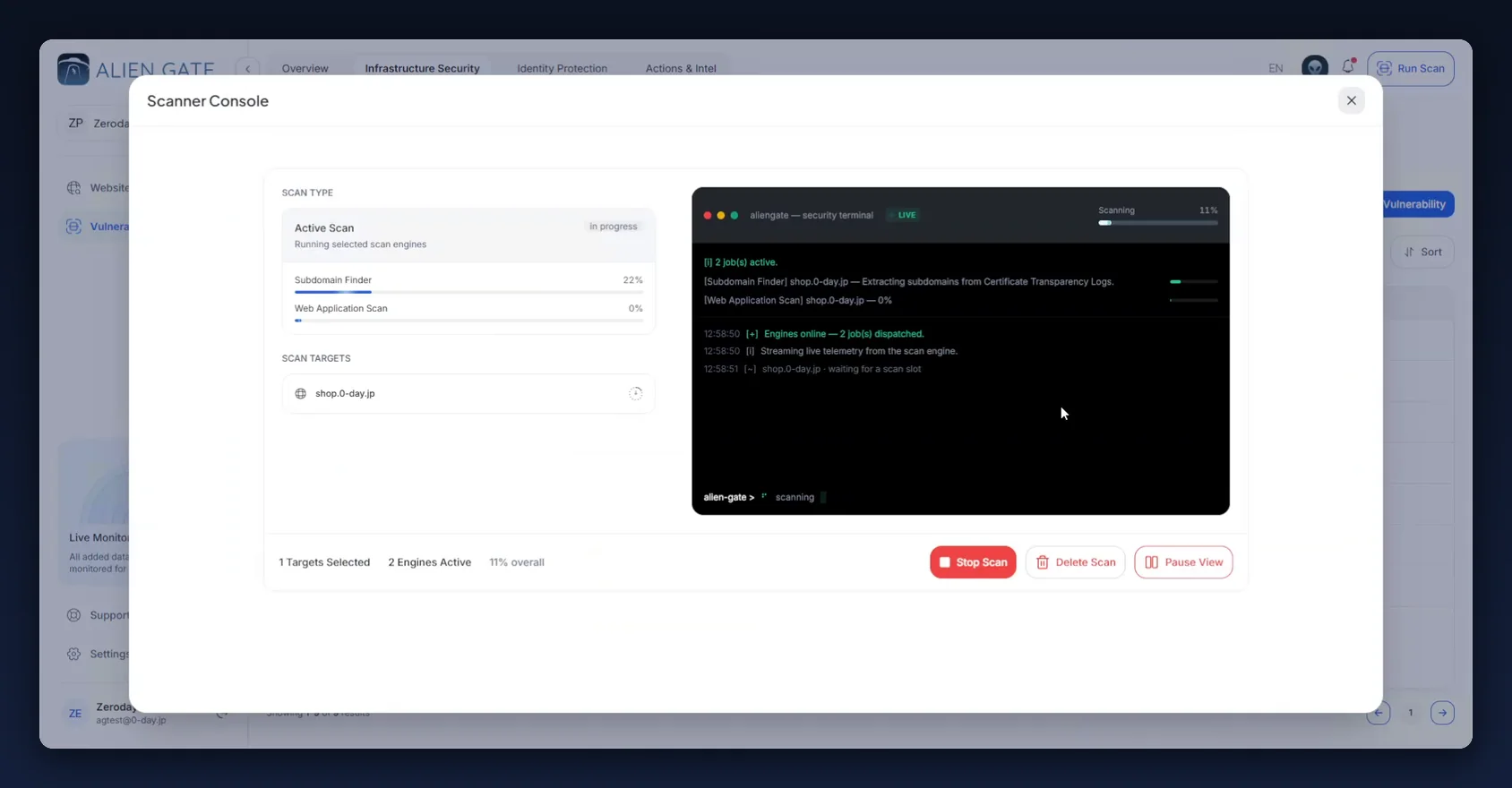
[i] 2 job(s) active.
[Subdomain Finder] shop.0-day.jp — Extracting subdomains from Certificate Transparency Logs.
[Web Application Scan] shop.0-day.jp — 0%

12:58:50  [+]  Engines online — 2 job(s) dispatched.
12:58:50  [i]  Streaming live telemetry from the scan engine.
12:58:51  [~]  shop.0-day.jp · waiting for a scan slot
The Subdomain Finder job is the automatic pass. It is reconnaissance — it pulls names out of Certificate Transparency logs to map what else exists under the host. The product files it under "Reconnaissance — observations, not vulnerabilities", and that label is exact.
It is not a vulnerability scan. It does not crawl the application, it does not test anything, and it certainly does not look behind a login. A host that has only ever had this pass run against it will show no findings, and that means nothing at all about its security.
This also explains a thing that confuses people the first time: launch one engine of your own shortly after verifying, and the terminal reports two jobs active, with yours waiting for a scan slot behind the discovery pass. That is the queue working, not a fault. Read the per-engine progress bars rather than the overall percentage, which is averaged across both.
What to do next
The host is now a selectable target in the Scanner Console. From here:
- Article 01 — How to Run a Vulnerability Assessment — pick a scan type, select the new target, launch, and read the result.
- Article 04 — How to run an authenticated scan — if the host has a login, this is the one that matters. Most of a real application's attack surface is behind the sign-in page, and a scanner without a session reports the public shell as clean.
- Article 03 — Which IP addresses do AlienGate scans come from? — if the host sits behind a firewall or WAF, allow the scanner's addresses before you run anything, or the scan will be blocked rather than clean.
Troubleshooting
| Symptom | Likely cause | Fix |
|---|---|---|
| Verification Failed, but the file looks present | The server returns your 404 template with HTTP 200 | Open the URL in a private window and read the raw content. If it is HTML, the file is not where you think it is. |
| Verification Failed, but the file loads fine for you | The file is on the wrong host — parent domain instead of the subdomain, or the other way round | It must be on the exact host you entered in + Add Target. |
| Verification Failed, and the file loads only on the VPN | Not publicly reachable | The verifier is an anonymous internet client. Remove the allowlist, or verify from a publicly reachable deployment. |
| Verification Failed, and a browser shows a challenge or captcha | A CDN or WAF is interposing on unrecognised clients | Exempt /.well-known/ from the challenge, or allow the scanner addresses — see Article 03. |
| The file 404s again after a release | .well-known is hidden and was dropped by a build, rsync or container copy that skips dotfiles |
Add it to the deploy explicitly and re-check after each release. |
| The token does not match | Copied from the truncated preview in the panel | Use Copy or Download. |
| Verified, but the host shows no findings | Only the automatic discovery pass has run | That pass is reconnaissance. Run a real scan — Article 01. |
A new scan sits at waiting for a scan slot |
The discovery pass is still holding the slot | Normal. It starts when the slot frees. |
Reference
The verification file
| Path | /.well-known/aliengate-verify.txt |
| Content | aliengate-verify=<token> |
| Scheme | HTTP or HTTPS |
| Access | Public — no auth, no allowlist, no VPN, no challenge page |
| Host | The exact host entered in + Add Target |
| After verifying | Leave it in place |
| Retry | The token survives failed attempts; Verify Again re-checks the same file |
What verification does and does not start
| Runs automatically on verification | Has to be launched by you | |
|---|---|---|
| Subdomain Finder (Certificate Transparency reconnaissance) | ✅ | |
| Website Recon | ✅ | |
| Network Scan · SSL/TLS Analysis | ✅ | |
| Web Application Scan (authenticated or not) | ✅ | |
| WordPress · Cloud · Kubernetes scans | ✅ |
Where things live
| Thing | Path |
|---|---|
| Websites & IPs | app.aliengate.io/dashboard/manage-targets |
| Add a target | + Add Target, top right of Websites & IPs |
| Vulnerability Scanner | app.aliengate.io/dashboard/vulnerability-assessment |
| Scanner Console | Scan Vulnerability on the scanner page, or Run Scan in the top bar |